SteamCMD Error 0x6 After Update Job
Table of Contents
Your server's console printed Error! App '2278520' state is 0x6 after update job. and the game update never landed. SteamCMD, the tool that downloads your game's server files, tried to update and gave up partway, leaving a stuck download behind. Clearing that download and the app's manifest file from the Files tab makes SteamCMD check every file on the next start and fetch only what is missing, without touching your world.
Before You Start
- Any Steam game, any plan. SteamCMD installs and updates every Steam game we host, so this fix works the same way whichever game you run. The number in quotes is your game's app ID, and it differs between games. The examples use an Enshrouded server, whose app ID is
2278520. - The same fix covers related codes.
0x202and0x206after update job are the same failure with an extra flag set, and the steps below cleared both. See What Does State 0x6 Mean? for how to read the number. - Owner access. Everything here happens on the server's panel in your HardGaming dashboard. A server a friend has shared with you shows only the Console and Backup tabs, so the owner has to make these changes.
- Auto Update on. On games whose Startup tab has an Auto Update setting, leave it on. SteamCMD runs each time the server starts with it on, and that start is what repairs the install in Step 4.
- A few minutes offline. Step 4 checks every file the game installed, so a large game takes longer. An 8GB Enshrouded install took about a minute.
Want a copy to fall back on before you delete anything? Follow our guide: Back up your server
Step 1: Find the Reason in the Steam Log
The console only shows the error code, and on a busy server it scrolls away as soon as the game starts printing. Steam keeps a log with the reason in words. Open the Files tab, then the Steam folder, then logs, and click content_log.txt. Press Ctrl+End to jump to the newest lines, and look for your app ID followed by update canceled.
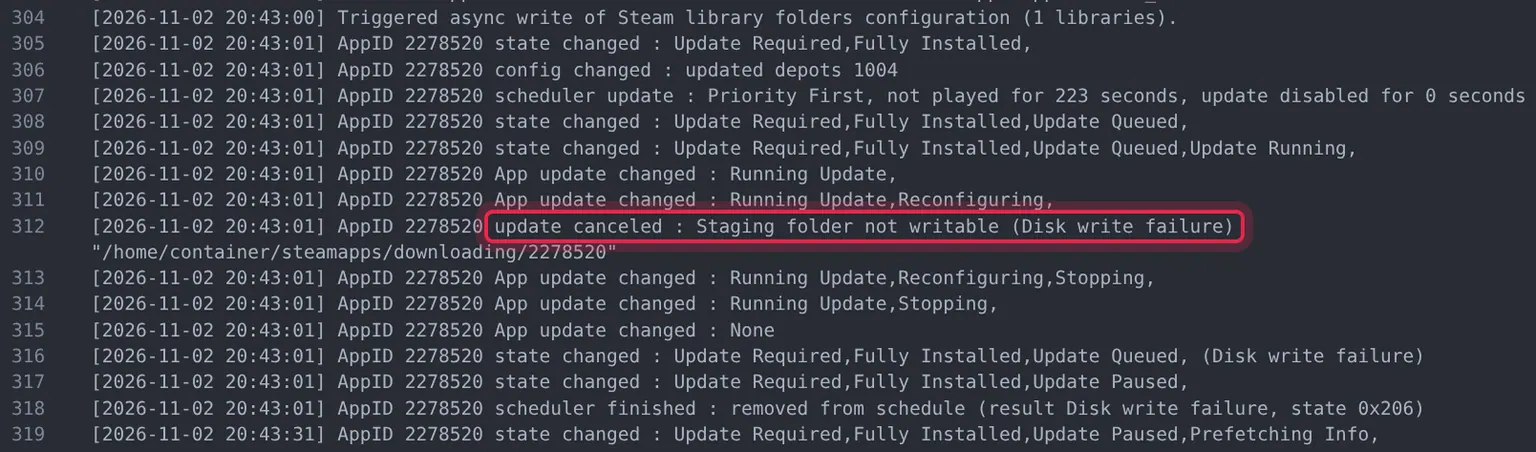
Staging folder not writable (Disk write failure) followed by a path ending in steamapps/downloading/<app ID> means SteamCMD could not write its download into place. That is the case the rest of this guide fixes. A few lines further down, the log names the same state the console reported, here (result Disk write failure, state 0x206).
Step 2: Stop the Server
Open the Console tab and click STOP. Wait for STATUS on the right to read offline before you go on, so nothing is using the files you are about to delete.

Step 3: Delete the Download Folder and App Manifest
On the Files tab, open the steamapps folder. Delete two things, one at a time, using the three dots at the end of each row and Delete:
- The
downloadingfolder, which holds the stuck download. appmanifest_<app ID>.acf, the file whose name carries your app ID. On an Enshrouded server that isappmanifest_2278520.acf.
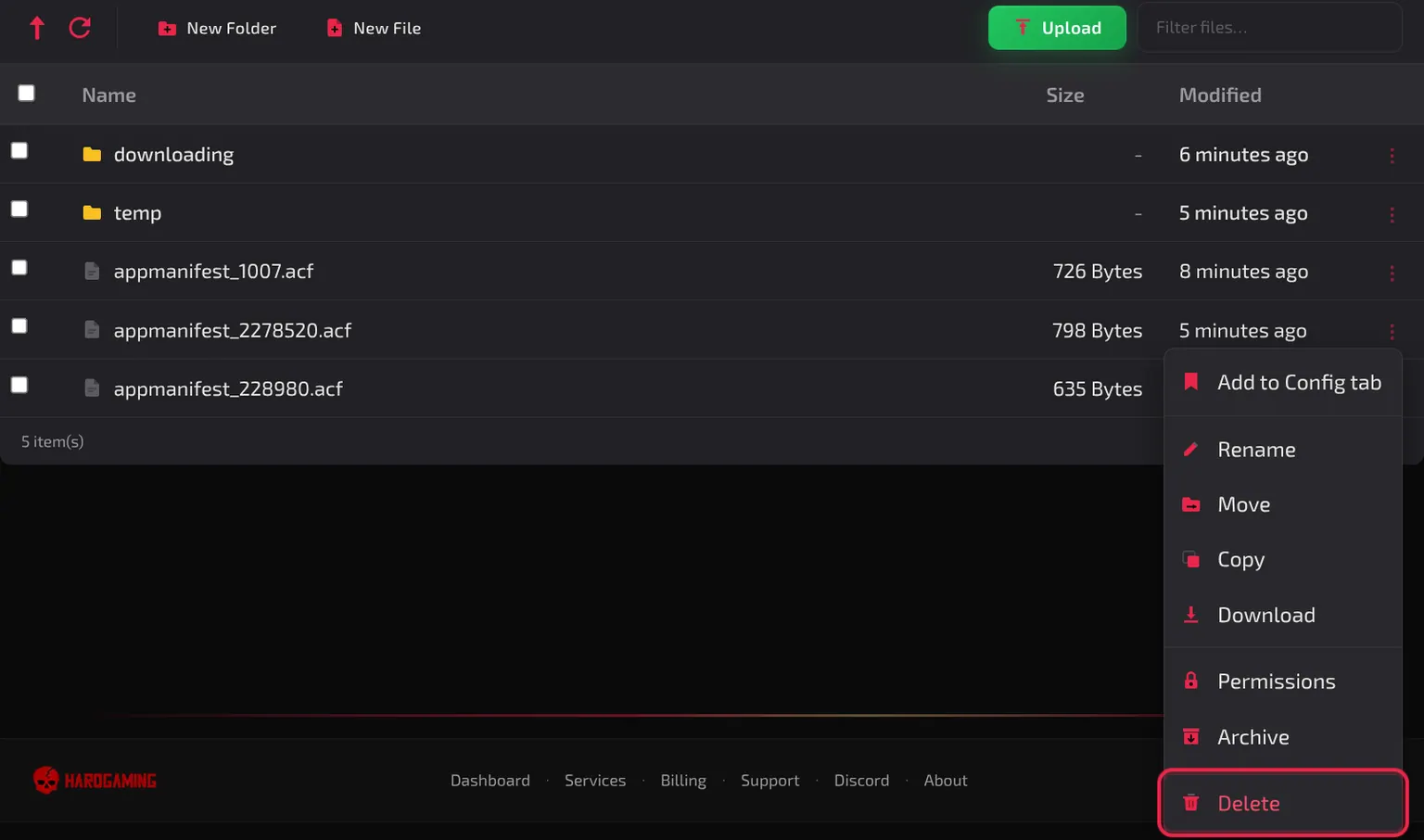
Each delete asks Are you sure you want to delete 1 item(s)? This action cannot be undone. Click Delete, and the panel confirms with Deleted 1 item(s). Leave every other manifest in steamapps alone, because those belong to other Steam packages, not your game.
Warning: Delete only these two items. Removing the manifest does not remove your world: on the Enshrouded server,
savegame/world0.ksdwas untouched after the repair. Game files outsidesteamappsare what SteamCMD checks in Step 4, so leave them where they are.
Step 4: Start the Server and Let SteamCMD Repair It
On the Console tab, click START. With no manifest to go on, SteamCMD reads every installed file, printing Update state (0x5) verifying install with a rising percentage, downloads only what is missing or out of date, then finishes with Success! App '<app ID>' fully installed.
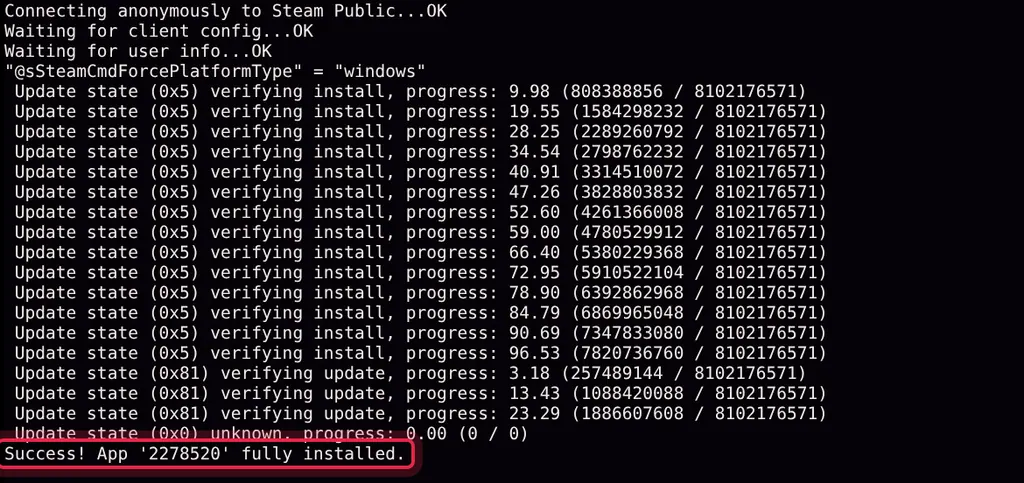
The game starts straight after, and STATUS reads running once it is up. A fresh manifest appears in steamapps on its own. If the console shows the error again instead of the success line, go to Troubleshooting.
What Does State 0x6 Mean?
It means SteamCMD finished its update job and the game is still out of date. The number is a set of flags Steam keeps for each app, and the two in 0x6 are 0x4, the game is installed, and 0x2, an update is required. In words, the log writes it as Update Required,Fully Installed.
The server still starts after this error and can reach running, but on the old files, so the update you were waiting for never arrives. Two close relatives turned up while testing this fix:
| Code | What the log says | Why |
|---|---|---|
0x6 | Update Required,Fully Installed | Installed, and the update did not complete |
0x206 | Update Required,Fully Installed,Update Paused | The same, with the update left paused partway |
0x202 | Update Required,Update Paused | The manifest was missing as well, so Steam did not count the game as installed |
The same number sits in the app's manifest as a plain decimal: "StateFlags" read 518 on the server that reported 0x206.
Which Game Is This App ID?
The number in quotes in the error is a Steam app ID: digits only, such as 2278520. A dedicated server usually has an app ID of its own, separate from the game you buy on Steam.
To see which program it belongs to, open steamapps on the Files tab and click appmanifest_<app ID>.acf. The "name" line names it, for example "name" "Enshrouded Dedicated Server". Read the file without saving any change to it.
Troubleshooting
Error came back after the fix?
- Open
content_log.txtagain (Step 1) and read the newestupdate canceledline. A new reason means a different cause from the one this guide fixes. - Check DISK on the Console tab against your plan's limit. An update needs room for the download on top of the game already installed, so a nearly full server cannot finish one. Delete old files you no longer need, or add storage from your Billing page.
Can't see the error in the console?
- The console keeps only its most recent lines, and once the game starts printing, the SteamCMD lines scroll away.
content_log.txtkeeps them, so read it there (Step 1).
No verifying lines when the server starts?
- SteamCMD did not run. Open the Startup tab, check that Auto Update is on, and start the server again.
Still stuck after all of that?
- Reinstall Server on the Advanced tab runs your game's install from the start. It overwrites the files the install put in place and keeps the ones it does not write, such as your worlds. The server dashboard guide covers what it keeps. Back up first.
Best Practices
- Leave Auto Update on wherever your game offers it, so SteamCMD gets a chance to update on every start.
- Back up before deleting files, even ones as safe to remove as these. A backup costs a minute and covers a slip of the mouse.
- Keep an eye on DISK as your world grows, so an update always has room to download.
Next Steps
- Learn every tab of your server dashboard
- Back up and restore your server
- Set up an Enshrouded server
- Browse every game we host
Need Help?
If you run into any issues, the HardGaming support team is here for you:
- Forum: ask the community and search past answers
- Email: support@hardgaming.tech
- Live Chat: use the chat widget on hardgaming.tech
- Discord: join our community for quick help
Happy gaming! 🎮