Palworld: How to Set Up a Server
Table of Contents
A Palworld server from HardGaming gets your world online without touching a command line or installing anything yourself. This guide covers picking a plan, naming your server, setting its configuration and passwords, paying, and confirming it is ready for your Pals to join.
Before You Start
- A HardGaming account. Create one at hardgaming.tech before you pick a plan.
- A payment method. Your card is entered at checkout and saved for the monthly subscription.
- Steam and Xbox are both supported. Pick which one your server uses under Connection Platform during setup.
- Nothing to install. Every step happens in your browser, and the server files are downloaded and unpacked for you.
- Your configuration is not final. Server name, passwords and settings are all set during checkout, and you can change any of them later.
Step 1: Open the HardGaming Website
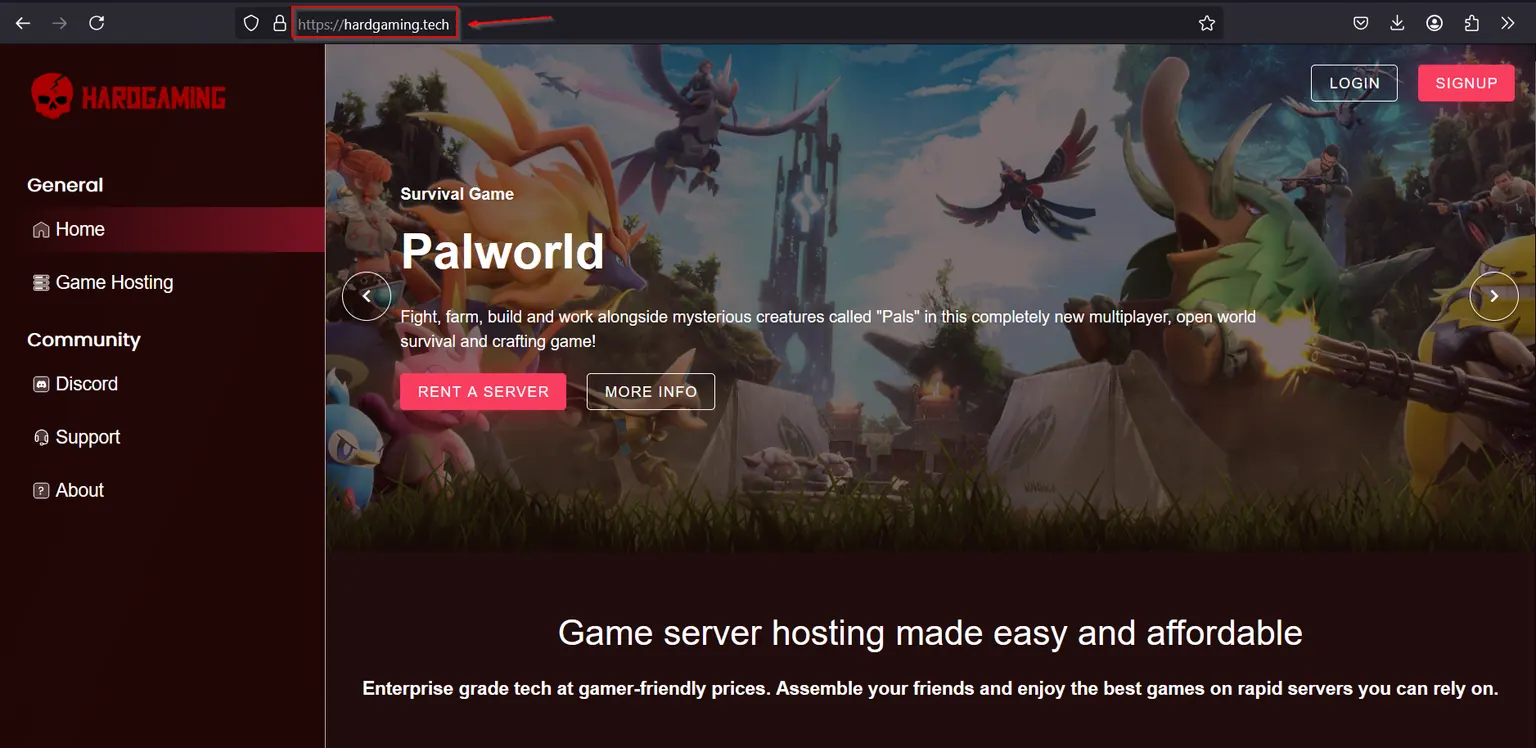
Go to hardgaming.tech and sign in. If you would rather skip the browsing, go straight to Palworld server hosting and continue from Step 4.
Step 2: Select Game Hosting
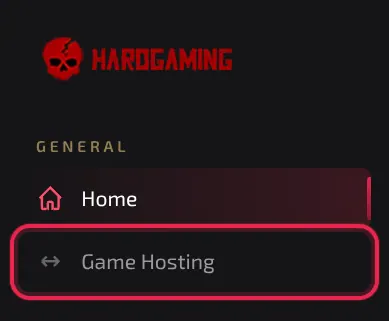
In the sidebar on the left, click Game Hosting.
Step 3: Select the Palworld Tile
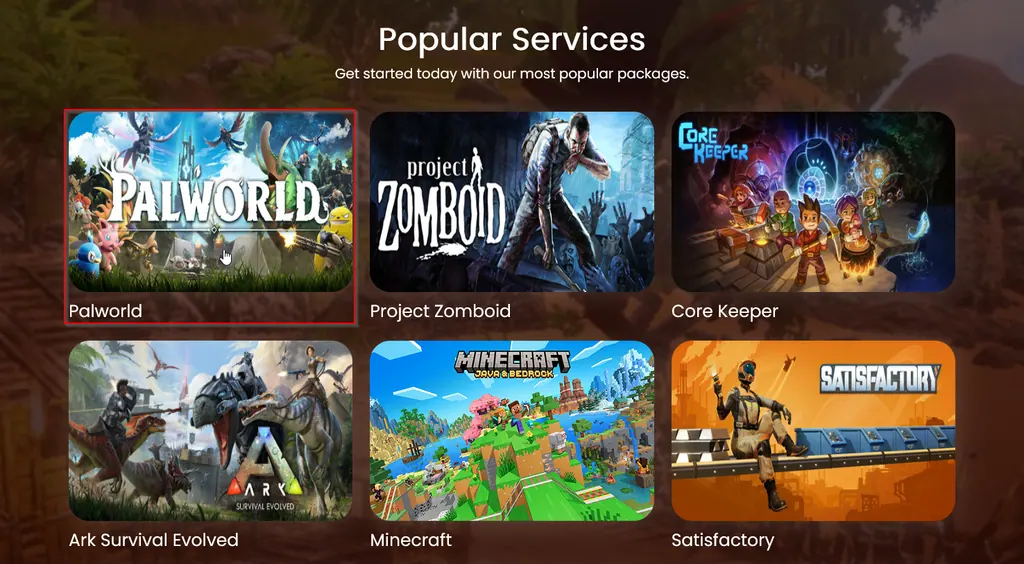
The grid lists every game HardGaming hosts. Click the Palworld tile.
Step 4: Choose a Plan
Three plans are on the Plans tab. Click Choose Plan on the one that fits how you play.
- Starter, sized for solo play.
- Premium, sized for playing with a team.
- Custom, where you set your own resources and the price adjusts to match.
Every plan also includes one DeepSave slot, which keeps a backup in your account even after the server is deleted. Our DeepSave guide covers how to use it.
Step 5: Name Your Server
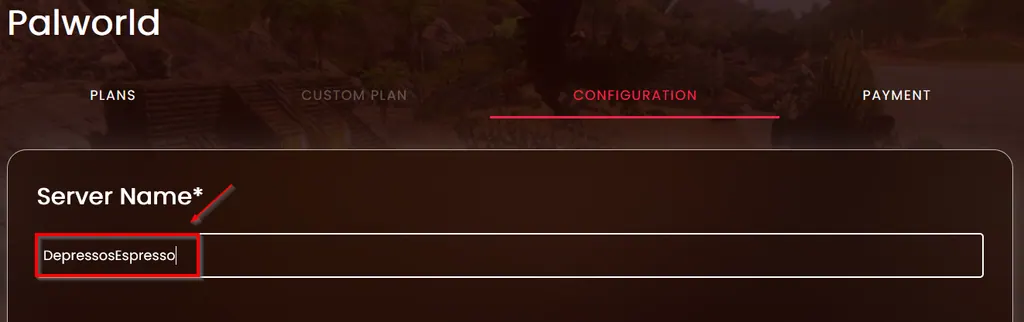
On the Configuration tab, type a name into Server Name. It is the one required field on this page, and it is the name you will see in your dashboard.
Step 6: Configure Your Server Settings
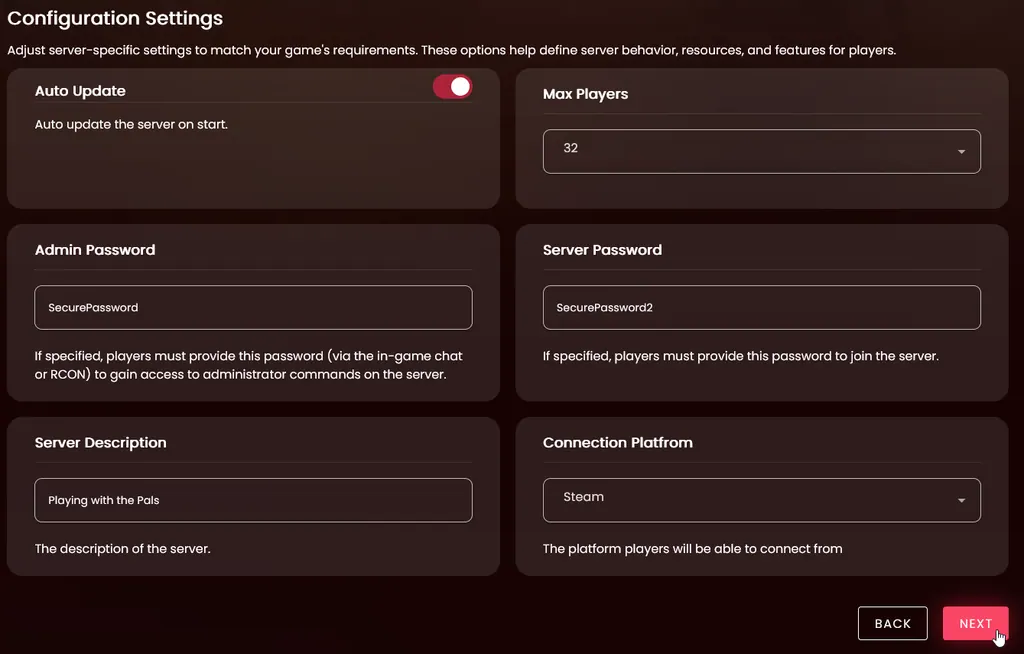
Below Server Name, six settings control how your server runs. Set what matters to you and leave the rest on their defaults. The full list is in Palworld Configuration Settings below.
Server Password and Admin Password are worth setting now. Leaving Server Password empty lets anyone with your address join. Once everything looks right, click Next. You can change any of these settings later.
Step 7: Enter Your Payment Details
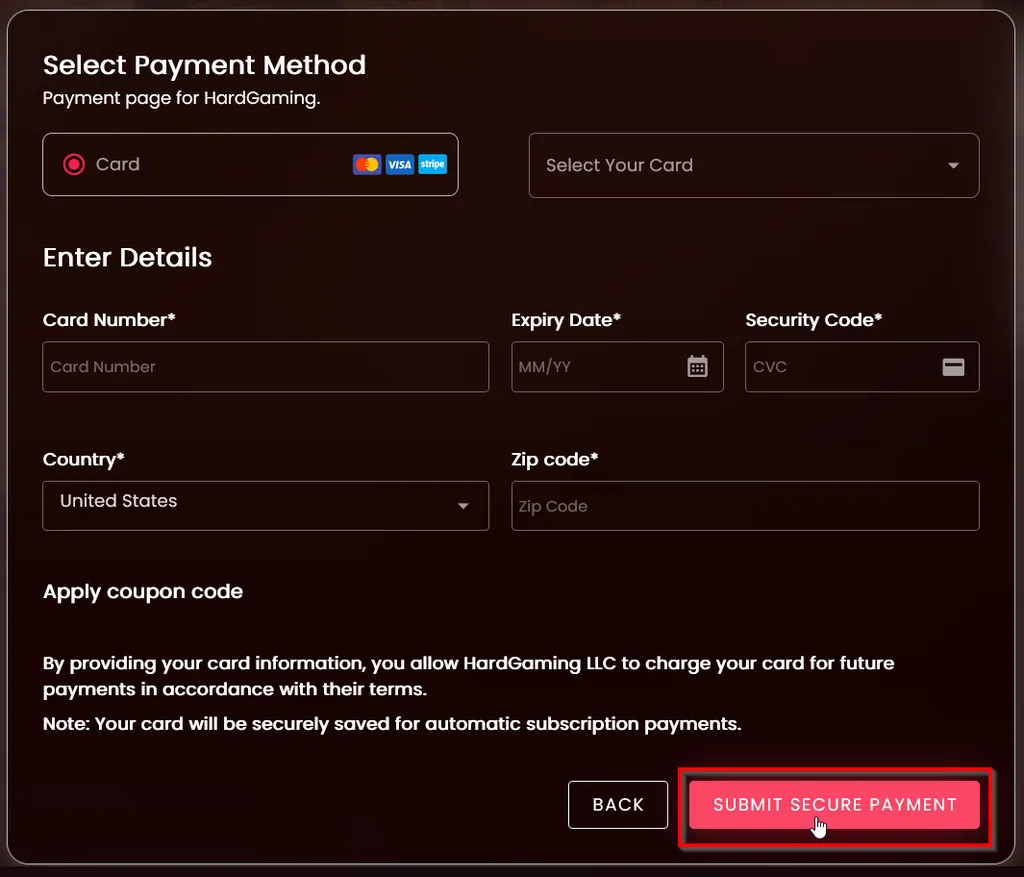
Leave Card selected. Use Select Your Card to reuse a card you have saved, or fill in Card Number, Expiry Date, Security Code, Country and Zip code for a new one. Click Submit Secure Payment when you are ready.
Warning: Your card is saved and charged automatically each month until you cancel the subscription.
Step 8: Confirm Your Server Is Running
Payment takes you to your new server page. The Console tab streams the install while Palworld downloads and unpacks. STATUS changes from offline to running once it finishes, and CONNECT ADDRESS holds the address your friends need.
Palworld Configuration Settings
Every setting on the Configuration tab, and what it does.
| Setting | What it does |
|---|---|
| Auto Update | Updates the server automatically when it starts |
| Max Players | The most players allowed to join |
| Admin Password | Unlocks admin commands in game |
| Server Password | Required to join the server |
| Server Description | A description players see about your server |
| Connection Platform | Steam or Xbox, the platform players connect from |
What Is an Admin Password For?
Admin Password unlocks admin commands once you are already in the world. It is separate from Server Password, which is what gets a player into the server in the first place. Keep them different, or anyone who can join can also administrate.
Applying a Coupon Code
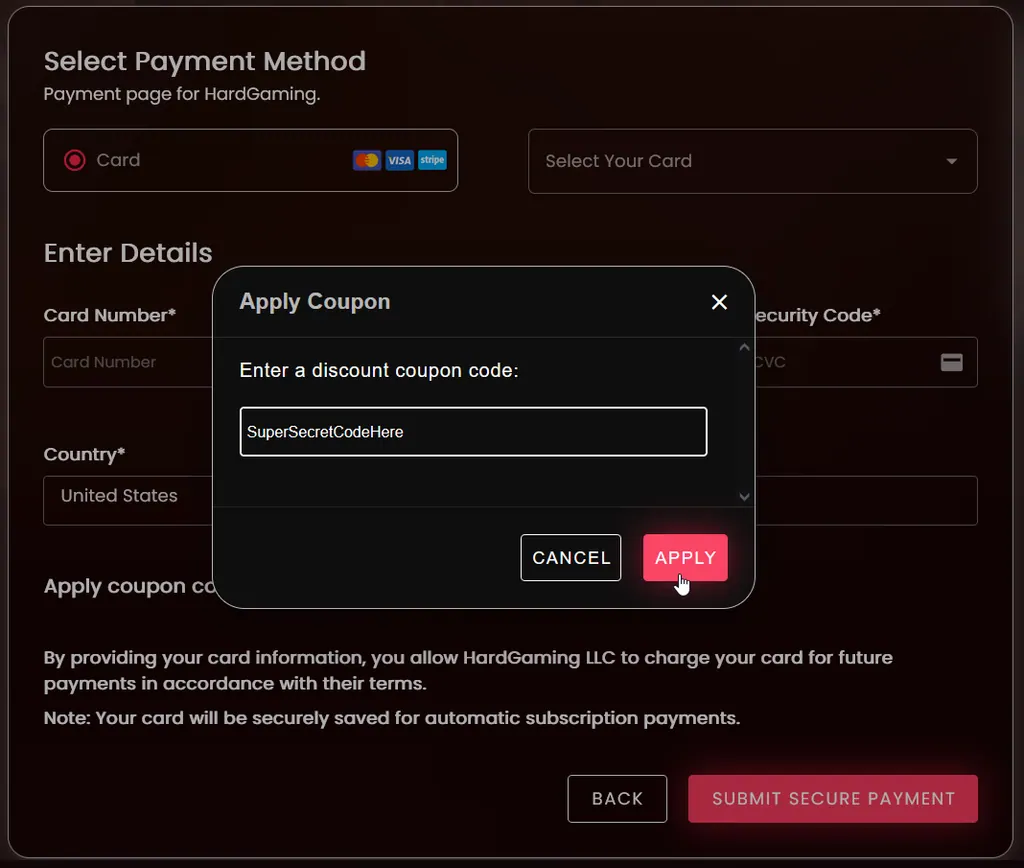
If you have a coupon, apply it before you pay. On the payment page, click Apply coupon code, type your code into the Apply Coupon dialog, and click Apply.
Troubleshooting
Next doesn't move you to Payment?
- Server Name is required and left blank. Scroll back to the top of the Configuration tab and fill it in.
Server still shows offline after paying?
- It is still installing. The Console tab shows Palworld downloading and unpacking.
- Wait for STATUS to change to running before you connect.
Friends cannot join?
- Check STATUS reads running. An installing or offline server refuses connections.
- Give them the address from CONNECT ADDRESS.
- If you set a Server Password, they need it to get in.
Best Practices
- Set a Server Password unless you want the world open to anyone with your address.
- Keep Admin Password different from Server Password so players never gain admin access by accident.
- Leave Auto Update on so your server always starts on the current Palworld build.
- Use your DeepSave slot before any big change to your world.
Next Steps
Your server now appears under My Servers on your dashboard, where you can restart it, edit settings, or pull a backup at any time.
- Protect your world with DeepSave
- Browse all Palworld guides
- Guides for every game we host
- Palworld server hosting
Need Help?
If you run into any issues, the HardGaming support team is here for you:
- Live Chat: use the chat widget on hardgaming.tech
- Discord: join our community for quick help
- Email: support@hardgaming.tech
Happy gaming! 🎮