Abiotic Factor: How to Connect to Your Server
Table of Contents
There are two ways into your Abiotic Factor server. Start with the in-game browser: it needs nothing but the game, and DIRECT CONNECT gets you in even when the server list does not show your server. Use the Steam method instead when you want the server saved in Steam so you can rejoin it in one click.
Before You Start
- A running server. Check STATUS reads
runningon your dashboard first. A server that is offline or still installing refuses connections. - Your server address and ports. Where Do I Find My Server Address? below covers both. The two methods need different ports.
- Your server password. Every HardGaming Abiotic Factor server has one, because Server Password is required when you order. Both methods ask for it.
- PC only. Both methods use the PC client, and the Steam method needs the Steam desktop app. Abiotic Factor also runs on PlayStation 5 and Xbox Series X and S, and those consoles are not covered here.
Method 1: The In-Game Server Browser
Step 1: Enter the Facility
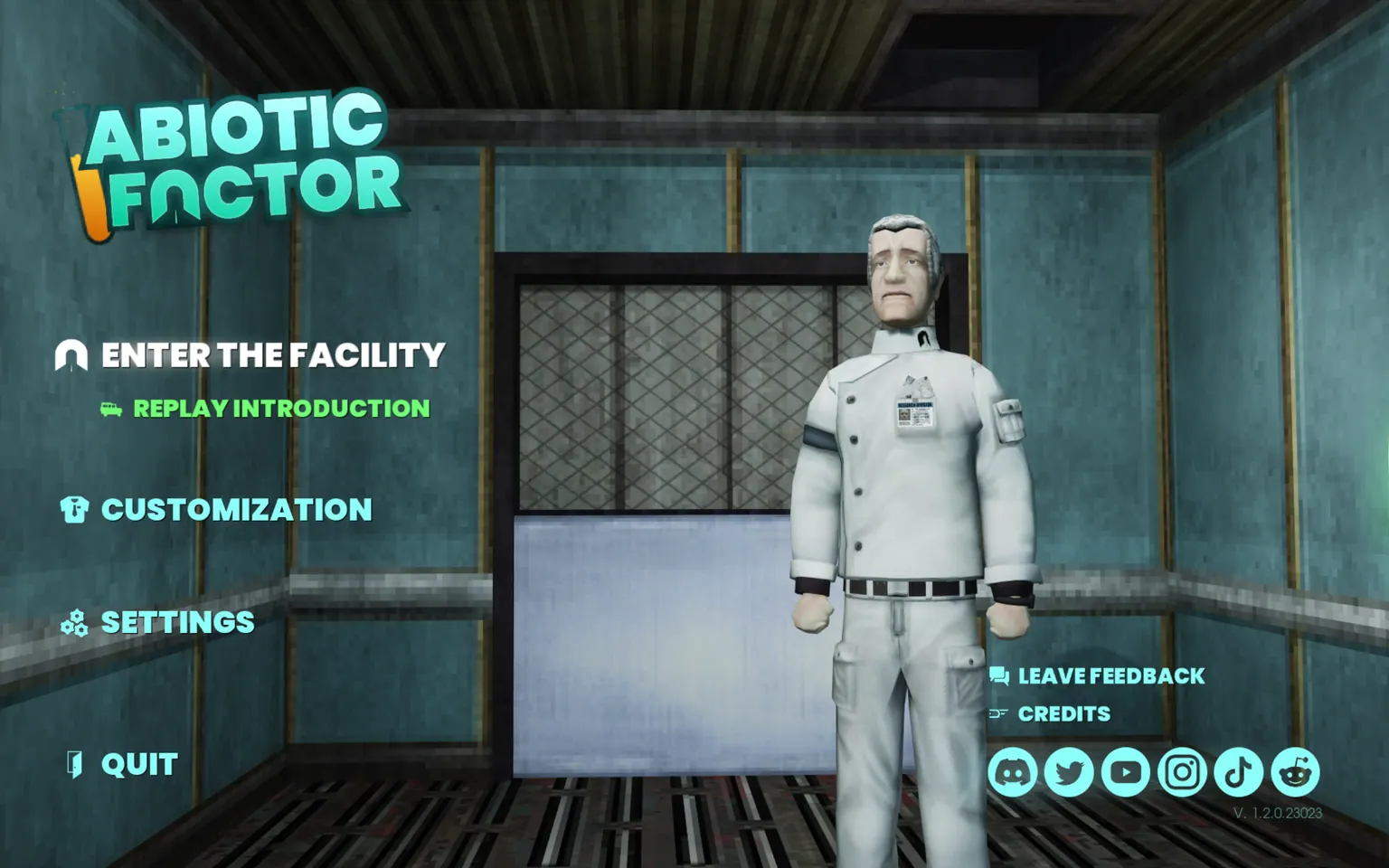
From the main menu, click Enter the Facility.
Step 2: Open Join a Server
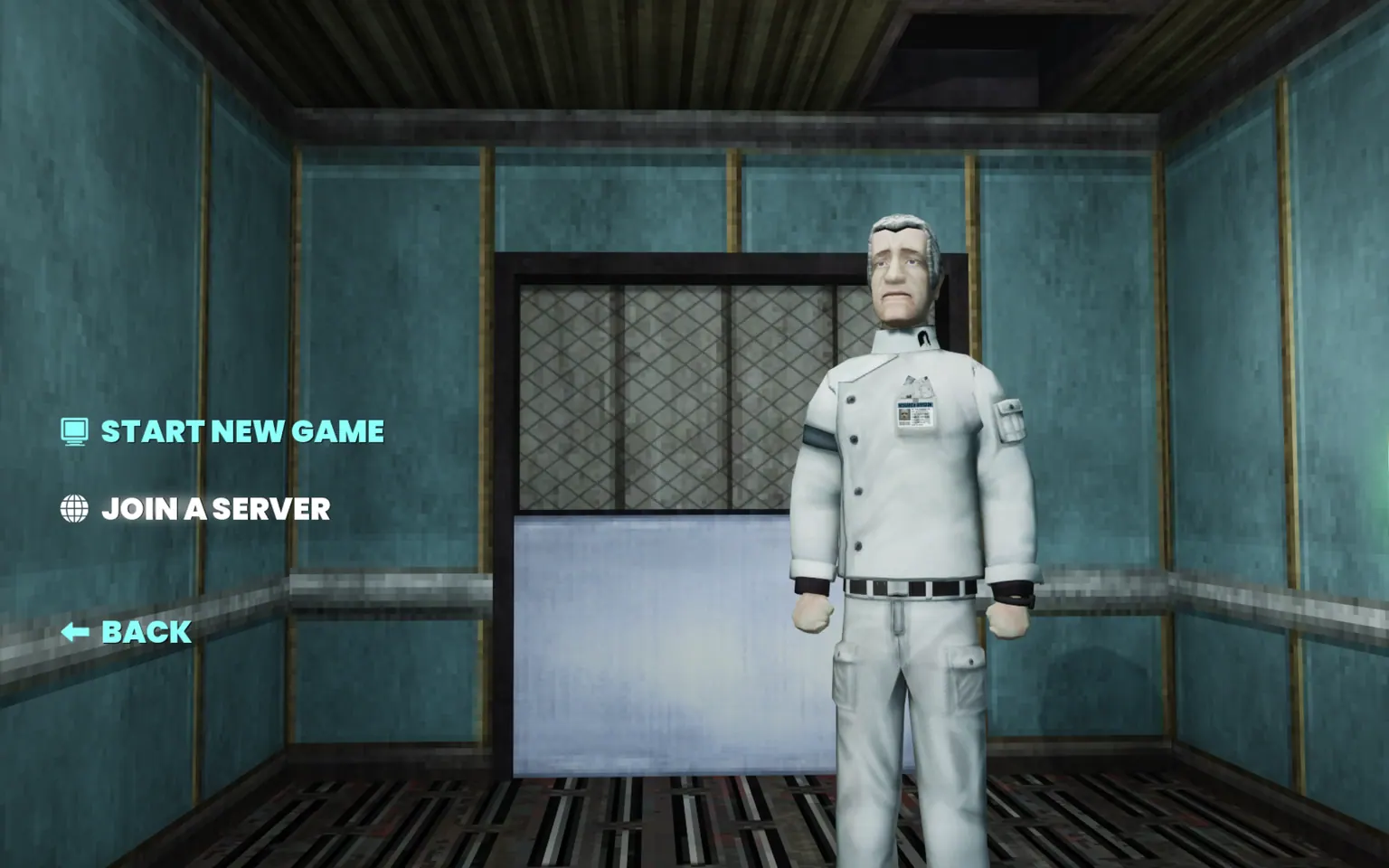
Click Join a Server to open the server browser.
Step 3: Search for Your Server
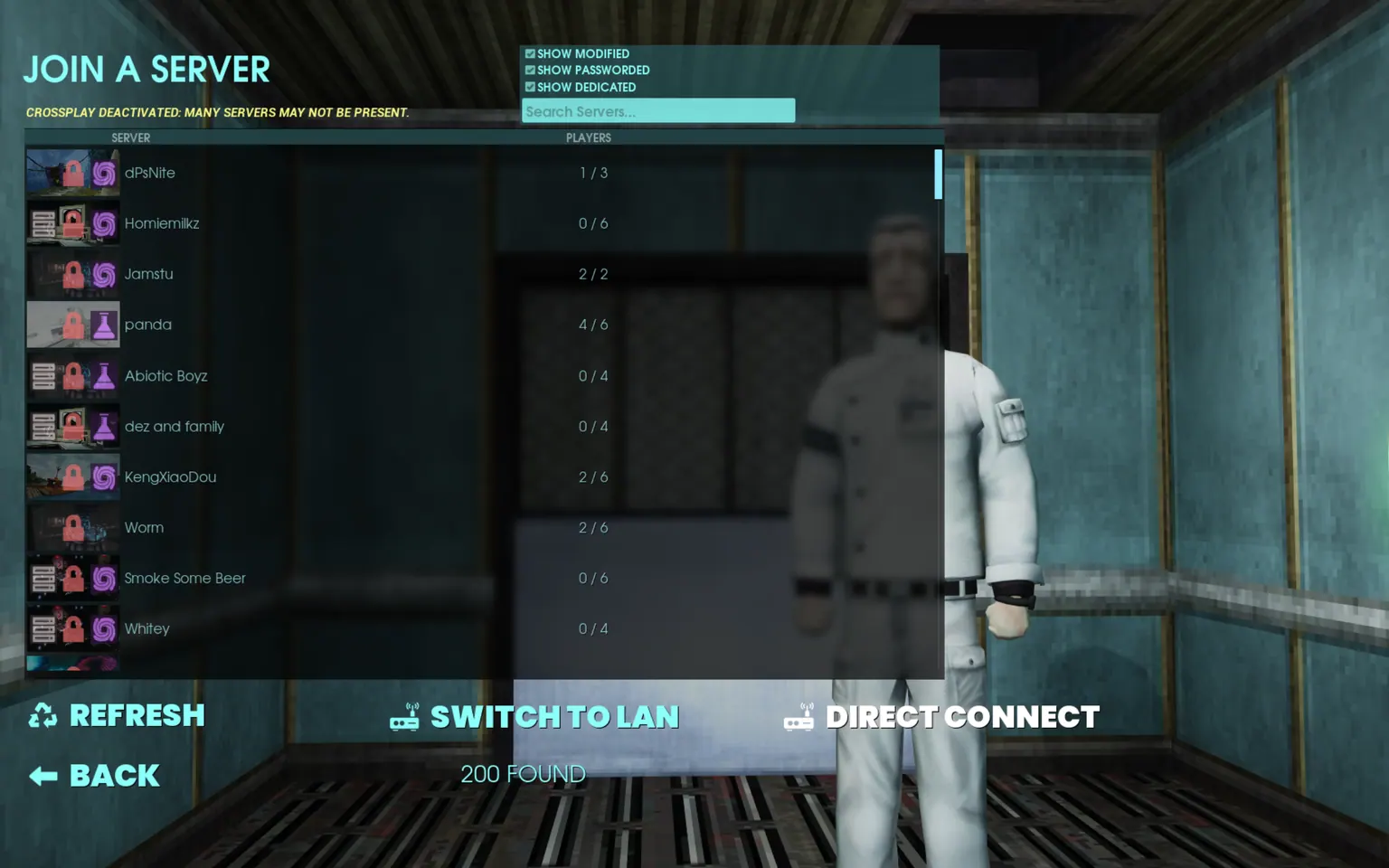
Type your server name into Search Servers. Leave SHOW PASSWORDED ticked, or your server will be filtered out of the list.
If it still does not appear, click DIRECT CONNECT at the bottom of the screen and use Step 4 instead. That is the reliable route, because it does not depend on the browser listing your server at all.
Step 4: Connect Directly by IP
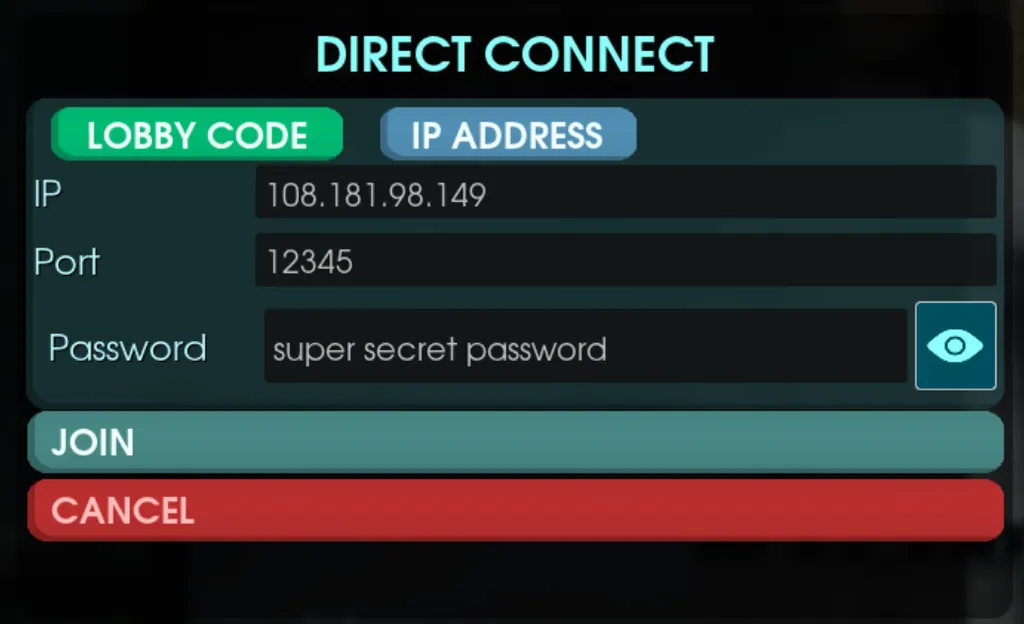
Click IP ADDRESS at the top of the DIRECT CONNECT panel, then fill in the three fields and click JOIN.
- IP takes the address on its own, with no port.
- Port takes the game port, not the query port.
- Password takes the Server Password you set when you ordered.
Method 2: Add the Server to Your Steam Favorites
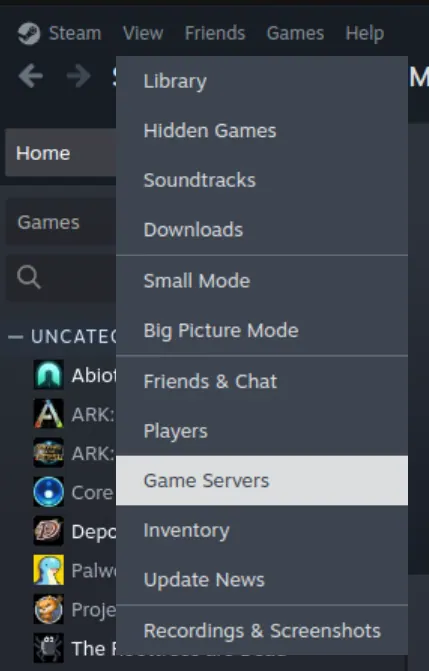
Step 1: Open Game Servers in Steam
In the Steam desktop app, click View in the menu bar, then Game Servers.
Step 2: Open the Favorites Tab
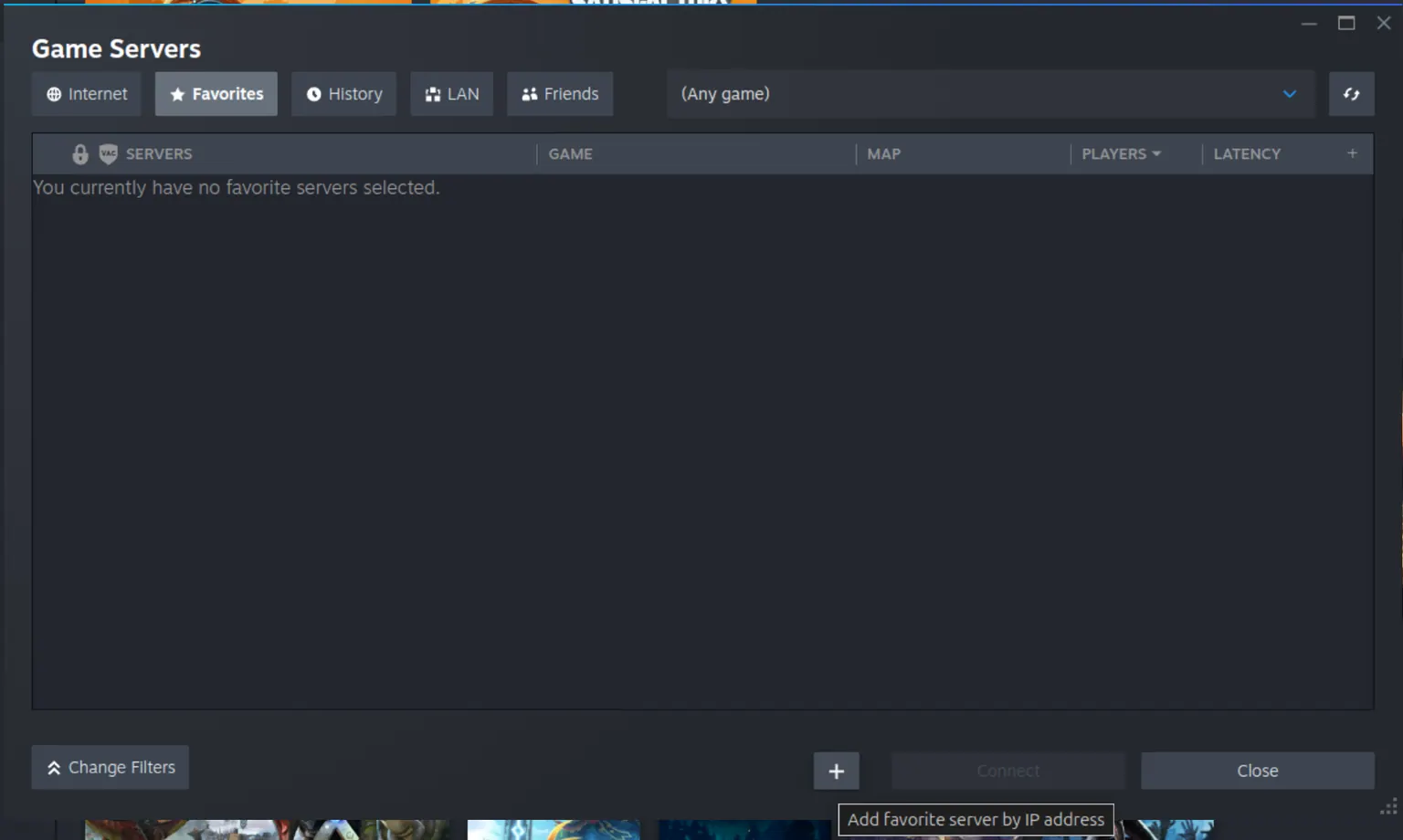
In the Game Servers window, click Favorites, then click the + button at the bottom.
Step 3: Add Your Server by IP
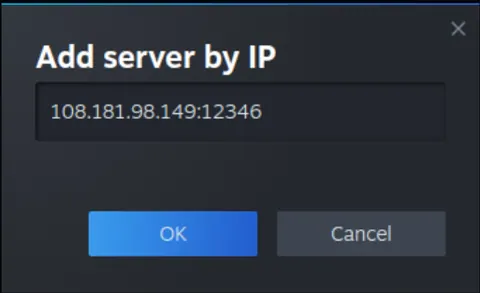
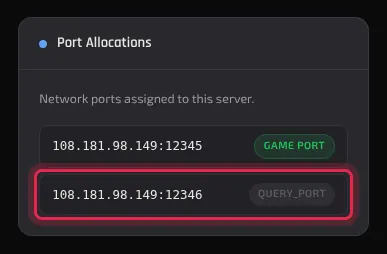
Add server by IP wants the address and the QUERY_PORT together, separated by a colon. This is the one place the query port is used rather than the game port. Click OK.
Step 4: Join from Favorites
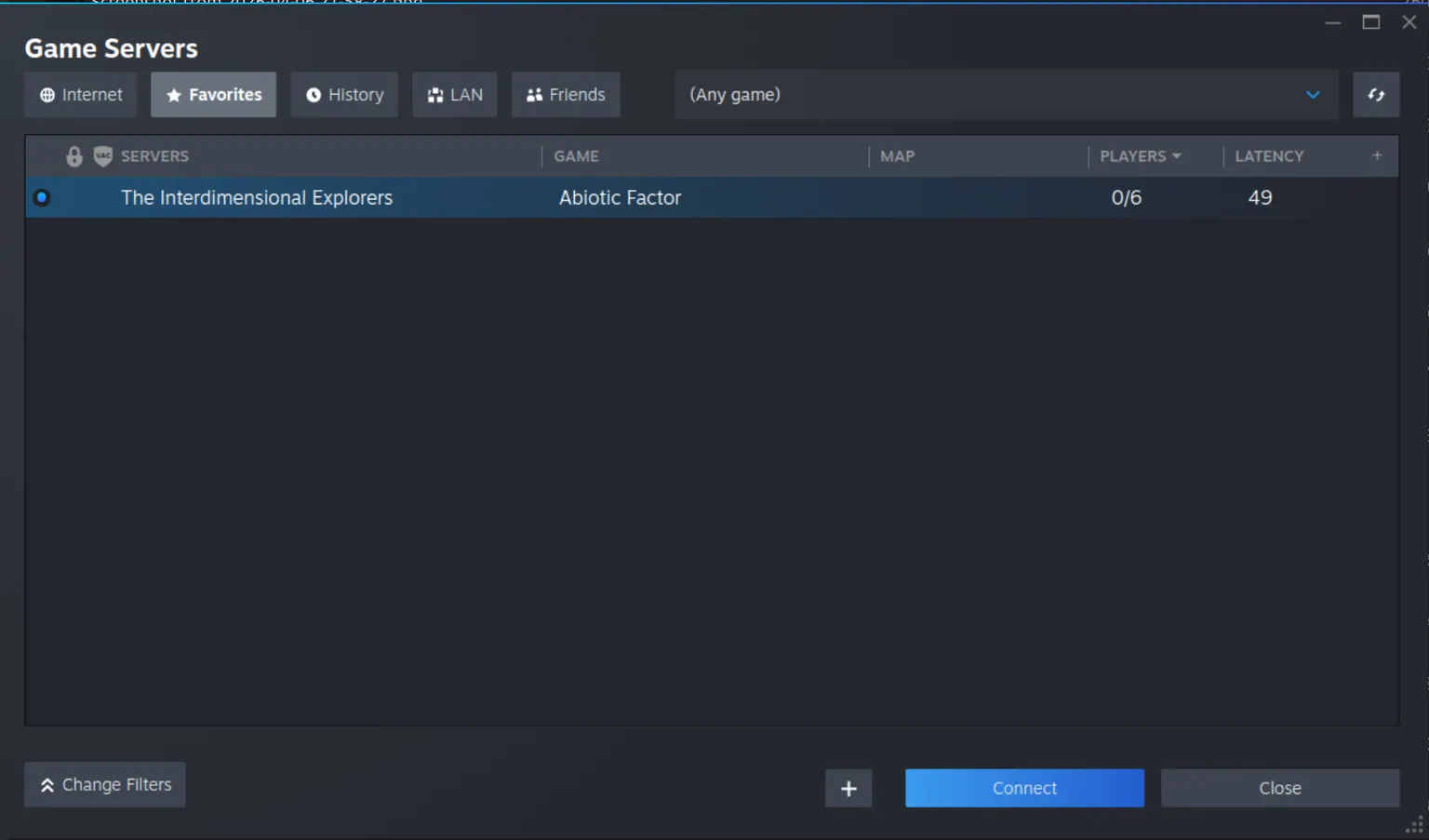
Your server now appears in the Favorites list. Select it and click Connect.
Where Do I Find My Server Address?
Open your server from the dashboard. CONNECT ADDRESS at the top gives you two forms of the same thing, an FQDN such as wing1.hardgaming.tech:12345 and an IP such as 108.181.98.149:12345. Either works, and the number after the colon is the game port.
For the query port, open the Advanced tab and read Port Allocations. It lists two entries: GAME PORT and QUERY_PORT. They are consecutive numbers, and only Steam needs the query one.
Troubleshooting
Server not showing up in the browser?
- Untick nothing: SHOW PASSWORDED must stay ticked, because every HardGaming server has a password.
- The browser warns CROSSPLAY DEACTIVATED when crossplay is off, and says many servers may not be present. Turn crossplay on, or use DIRECT CONNECT.
- Confirm STATUS reads
runningon your dashboard.
Connection timed out?
- Check you used the game port in the game and the query port in Steam. Swapping them is the most common cause.
- A server that started moments ago needs a minute or two before it accepts players.
Wrong password?
- The password is Server Password from your order, not your HardGaming account password. You can read and change it on the Startup tab.
Next Steps
- Manage admins and bans on your server
- Enable DLC content on your server
- Protect your world with DeepSave
- Abiotic Factor server hosting
Need Help?
If you run into any issues, the HardGaming support team is here for you:
- Live Chat: use the chat widget on hardgaming.tech
- Discord: join our community for quick help
- Email: support@hardgaming.tech
Happy gaming! 🎮