TerraTech Worlds: How to Set Up a Server
Table of Contents
TerraTech Worlds hosting on HardGaming takes a few minutes, from picking a plan to a server your crew can join. This guide covers the checkout on hardgaming.tech, naming your server, and confirming it comes up after payment. TerraTech Worlds is still in Steam Early Access, so treat every setting the panel offers today as subject to change.
Before You Start
- A HardGaming account. Create one at hardgaming.tech first, then sign in before you start.
- A payment method. Your card is entered at the last step and saved for the monthly subscription.
- PC only. TerraTech Worlds is Windows-only while it stays in Steam Early Access, with no Mac, Linux or console build yet.
- Nothing to install. Every step happens in your browser.
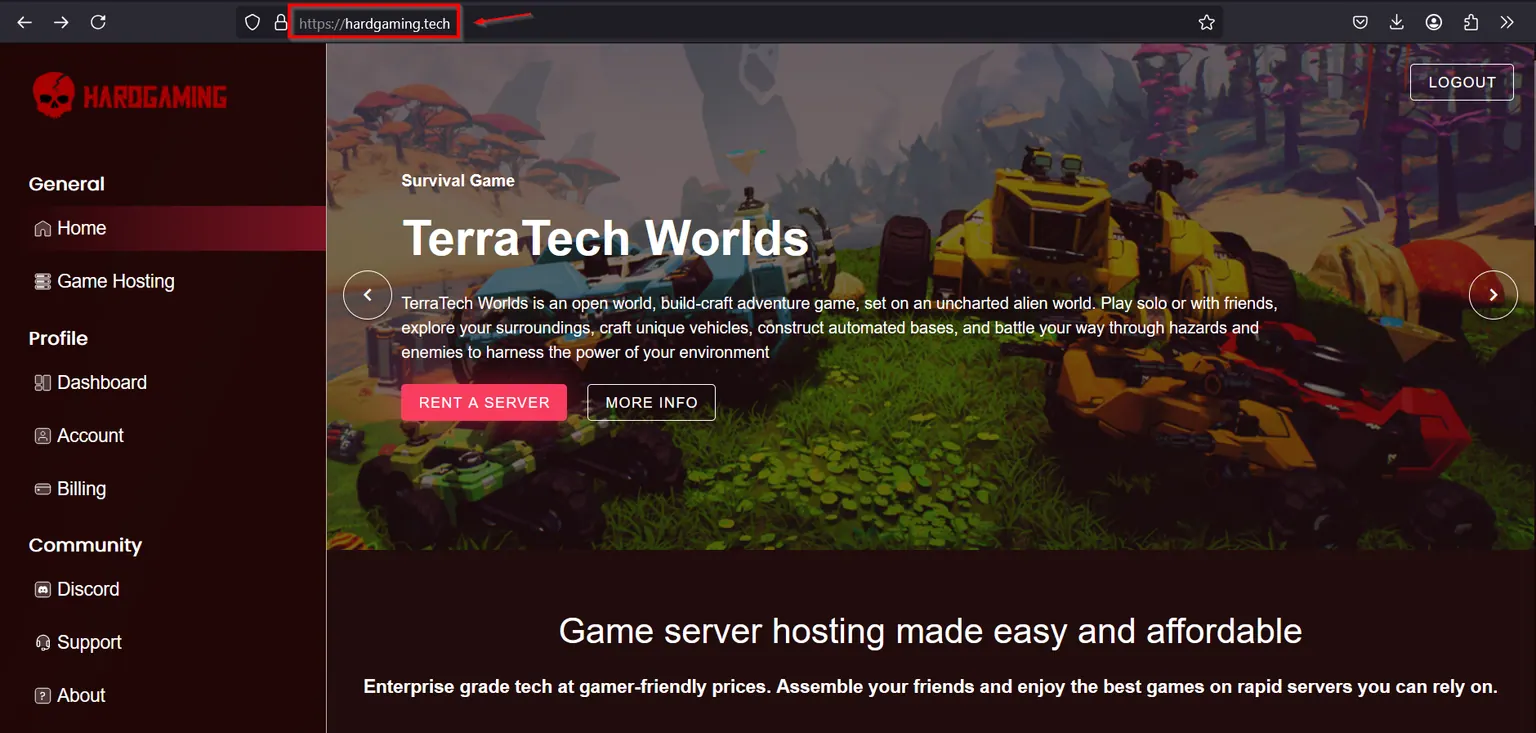
Step 1: Open the HardGaming Website
Go to hardgaming.tech and sign in.
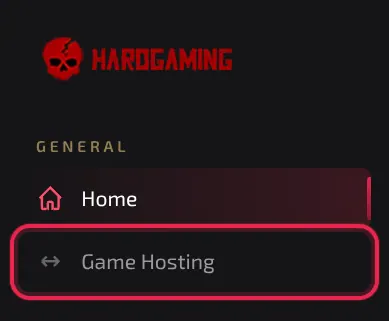
Step 2: Select Game Hosting
In the sidebar on the left, click Game Hosting.
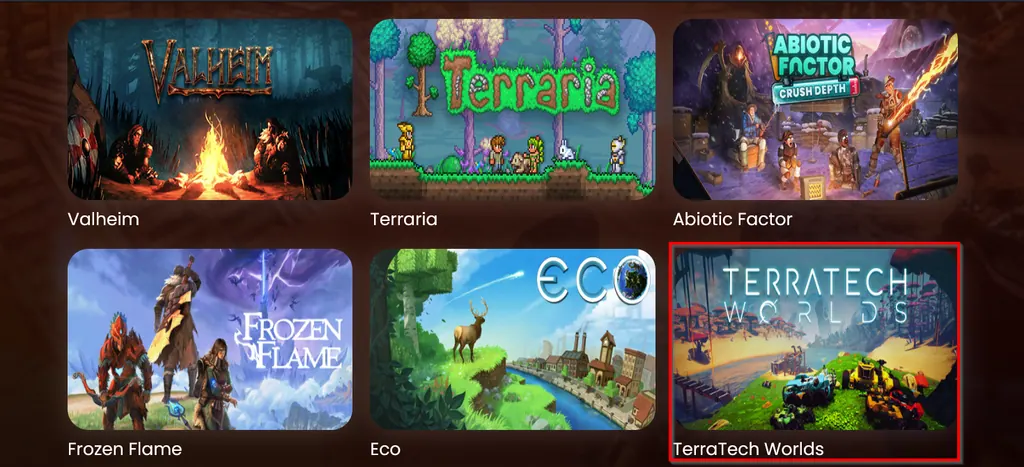
Step 3: Select the TerraTech Worlds Tile
The grid lists every game HardGaming hosts. Click the TerraTech Worlds tile.
Step 4: Choose a Plan
Three plans are offered. Click the one that fits how you plan to play.
- Starter, built for playing solo.
- Premium, built for playing with a team.
- Custom, for picking your own resources.
Every plan, including Custom, includes one DeepSave slot, which keeps a backup in your account even after the server is deleted. Our DeepSave guide covers how to use it.
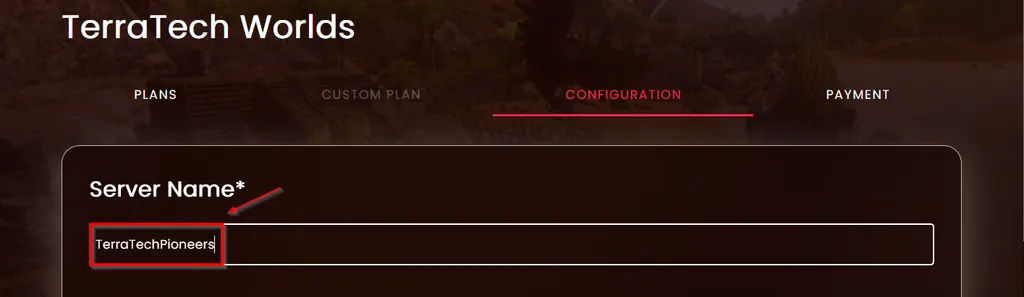
Step 5: Name Your Server
Type a name into Server Name. This is the name you will see in your dashboard, and it is the one required field on this page.
Step 6: Continue to Payment
Once your server name is set, click Continue to Payment to move to the last step. The tabs above the form, Plans, Custom Plan, Configuration and Payment, stay available if you need to jump back and change something first.
Step 7: Enter Your Payment Details
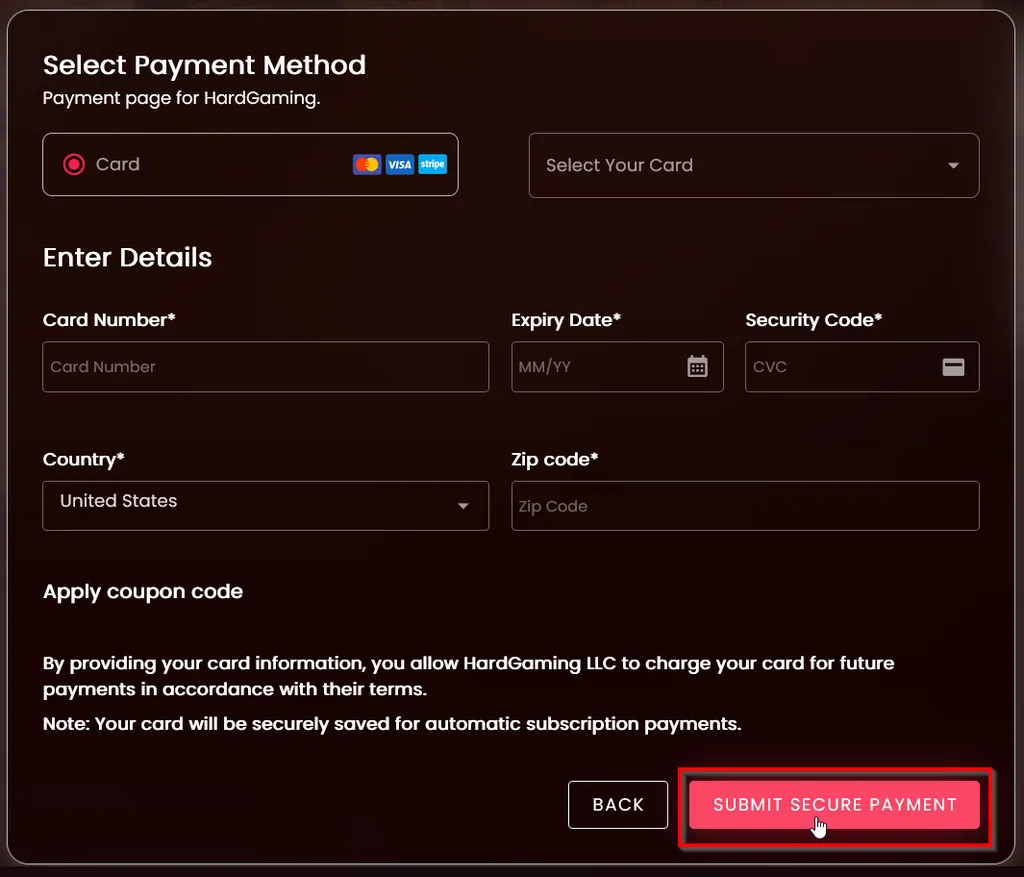
Leave Select Your Card on its default to enter a new card, or pick a card you have used before. Fill in Card Number, Expiry Date, Security Code, Country and Zip code, then click Submit Secure Payment.
Warning: Your card is saved and charged every month until you cancel the server from your Billing page.
Step 8: Confirm Your Server Is Running
Payment takes you straight to your new server. Watch STATUS: it reads offline while TerraTech Worlds installs, then running once the server is up. CONNECT ADDRESS holds the address your crew needs to join.
Applying a Coupon Code
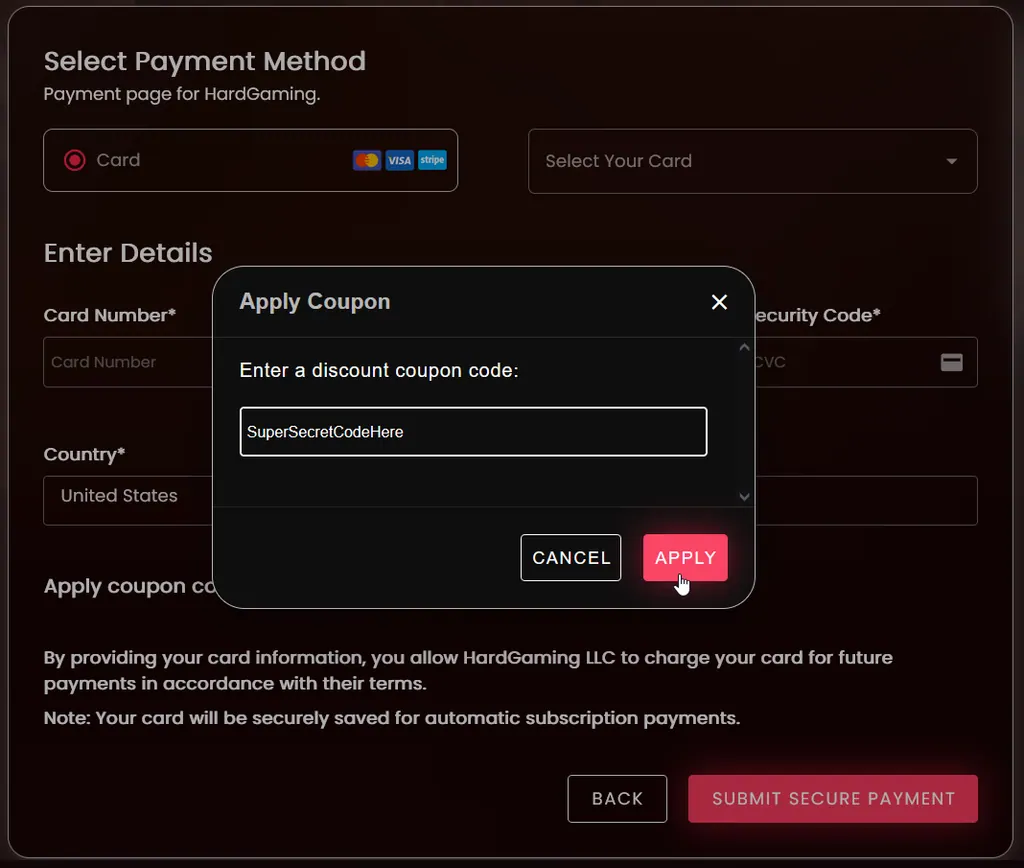
If you have a coupon, apply it before you pay. On the payment page, click Apply coupon code, type your code, and click Apply.
What Platforms Does TerraTech Worlds Support?
TerraTech Worlds runs on PC only. Payload Studios ships it through Steam, currently for Windows, with Mac, Linux and console versions unannounced. The developer's own store listing confirms dedicated server support, which is what makes hosting one on HardGaming possible.
TerraTech Worlds is also still in Steam Early Access, so treat every setting in this guide as what the panel offers today rather than a permanent feature list.
Troubleshooting
Continue to Payment will not respond?
- Server Name is empty. It is the required field on the Configuration tab, marked with an asterisk.
- Scroll back to the top of the Configuration step to find it.
Server still shows offline after paying?
- It is still installing. TerraTech Worlds downloads and unpacks before the server can start.
- Wait for STATUS to change to
running.
Friends cannot join?
- Check STATUS reads
running. A server that is offline or still installing refuses connections. - Give your crew the address from CONNECT ADDRESS.
Next Steps
Your server now appears under My Servers on your HardGaming dashboard, and it stays there between sessions. Open it any time to restart it, edit settings, or pull a backup.
Need Help?
If you run into any issues, the HardGaming support team is here for you:
- Live Chat: use the chat widget on hardgaming.tech
- Discord: join our community for quick help
- Email: support@hardgaming.tech
Happy gaming! 🎮