Abiotic Factor: How to Manage Admins and Bans
Table of Contents
Moderators and bans on an Abiotic Factor server both live in one file called Admin.ini, and you can edit it from your HardGaming dashboard without an SFTP client. You will need the SteamID64 of every player you want to promote or ban. Applying the change stops and restarts the server for you, so pick a quiet moment.
Before You Start
- A running Abiotic Factor server. If you do not have one yet, start with Abiotic Factor server hosting.
- The SteamID64 of each player. That is a 17 digit number beginning
7656119. Where Do I Find My SteamID64? below covers both ways to get one. - Steam players only.
Admin.iniidentifies people by SteamID64, so this file cannot promote or ban someone playing on PlayStation or Xbox. Contact us on Live Chat if you need to moderate a console player. - No need to stop the server first. Applying your changes shuts the server down and starts it again on its own.
Step 1: Open Your Server
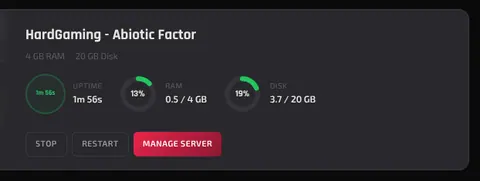
Sign in at hardgaming.tech, open your dashboard, and click MANAGE SERVER on your Abiotic Factor server.
Step 2: Open the Admin.ini File
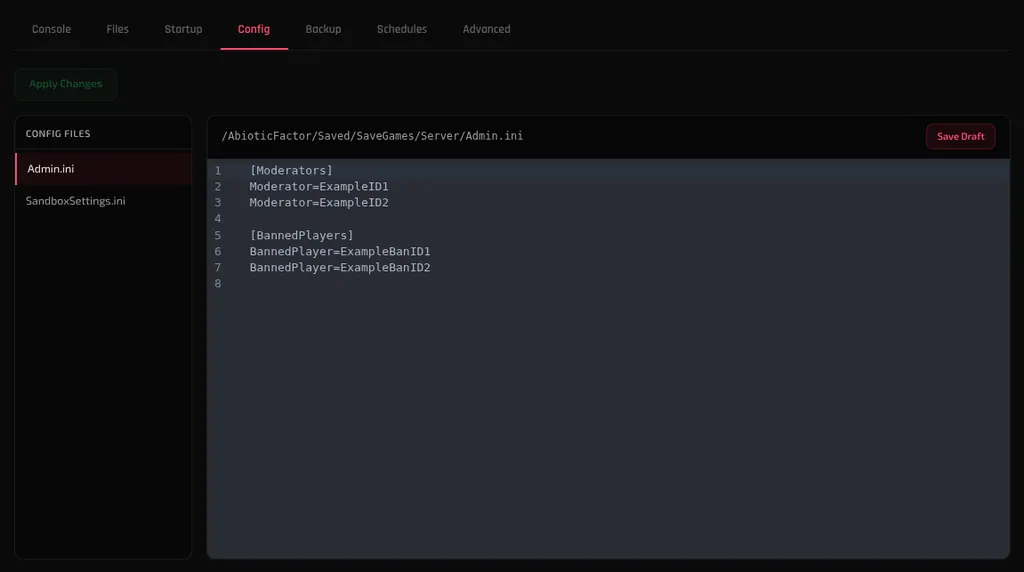
Click the Config tab, then click Admin.ini in the CONFIG FILES list on the left. The file opens in the editor, and the path above it reads /AbioticFactor/Saved/SaveGames/Server/Admin.ini.
Note: On a brand new server this can fail with Failed to load Admin.ini, because Abiotic Factor has not written the file yet. Open the Files tab, browse to
AbioticFactor/Saved/SaveGames/Server, click New File, name itAdmin.ini, and save it. The Config tab then opens it normally.
Step 3: Add a Moderator
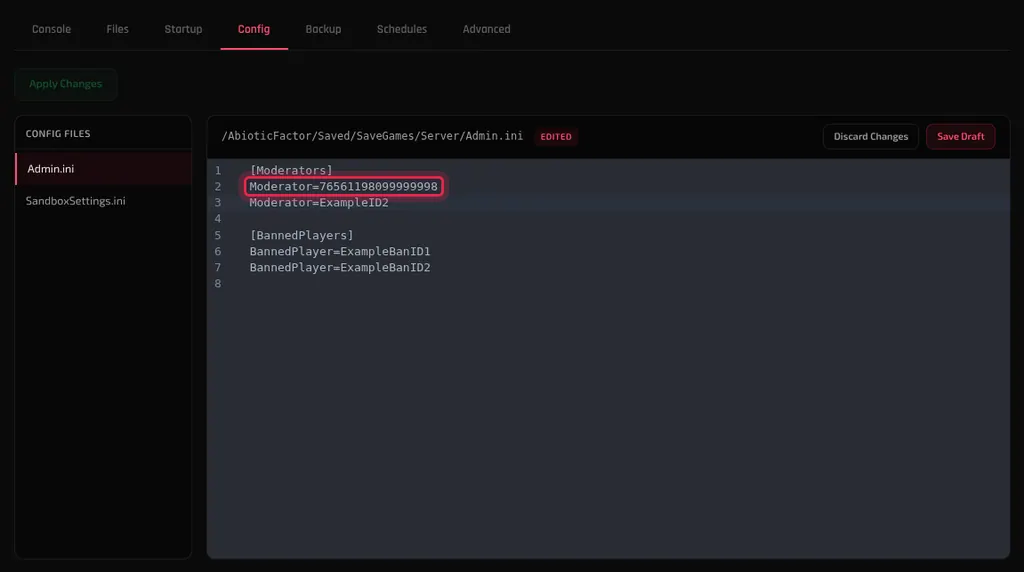
Under [Moderators], replace an ExampleID with a real SteamID64. Add one Moderator= line per person.
[Moderators]
Moderator=76561198099999998
Moderator=76561198099999999
Step 4: Ban a Player
Bans work the same way, in the [BannedPlayers] section of the same file. Add one BannedPlayer= line per person, and delete a line to lift a ban.
[BannedPlayers]
BannedPlayer=76561198099999997
Step 5: Save and Apply Your Changes
Click Save Draft. The file gains a DRAFT label and Apply Changes picks up a count.
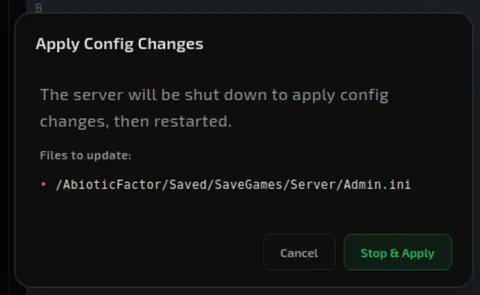
Then click Apply Changes. A dialog headed Apply Config Changes lists the files it will update and warns that the server will be shut down and restarted. Click Stop & Apply.
The server comes back on its own. When it does, the DRAFT label is gone and your moderator list is live.
Where Do I Find My SteamID64?
A SteamID64 is a 17 digit number that starts 7656119, for example 76561198099999998. There are two places to read one.
- Your own: open store.steampowered.com/account. Your SteamID64 sits under your account name.
- Someone else's: open their Steam profile. If the address ends in a long number, such as
steamcommunity.com/profiles/76561198099999998/, that number is their SteamID64.
A profile using a custom address shows /id/ and a name instead of the number. Ask that player to read their own ID off the account page above, because the custom name will not work in Admin.ini.
Troubleshooting
Admin rights not working after a restart?
- Check the ID is 17 digits and starts
7656119. A Steam profile name or a custom address will not work. - Check there are no spaces around the
=sign, and that each ID is on its own line. - Confirm you clicked Save Draft and then Apply Changes. A draft on its own does nothing.
Failed to load Admin.ini?
- The file does not exist yet on a new server. Create it from the Files tab as described in Step 2.
Changes disappeared?
- Clicking Discard Draft throws away an unsaved draft. Re-enter the lines and save again.
Next Steps
- Connect to your Abiotic Factor server
- Enable DLC content on your server
- Protect your world with DeepSave
- Abiotic Factor server hosting
Need Help?
If you run into any issues, the HardGaming support team is here for you:
- Live Chat: use the chat widget on hardgaming.tech
- Discord: join our community for quick help
- Email: support@hardgaming.tech
Happy gaming! 🎮