V Rising: How to Set Up a Server
Table of Contents
V Rising server hosting on HardGaming gets your own vampire castle online without touching a single server file by hand. This guide covers choosing a plan, naming your server, working through V Rising's own configuration settings, paying, and confirming the server is running and ready for allies to join.
Before You Start
- A HardGaming account. Create one at hardgaming.tech first. You can browse plans without one, but naming and configuring your server requires signing in.
- A payment method. Your card is entered at the last step and saved for the monthly subscription.
- PC only. V Rising's dedicated servers run on Steam for Windows, and that is what HardGaming hosts. The PlayStation 5 version runs on its own separate infrastructure with no crossplay between platforms, so a HardGaming V Rising server only reaches PC players.
- Nothing to install. Every step happens in your browser. The server files are downloaded and unpacked for you.
- Your settings are not final. Every field in Step 6 can be changed later, so pick reasonable values now and move on.
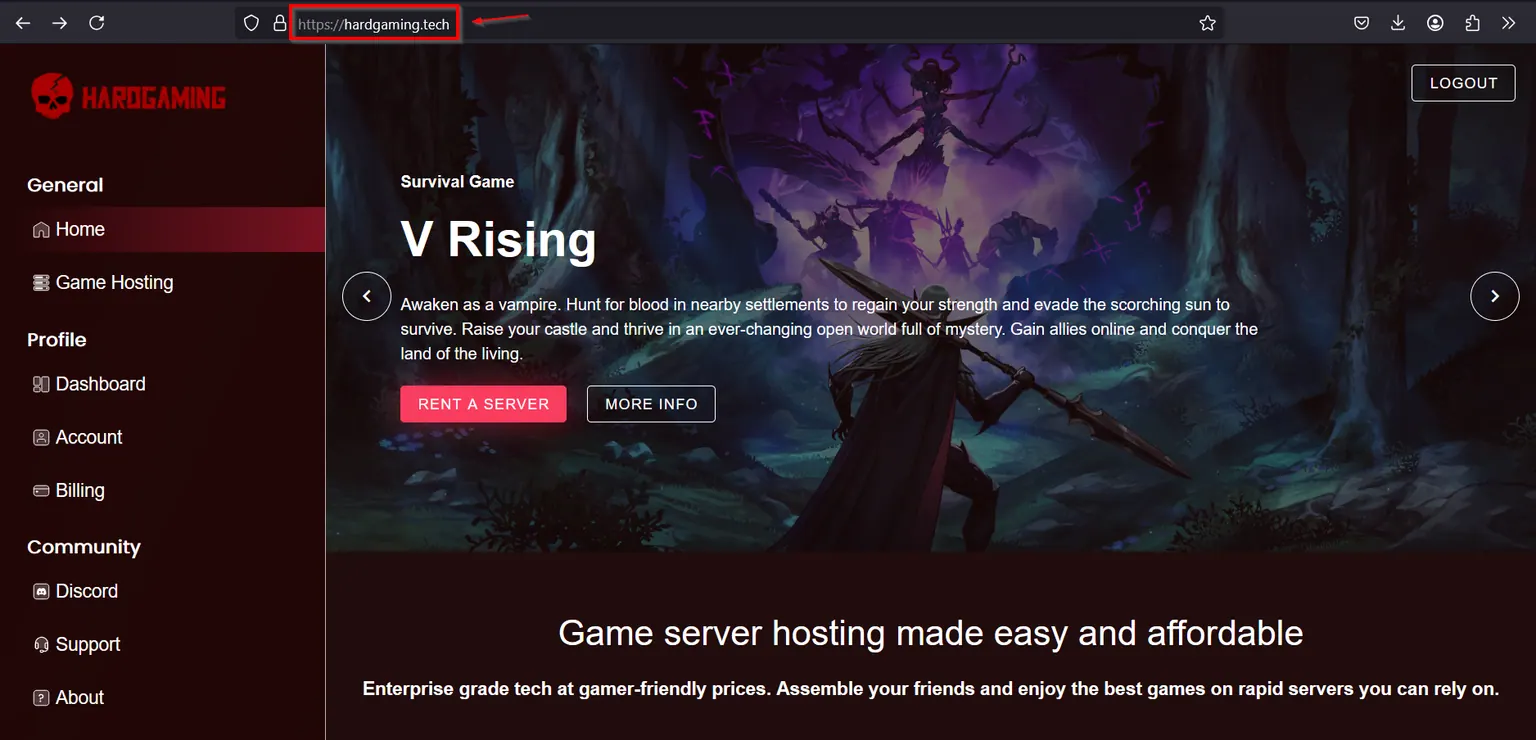
Step 1: Open the HardGaming Website
Go to hardgaming.tech and sign in. If you would rather skip the browsing, go straight to V Rising server hosting and continue from Step 4.
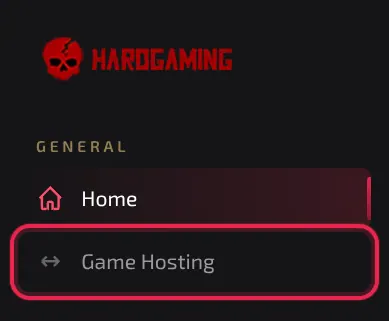
Step 2: Select Game Hosting
In the sidebar on the left, click Game Hosting.
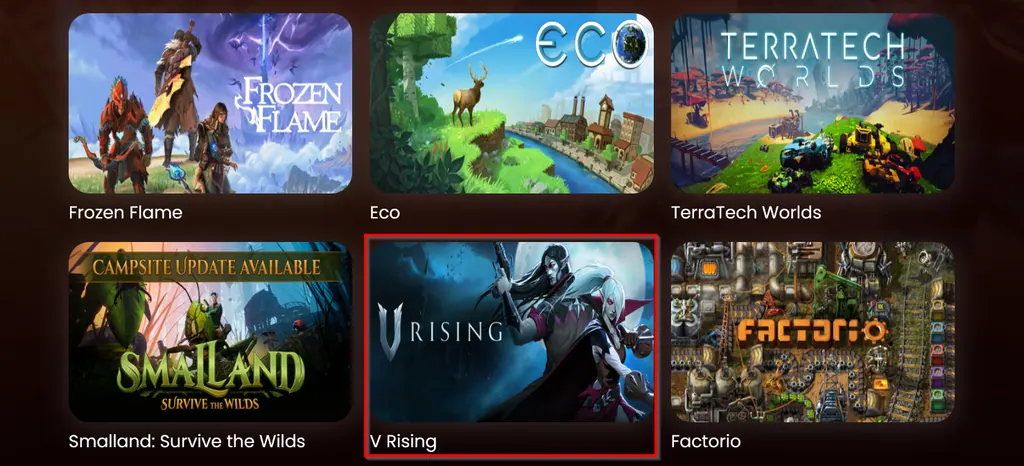
Step 3: Select the V Rising Tile
The grid lists every game HardGaming hosts. Click the V Rising tile.
Step 4: Choose a Plan
Three plans are offered. Click the one that fits how you play.
- Starter, for players who plan to enjoy the game solo.
- Premium, for players who plan to play with a team.
- Custom, for players who want a more personalized plan.
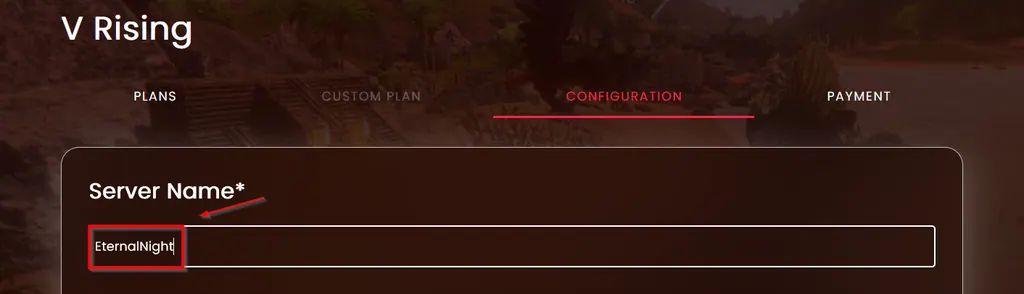
Step 5: Name Your Server
Type a name into Server Name. This is the name HardGaming uses to identify your server in your dashboard, and it is the one required field on this page.
Step 6: Set Your Server Settings
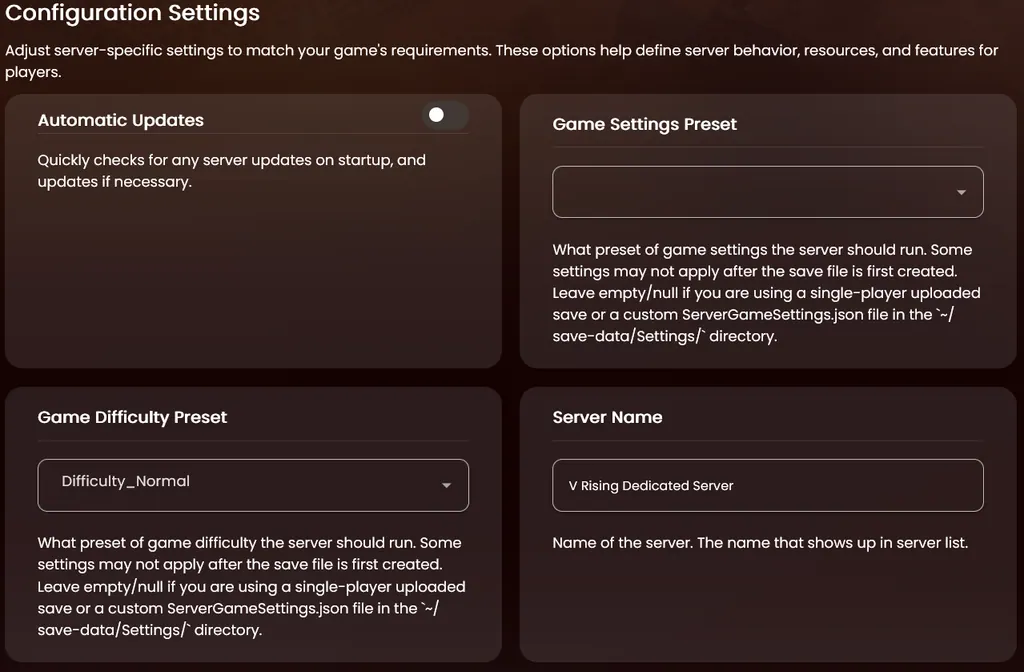
The Configuration Settings panel holds 20 fields. Every one has a working default, so set what matters to you and move on. The full list is in V Rising Server Settings below.
Two are worth setting now. Server Password keeps your server private, and leaving it empty lets anyone with your address join. Game Difficulty Preset picks the difficulty from a dropdown, defaulting to Difficulty_Normal.
When you finish, click Next.
Step 7: Enter Your Payment Details
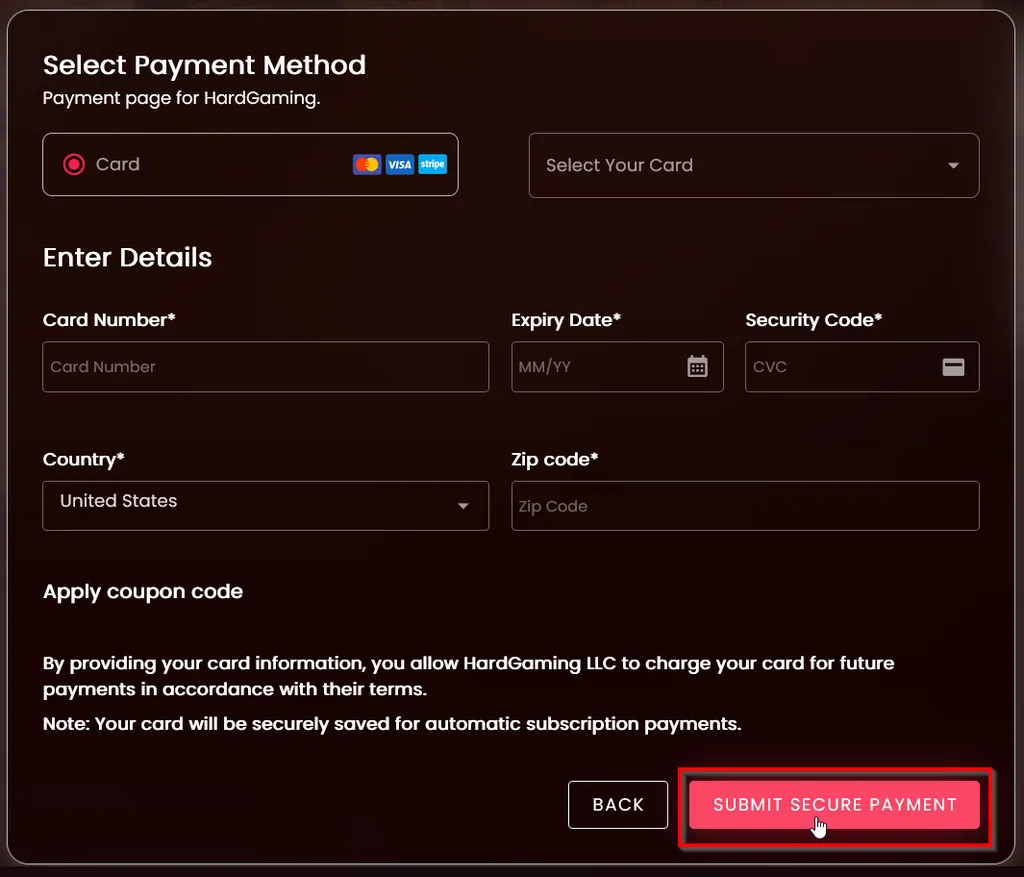
Fill in Card Number, Expiry Date, Security Code, Country and Zip code, or pick a saved card from Select Your Card instead. When you are ready, click Submit Secure Payment.
Warning: Your card is saved and charged every month until you cancel the server from your Billing page.
Step 8: Confirm Your Server Is Running
Payment takes you straight to your new server. The Console tab streams the install while V Rising downloads and unpacks, and the other tabs unlock as it finishes.
Watch STATUS on the right. It reads offline while the install runs, then changes to running once the server is up. CONNECT ADDRESS holds the address your friends need to join.
How Many Players Can Join a V Rising Server?
Max Connected Users sets how many players can connect at once, and V Rising technically supports up to 128. Raise it from the Configuration Settings panel any time your server is running low on room.
V Rising Server Settings
Every field in the Configuration Settings panel.
| Setting | What It Does |
|---|---|
| Automatic Update | Checks for server updates on startup and applies them |
| Game Settings Preset | The preset of game settings the server runs |
| Game Difficulty Preset | The difficulty preset the server runs |
| Server Name | The name that shows up in V Rising's own server list |
| Server Description | The description shown in the server list, and in chat when a player connects |
| Max Connected Users | The maximum number of players allowed on the server at once. The technical maximum is 128 |
| Max Connected Admins | The maximum number of admins allowed to connect, even when the server is full |
| Server Password | The password required to join. Empty means no password |
| Secure Server | VAC protection for the server. VAC banned players cannot connect |
| Save Name | The name of the save file and its folder |
| Auto Save Count | How many autosaves to keep |
| Auto Save Interval | How often the world autosaves, in seconds |
| [Advanced] Server FPS | The target frames per second for the server |
| [Advanced] Lower FPS When Empty | Lowers the server's frame rate target when no players are connected |
| [Advanced] Lower FPS When Empty Value | The frame rate target used when Lower FPS When Empty is active |
| [Advanced] List On Epic | Lists the server on Epic's server list |
| [Advanced] List On Steam | Lists the server on Steam's server list |
| [RCON] Enable RCON | Turns on RCON for remote server management. See Stunlock Studios' RCON instructions |
| [RCON] RCON Password | The password required to connect over RCON |
| [Repair] Validate Server Files | Checks all server files on startup. Significantly increases startup time, so turn it on only when needed |
Note: Every setting above can be changed after your server exists. Nothing here is permanent.
Applying a Coupon Code
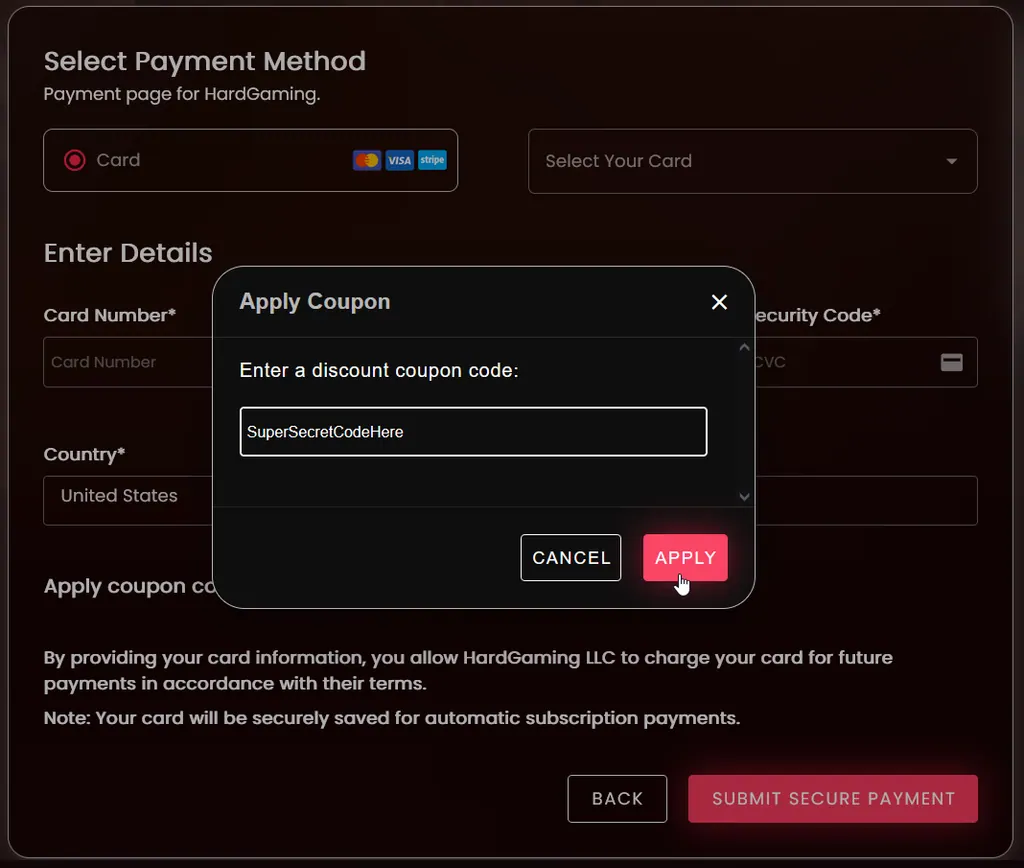
If you have a coupon, apply it before you pay. Click Apply coupon code beneath the payment fields, type your code into the dialog, and click Apply.
Troubleshooting
Next stays greyed out?
- Server Name is empty. It is the only required field on the Configuration tab, marked with an asterisk.
- Scroll back to the top of the Configuration step to find it.
Server still shows offline after paying?
- It is still installing. The Console tab shows the download and unpack running line by line.
- Wait for STATUS to change to
runningbefore you connect.
Friends cannot join?
- Check STATUS reads
running. A server that is offline or still installing refuses connections. - Give them the address from CONNECT ADDRESS, including the port.
- If you set a Server Password in Step 6, they need it to get in.
- If they are browsing for your server in V Rising's own server list instead of connecting directly, confirm [Advanced] List On Steam or [Advanced] List On Epic is turned on for their platform.
Best Practices
- Set a Server Password unless you want the server open to anyone with your address.
- Turn on Secure Server to keep VAC banned players from connecting.
- Turn on [RCON] Enable RCON only if you plan to manage the server remotely, and set a strong [RCON] RCON Password at the same time.
- Use your DeepSave slot before a big change to your world. Our DeepSave guide covers how.
Next Steps
Your server now appears under My Servers on your dashboard, and it stays there between sessions. Open it any time to restart it, edit settings, or pull a backup.
- Protect your world with DeepSave
- Browse all V Rising guides
- Guides for every game we host
- V Rising server hosting
Need Help?
If you run into any issues, the HardGaming support team is here for you:
- Live Chat: use the chat widget on hardgaming.tech
- Discord: join our community for quick help
- Email: support@hardgaming.tech
Happy gaming! 🎮