How to Use DeepSave
Table of Contents
DeepSave copies one of your server backups into your HardGaming account, where it is listed on your Account page rather than on the server. Every server gets one DeepSave slot and a 200 MB ceiling, and the copy is always made from a backup you already have, so there is nothing to upload. This page covers creating one, finding it again, and getting the files back onto a server.
Before You Start
- A backup to copy. DeepSave works on a backup that already exists. Step 2 covers making one if you have none yet.
- One slot per server. The Account page states it plainly: Each server gets 1 DeepSave slot (max 200 MB).
- Backups are made in the server panel. There is no way to upload a file straight into DeepSave. It only ever copies a backup from a server you own.
- Any game, any plan. DeepSave is part of the panel, not part of a particular game, so the steps below are the same whichever server you are on.
- Nothing to install. Every step happens in your browser.
Step 1: Open Your Server's Backup Tab
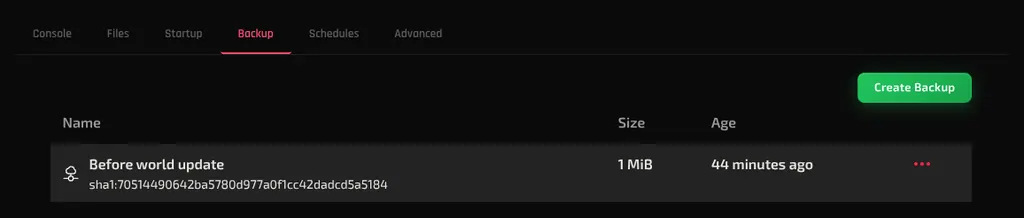
Open the server from your HardGaming dashboard and click Backup. The tab lists every backup on the server under Name, Size and Age.
Step 2: Create the Backup You Want to Keep
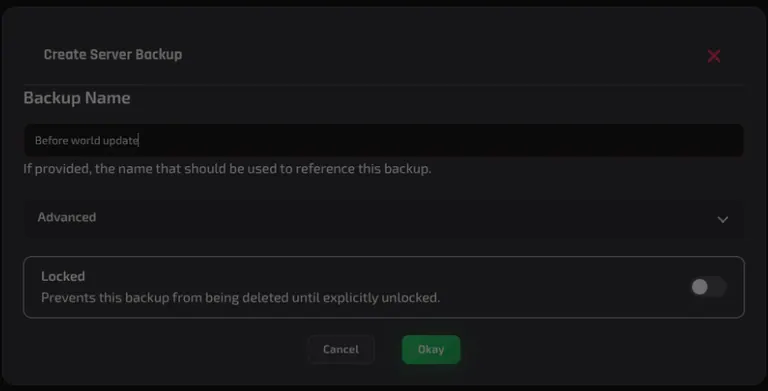
Skip this step if the backup you want is already in the list. Otherwise click Create Backup, type a name into Backup Name, and click Okay.
Give it a name you will recognise later, because the DeepSave file is named after it. A backup called Before world update becomes Before world update-2026-09-04.zip in your account.
Tip: Locked, under Advanced, prevents the backup from being deleted until you unlock it again. It is worth setting on a backup you care about, because a server keeps only three.
Step 3: Send the Backup to Deep Save
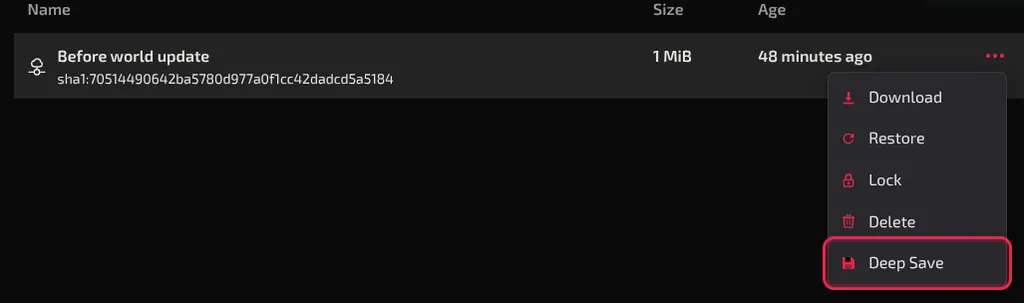
Click the three dots at the end of the backup's row, then choose Deep Save. The menu also holds Download, Restore, Lock and Delete, so check you are on the right line before clicking.
Step 4: Confirm the DeepSave Saved
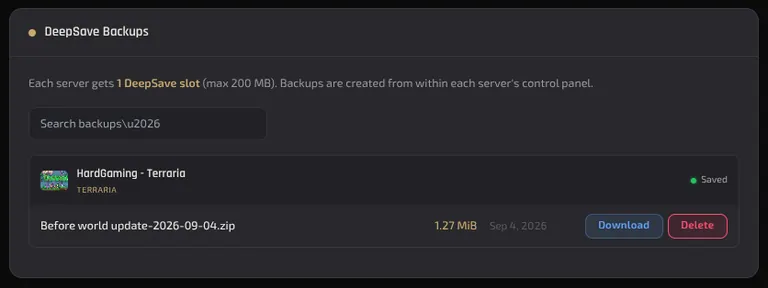
Click Account in the sidebar and scroll to DeepSave Backups. Your server appears there with the file under it, marked Saved, with its size and the date it was made.
If the copy is still running you will see Preparing to deep save backup on the server page first. Wait for that to clear before you go looking.
How Many DeepSaves Do You Get?
One per server, up to 200 MB, which the Account page states as Each server gets 1 DeepSave slot (max 200 MB).
The slot belongs to the server, not to your account, so a second server brings a second slot. Trying to save two from the same server stops with You can't save more than 1 DeepSave backup per server. Your DeepSave count sits beside DeepSaves at the top of the Account page.
This is separate from the three backup slots on the server itself. A DeepSave does not use one of those up, and the backup you copied stays exactly where it was.
Getting Your Files Back
There is no restore button on a DeepSave. Download and Delete are the only two actions, so putting the files back is a manual job:
- Click Download next to the file on your Account page. It arrives as a
.zip. - Unpack the zip on your own computer.
- On the server you want the files on, open the Files tab and click Upload.
Because it is manual, nothing ties a DeepSave to the server it came from. You can put it on a different server, as long as the game and the configuration match.
Deleting a DeepSave
Delete, next to the file under DeepSave Backups, removes it from your account. Download a copy first if there is any chance you want it later, because the file itself is gone afterwards.
Troubleshooting
Panel says you can't save more than one?
- That server's slot is already used. The message reads You can't save more than 1 DeepSave backup per server.
- Delete the existing DeepSave for that server under DeepSave Backups on your Account page, then try again.
Deep Save runs and nothing appears on the Account page?
- Check the server page for an error under the Preparing to deep save backup message.
- Reload the Account page. The list loads separately from the rest of the page, so it can still be fetching.
Backup too big to save?
- The ceiling is 200 MB per DeepSave, and the Size column on the Backup tab tells you what a backup weighs before you try.
Not sure which file is which?
- The DeepSave is named after the backup it came from, plus the date. Renaming backups clearly in Step 2 is what makes this readable later.
Best Practices
- Take a backup and DeepSave it before a version change, a big config edit, or a mod install. Those are the changes you cannot undo from inside the game.
- Name backups for the moment they capture, not the date. The date is added for you.
- Download the zip and keep it on your own machine as well. A copy in your account and a copy in your hands is two copies.
- A server holds three backups. Use Locked on the one you would be sorry to lose.
Next Steps
Need Help?
If you run into any issues, the HardGaming support team is here for you:
- Live Chat: use the chat widget on hardgaming.tech
- Discord: join our community for quick help
- Email: support@hardgaming.tech
Happy gaming! 🎮