Minecraft: How to Connect to Your Server
Table of Contents
Ready to jump into your Minecraft world? Here is a guide on how to start using your Minecraft Server.
You must have a HardGaming Account already established and have an active paid membership with the selected plans that are available. For more information, refer to this article on how to get started if you haven't done so already.
There are many ways to connect to your Minecraft server. In this article, we will show you how to connect to your server in-game.
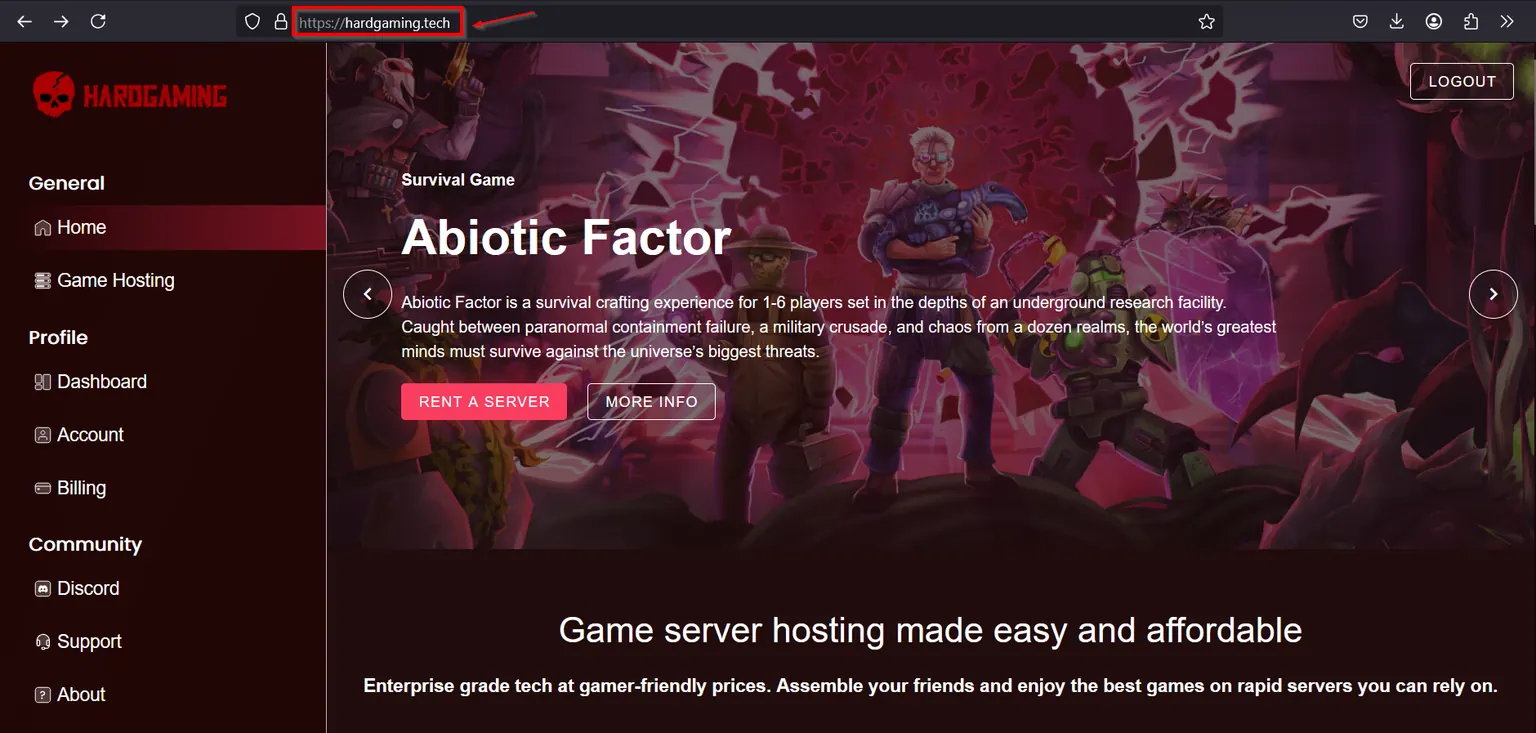
Step 1 - Navigate to the HardGaming website:
You must be logged in at Hardgaming.tech to proceed.
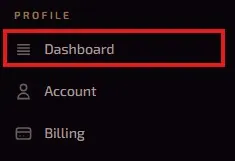
Step 2 - Access Your Server
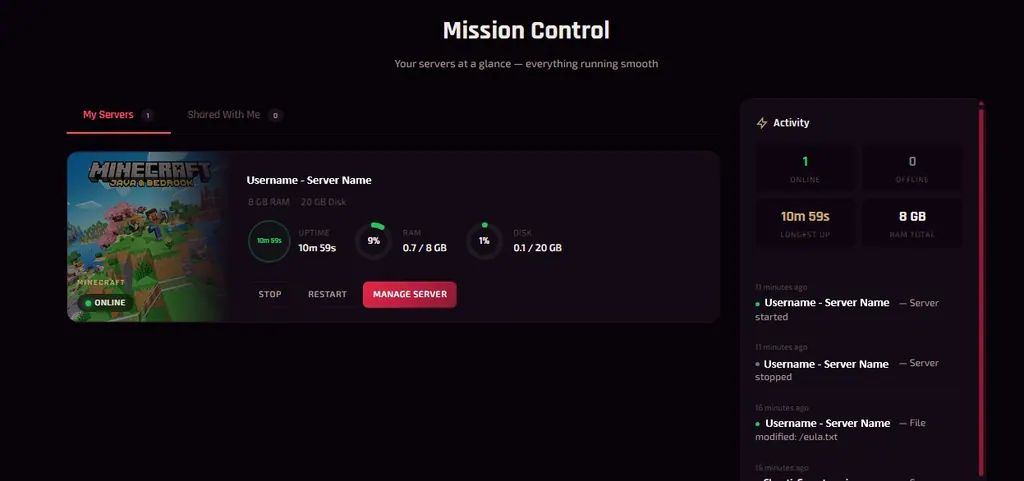
Click on your dashboard and select the server for which you have purchased a plan. You will only see the dashboard if you have an active plan.
Here you will see the details about your server. You can click start to have it run immediately, or read on for the next step.
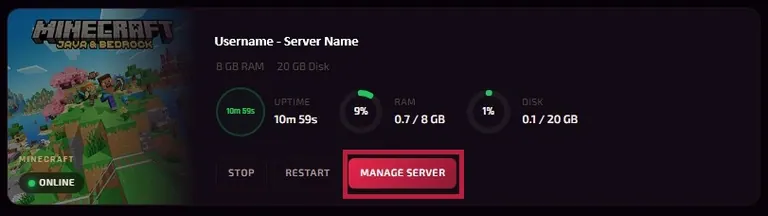
Step 3 - Select Manage Server
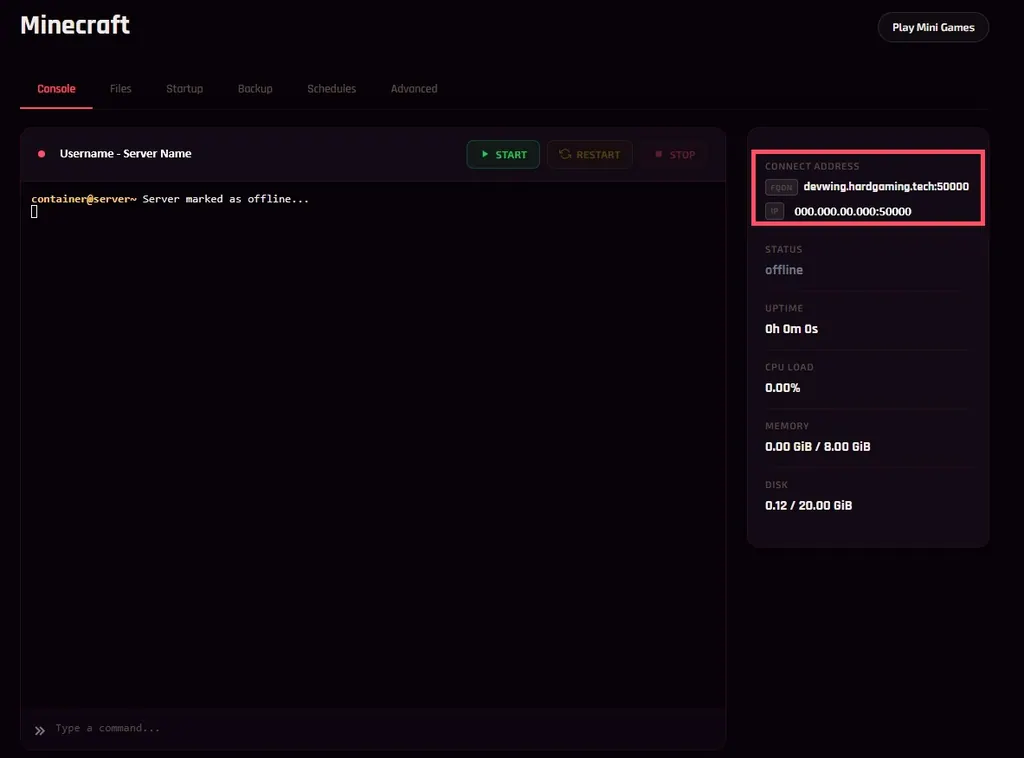
Step 4 - Retrieve Connect/IP Address.
Below, you can find your personal connect address and IP address. We will need this later.
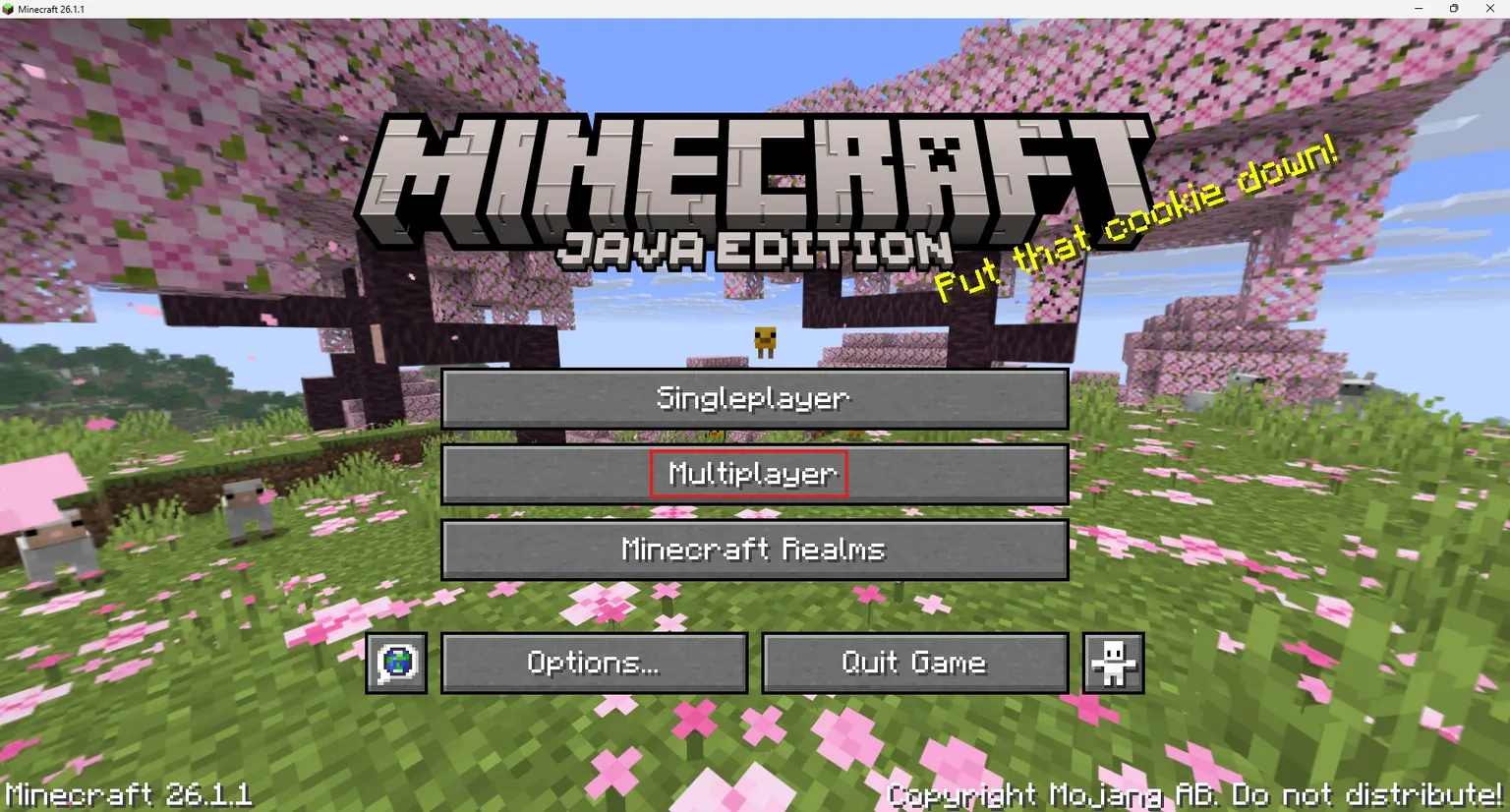
Step 5 - Open Minecraft
Select Multiplayer.
Step 6 - Connect to your server
There are two popular ways to connect to your server. Direct Connection or Add Server. Both options are explained below.
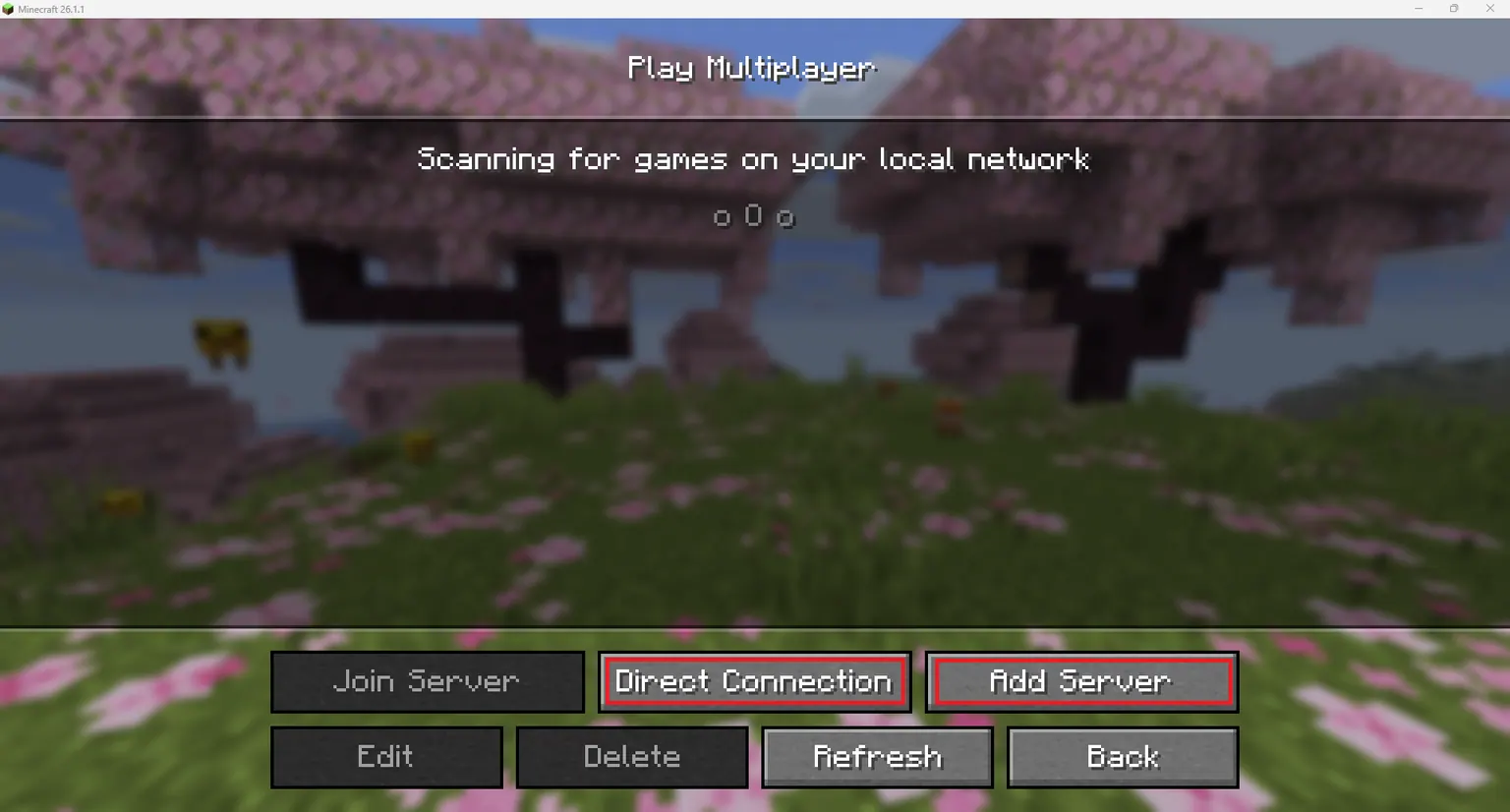
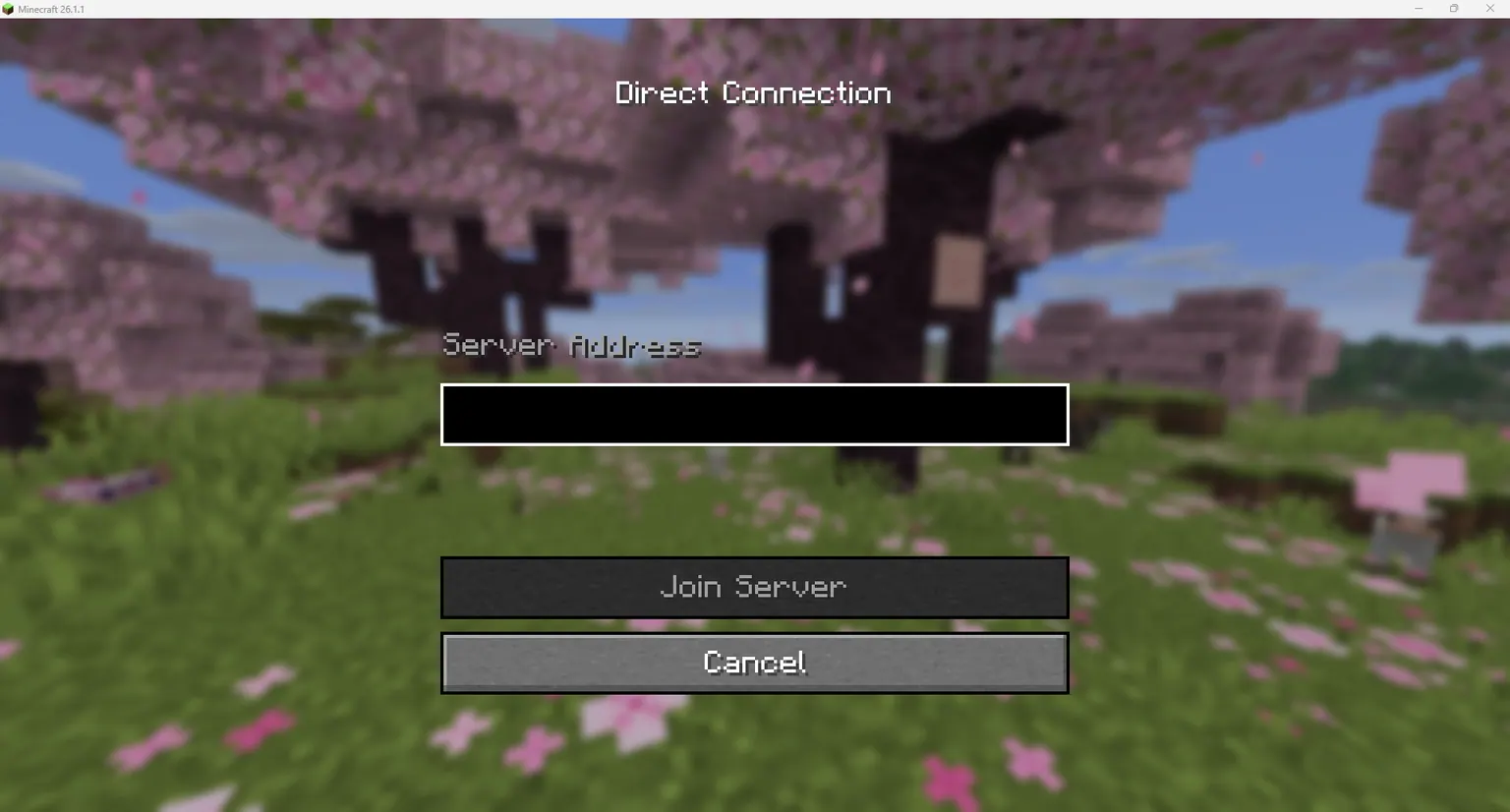
Direct Connection
Enter your Minecraft connect address or IP address that was retrieved from the Manage Server settings from step 4. This option lets you immediately join. This does not permanently save your server onto Minecraft. The server address will remain until you change it, but won't reappear until you type it in again.
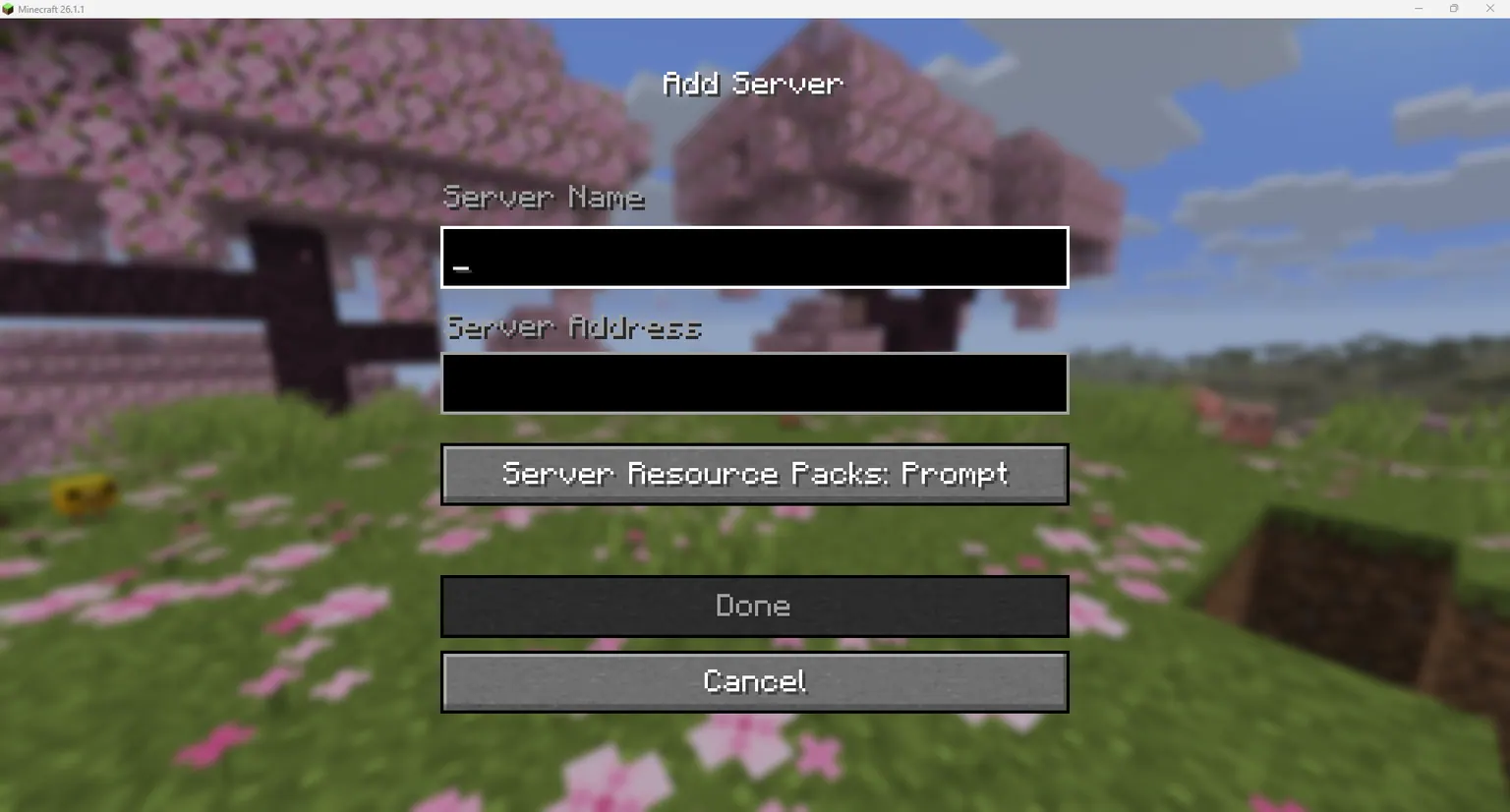
Add A Server
Select the Add Server option to add it to your list the next time you open up your multiplayer settings again. On this screen, put in your server name. Then enter your Minecraft connect address or IP address in the server address box. Select "Done".
Troubleshooting
Server not showing up in Minecraft?
- Please ensure that Minecraft is up to date and has no mods that would interfere with the server.
- Make sure your server is online by checking the Console tab in your HardGaming dashboard.
- Try connecting directly using the IP address method instead.
- Double-check that you're searching for the exact server name as it appears in your control panel.
Connection timed out?
- Verify the IP address and port are correct in your HardGaming control panel.
- If your server was just started, give it a minute or two to fully load before trying again.
Need Help?
If you run into any issues, the HardGaming support team is here for you:
- Live Chat - Use the integrated chat feature on our website
- Discord - Join our community for quick help
- Email - Reach out to our support team directly
Happy gaming! 🎮