Frozen Flame: How to Set Up a Server
Table of Contents
Frozen Flame server hosting on HardGaming gets your Steam survival world online without touching a command line, and the path from picking a plan to a running server takes a few minutes in your browser. This guide covers choosing a plan, naming your server, paying, and confirming the server came up.
Before You Start
- A HardGaming account. Create one at hardgaming.tech first. Checkout stops before payment until you are signed in.
- A payment method. Your card is entered at the last step and saved for the monthly subscription.
- PC only. Frozen Flame runs on Steam for Windows, with no Mac, Linux, console or mobile client, so every player your server hosts needs a Windows PC.
- Nothing to install. Every step happens in your browser. The server files are downloaded and unpacked for you.
- Your server name is not final. You set it during checkout, and you can revisit it once the server exists.
Step 1: Open the HardGaming Website
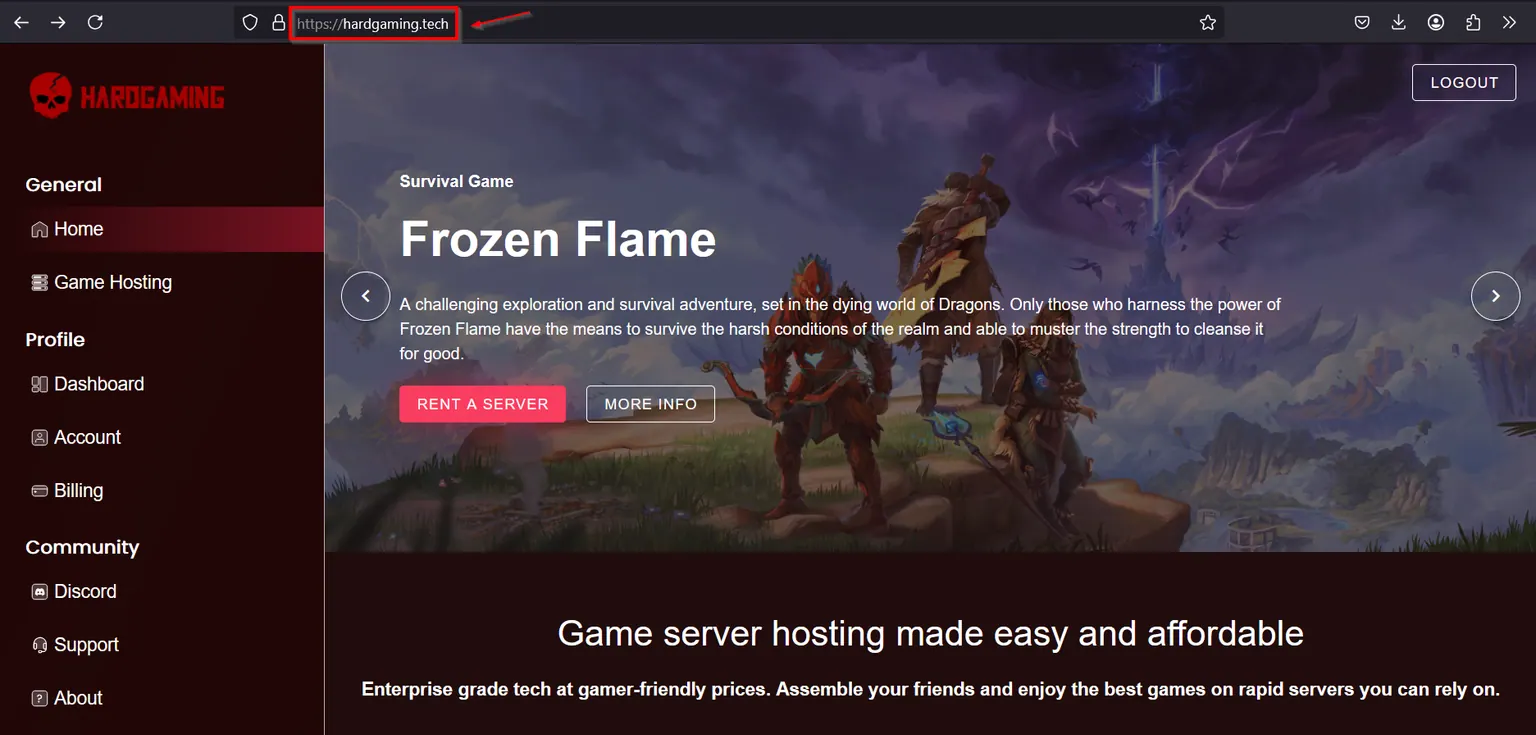
Go to hardgaming.tech and sign in with your HardGaming account.
Step 2: Select Game Hosting
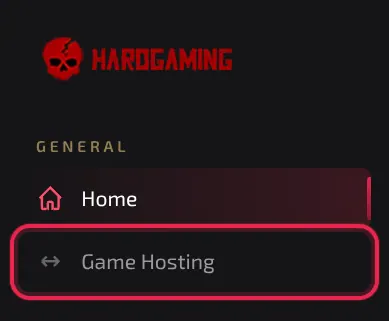
In the sidebar on the left, click Game Hosting.
Step 3: Select the Frozen Flame Tile
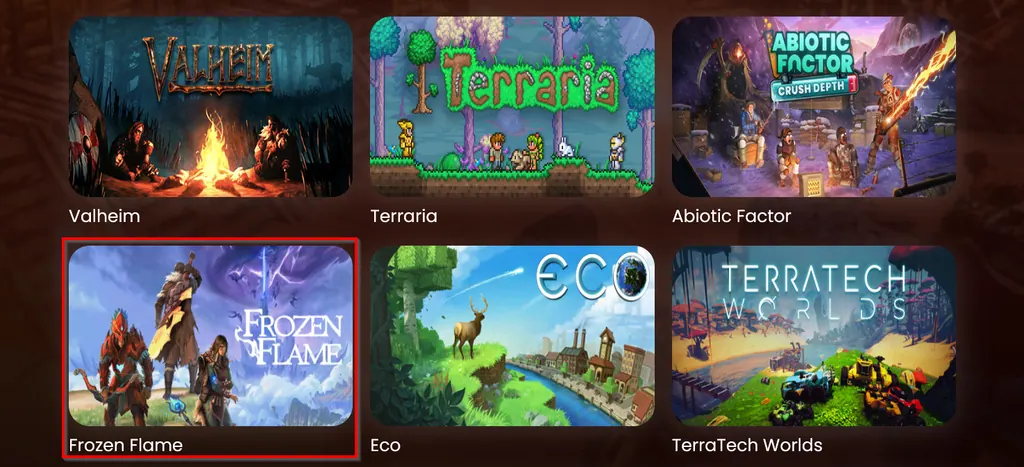
The grid lists every game HardGaming hosts. Click the Frozen Flame tile.
Step 4: Choose a Plan
HardGaming offers three plans for Frozen Flame: Starter, Premium and Custom. Pick Starter for solo play, Premium for playing with a group, or Custom to set your own memory, storage and backup slots. Click the plan you want.
Step 5: Name Your Server
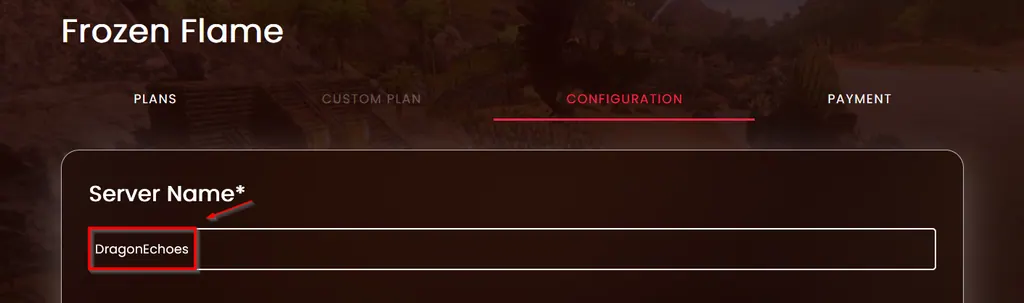
On the Configuration tab, type a name into Server Name. It is marked required, and it is the name you will see in your dashboard. Click Continue to Payment when you are ready. Nothing here is final, and you can change it later.
Step 6: Enter Your Payment Details
Leave Select Your Card on Enter a new card, or pick a card you already saved. Fill in Card Number, Expiry Date, Security Code, Country and Zip code, then click Submit Secure Payment.
Warning: Your card is saved and charged every month until you cancel the server from your Billing page.
Step 7: Confirm Your Server Is Running
Payment takes you straight to your new server. The Console tab streams the install while Frozen Flame downloads and unpacks, and the other tabs unlock as it finishes.
Watch STATUS on the right. It reads offline while the install runs, then running once the server is up, and CONNECT ADDRESS holds the address your friends need to join.
Can You Play Frozen Flame on Xbox or PlayStation?
No. Frozen Flame runs on Windows PC only, through Steam. Developer Dreamside Interactive has not released it for PlayStation, Xbox or mobile, so every player your server hosts needs a Windows PC to connect.
Applying a Coupon Code
If you have a coupon, apply it before you pay. On the payment page, click Apply coupon code, type your code, and click Apply. The discount is reflected in your total before you submit payment.
Troubleshooting
Continue to Payment does not work?
- Server Name is empty. The field is marked required, and the Configuration tab will not let you continue without it.
- Scroll back to the top of the Configuration step to find it.
Server still shows offline after paying?
- It is still installing. The Console tab shows the download and unpack running line by line.
- Wait for STATUS to change to
runningbefore you connect.
Friends cannot join?
- Check STATUS reads
running. A server that is offline or installing refuses connections. - Give them the exact address from CONNECT ADDRESS.
Best Practices
- Take a DeepSave copy of your world before a big configuration change. Every plan includes one DeepSave slot.
- Keep your payment method current so the monthly renewal goes through without interruption.
- Note your server's CONNECT ADDRESS somewhere you and your group can find it quickly.
Next Steps
Your server now appears under My Servers on your HardGaming dashboard, and it stays there between sessions.
Need Help?
If you run into any issues, the HardGaming support team is here for you:
- Live Chat: use the chat widget on hardgaming.tech
- Discord: join our community for quick help
- Email: support@hardgaming.tech
Happy gaming! 🎮