DeepSave: Restore a Save or Rebuild a Server
Table of Contents
There are two ways to restore a DeepSave, and the one to use depends on whether its server still exists. If it does, restore the save from that server's Backup tab (Method 1). If the server is gone, Rebuild it from your Account page (Method 2), which starts an order for a new server on the old one's plan and puts the save back on it by itself.
Before You Start
Don't have a DeepSave yet? Follow our guide: DeepSave: Keep a Backup After Server Deletion
- The same game. A server lists only DeepSaves taken from its own game, but they can come from any of your servers, including ones you have deleted.
- Restoring overwrites. Files in the save replace the server's copies of the same files. Files the save does not contain stay where they are.
- The server restarts. Both methods stop the server and start it again by themselves, so pick a time when nobody is playing.
- A Rebuild is a new order. Method 2 buys a new server, and nothing is charged until you finish the purchase.
- Any game. The steps are the same whichever game the server runs. The screenshots here come from a Terraria server.
Method 1: Restore a DeepSave to an Existing Server
Use this when the server is still in your HardGaming dashboard. It also works on another server running the same game, so a save from a server you deleted can go onto one you already have.
Step 1: Choose the Save on the Backup Tab
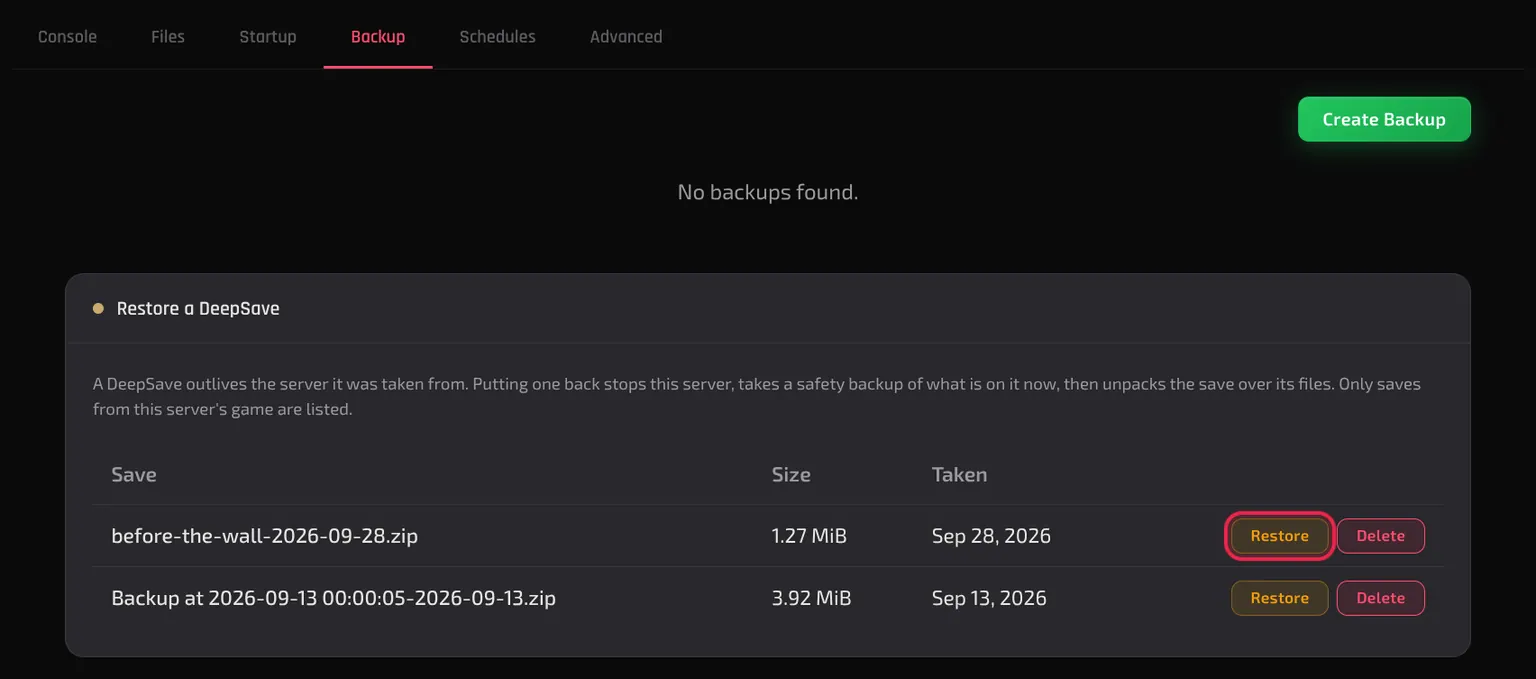
Open the server from your dashboard and click Backup. Below your backups, Restore a DeepSave lists your saves for this server's game, with the date each one was Taken. Click Restore on the one you want.
Step 2: Confirm the Restore
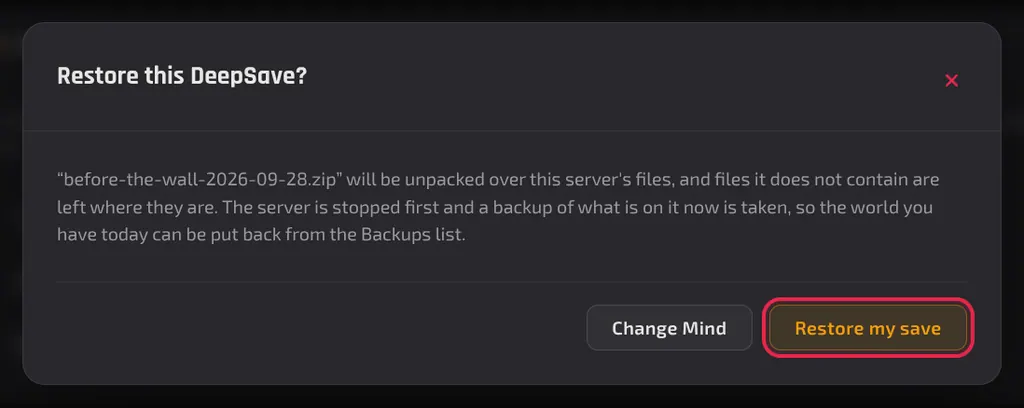
The Restore this DeepSave? box says what happens next. It stops the server, takes a backup of what is on it now, and then unpacks the save over its files. Nothing changes on the server until you click Restore my save.
Step 3: Wait for the Server to Start Again
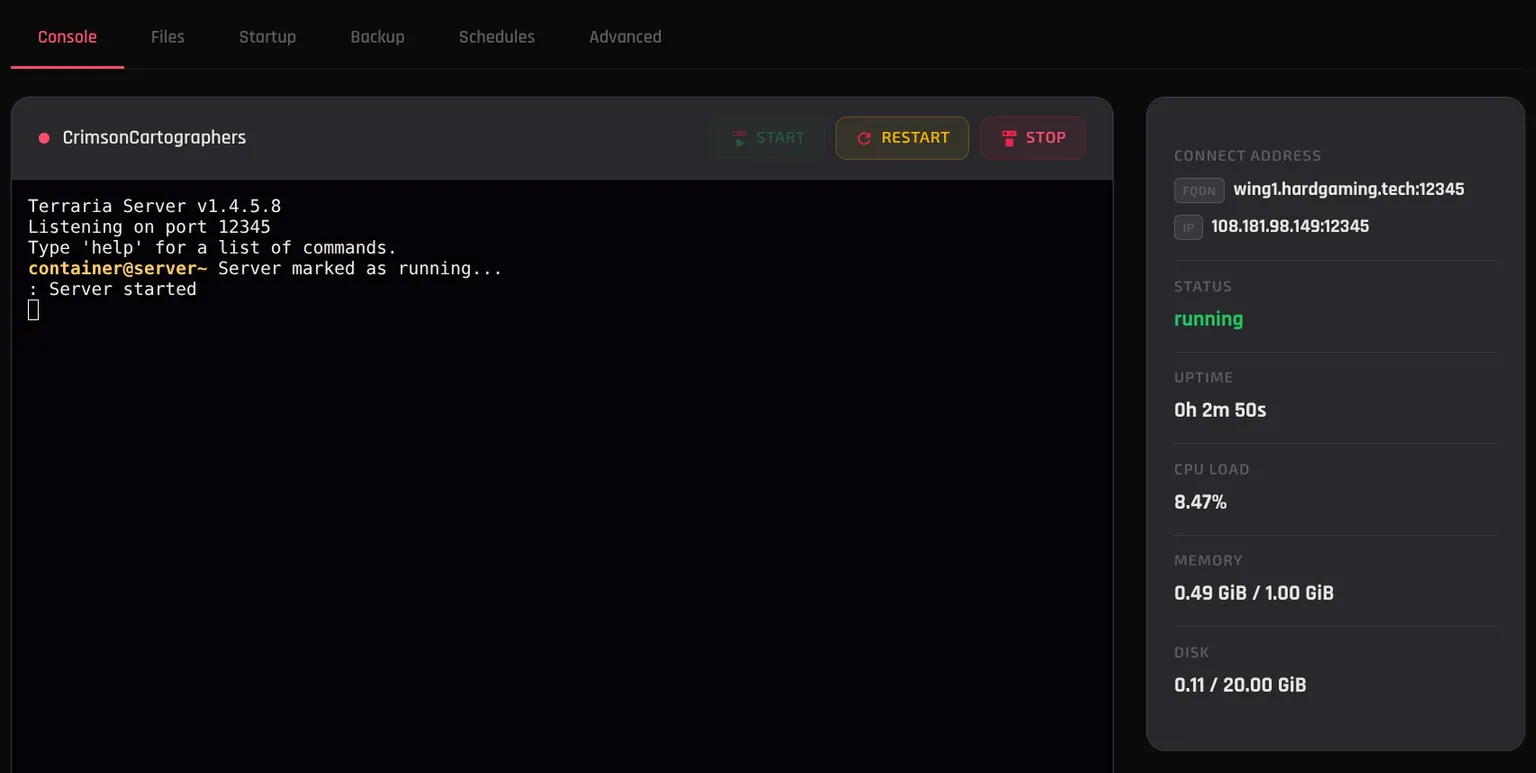
The page switches to the Console tab. STATUS reads stopping, then offline while the safety backup is taken and the save goes back on, then starting as the server comes back up by itself. Your saved files are back on the server appears at that moment, and a few seconds later STATUS reads running.
With the small Terraria save used for this guide, the whole restore took about 35 seconds.
Note: The Backup tab now lists a safety backup too, named
Before DeepSave restorefollowed by the date and time. It is the copy of the server as it stood before the restore.
Method 2: Rebuild a Deleted Server From Its DeepSave
Use this when the save's server has been deleted. If you already have another server for the same game, you can use Method 1 on that one instead, without buying anything.
Step 1: Click Rebuild on Your Account Page
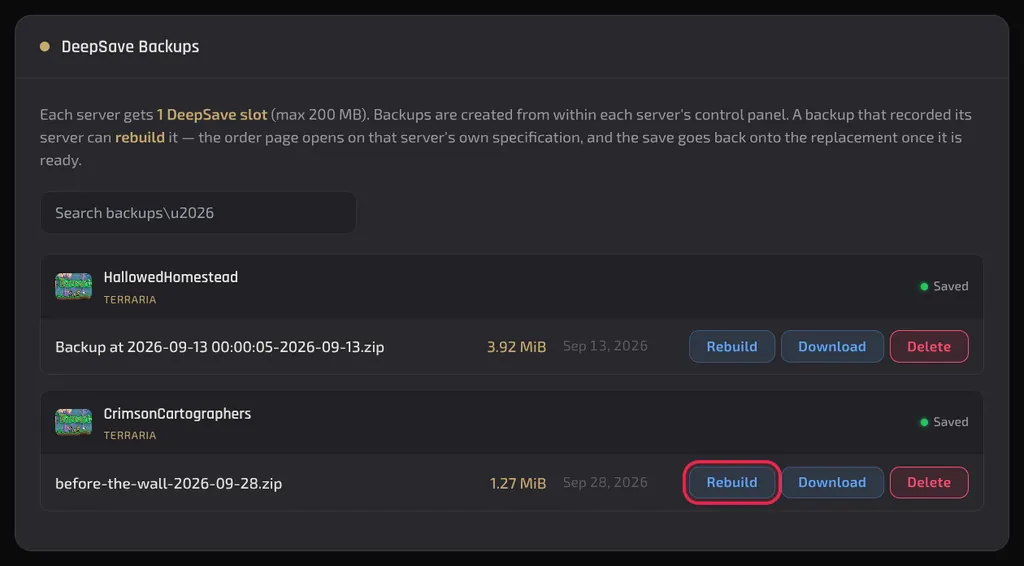
Open your Account page and scroll to DeepSave Backups. Each save is listed under the server it was taken from, and a deleted server's saves stay listed under its name. Click Rebuild on the save you want back.
Step 2: Continue to the Order Page
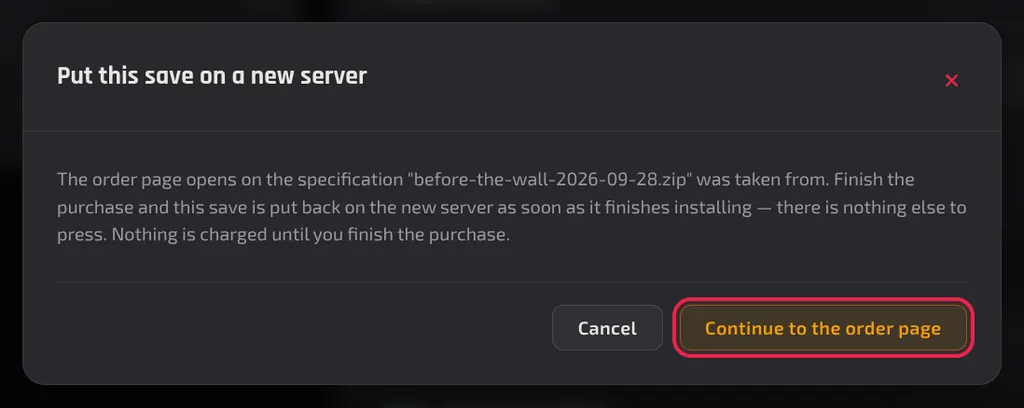
The Put this save on a new server box explains what happens next. The order page opens on the old server's specification, and once the new server finishes installing, the save goes back on with nothing else to press. Click Continue to the order page.
Step 3: Finish the Order
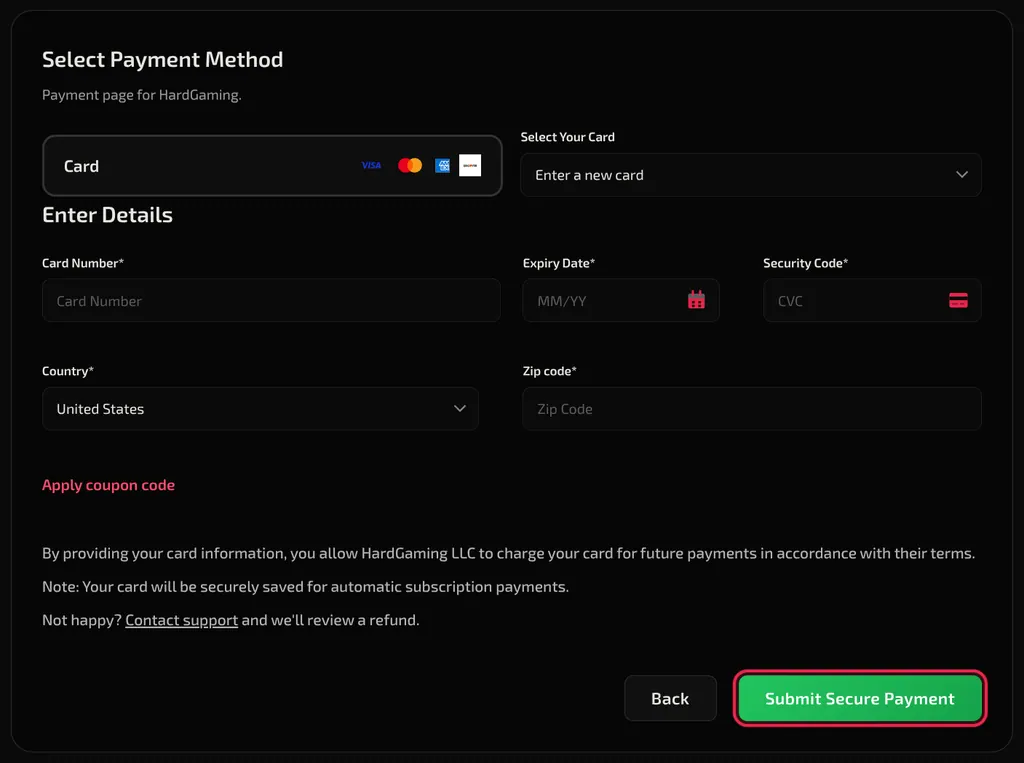
The order page for the save's game opens with the old server's plan already selected, and Loaded saved configuration appears for a moment. From here it is an ordinary order, and the page does not mention the save again. Type a name into Server Name, which starts empty, then pay with Submit Secure Payment.
Note: The old server's game settings come across too. The Configuration step opens with them already filled in, so check them and change any you want before you pay.
Each game's setup guide walks through these screens one at a time, for example Terraria: How to Set Up a Server.
Step 4: Wait for the Save to Go Back On
Payment shows Server deployed successfully and opens your new server's page. The game installs and the server starts by itself, then stops again a moment later: STATUS reads stopping, then offline, while the save goes back on. It then starts once more, Your saved files are back on the server appears, and STATUS settles on running.
There is nothing to press. With the small Terraria save used for this guide, payment to running took a little over a minute.
Note: The save stays on your Account page afterwards, still under the old server's name, so you can put it back again later.
What Happens to the Files Already on the Server?
Files in the save replace the server's copies of the same files, and everything the save does not contain is left where it is. A file added to the server before a restore is still there afterwards, unchanged.
Method 1 also keeps a safety backup of the server as it was, listed on the Backup tab as Before DeepSave restore followed by the date and time. It is not locked, and its row menu offers Restore and Lock like any other backup.
A Rebuild takes no safety backup, and the new server's Backup tab still reads No backups found afterwards. Before the save goes on, the new server holds nothing but its fresh install.
Restoring does not use up a DeepSave. It stays on your Account page, and the same save can go back on again.
Troubleshooting
Server stopped by itself?
- That is the restore working. Both methods stop the server, put the save back, and start it again without you pressing anything.
- Wait for Your saved files are back on the server and for STATUS to read
running. On the Terraria test server that took about 35 seconds after Restore my save, and a little over a minute after paying for a Rebuild.
Save missing from Restore a DeepSave?
- The list shows only saves from the server's own game. The card says so itself: Only saves from this server's game are listed.
- Every DeepSave you have is on your Account page under DeepSave Backups, listed under the server it was taken from.
Order page asking for a server name?
- A Rebuild brings the old server's plan and game settings across, but not its name. Type one into Server Name. The summary reads Please fill all required fields until you do.
Want the world from before the restore back?
- Method 1 took a safety backup first. It is on the server's Backup tab, named
Before DeepSave restorefollowed by the date and time, and its row menu has Restore.
Best Practices
- Check the Taken date before you click Restore, so the save that goes back on is the one you meant.
- Keep the
Before DeepSave restorebackup until you have played on the restored world and are happy with it. - Take a fresh DeepSave before a big change to your world, so the save you would restore is recent. DeepSave: Keep a Backup After Server Deletion covers how.
Next Steps
Need Help?
If you run into any issues, the HardGaming support team is here for you:
- Forum: ask the community and search past answers
- Email: support@hardgaming.tech
- Live Chat: use the chat widget on hardgaming.tech
- Discord: join our community for quick help
Happy gaming! 🎮