How to Schedule Restarts and Backups
Table of Contents
A schedule restarts your server, takes a backup or sends a console command at the times you choose, with nobody at the keyboard. This guide builds a nightly restart that warns players a minute before it happens, then covers how to set the time, what each task can do, and how to edit or delete a schedule. The examples come from a Terraria server, and the steps are the same whichever game you host.
Before You Start
- An active server. Schedules live on the Schedules tab of a server you own. Players you have shared the server with do not see that tab.
- Any game, any plan. Schedules are part of the panel, not part of a game. The one thing that changes between games is which console commands exist.
- Schedules run on US Central time. Work out the hour in Central time before you fill in the fields. How Do I Set the Time? shows how.
- Scheduled backups clear old ones. When every backup slot is full, a scheduled backup deletes the oldest unlocked backup without asking. Lock any backup you want to keep first.
New to the server panel? Take the tour first: How to Use Your Server Dashboard
Step 1: Create the Schedule
Open your server from your HardGaming dashboard, go to the Schedules tab and click Create schedule. Type a Schedule Name, such as Nightly restart, then set the time fields. Minute 0 and Hour 5, with Day of Month, Month and Day of Week left as *, runs at 5:00 AM Central every day. Switch on Schedule Enabled and click Create Schedule.
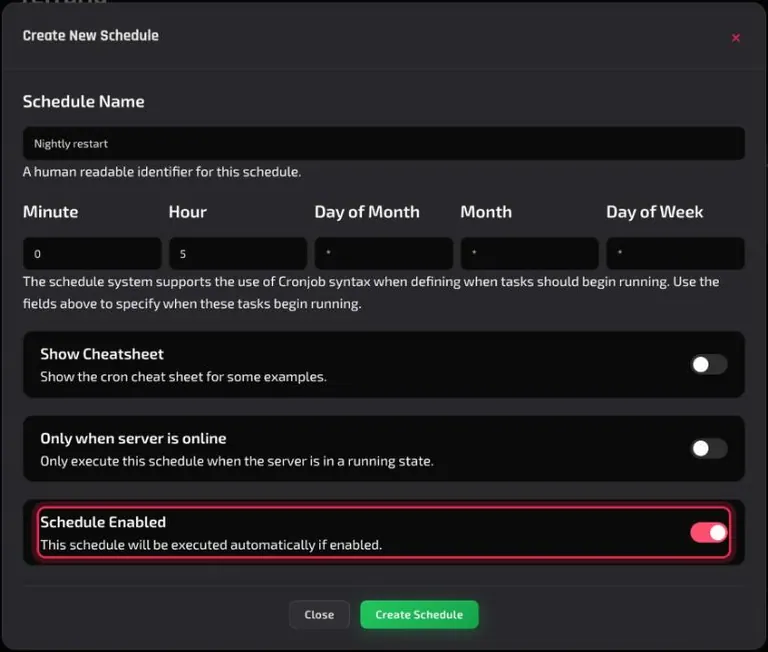
Note: Schedule Enabled starts switched off. A schedule saved without it shows Inactive in the list and never runs on its own.
The panel confirms with Schedule created successfully. and the schedule appears in the list marked Active. Click its row to open the schedule's own page.
Step 2: Add a Warning Command
A schedule runs its tasks, so it needs at least one. On the schedule's page, click New Task. In Create New Task, choose Send Command under Action, type the command into Payload, leave Time Offset (seconds) at 0, and click Create Task.
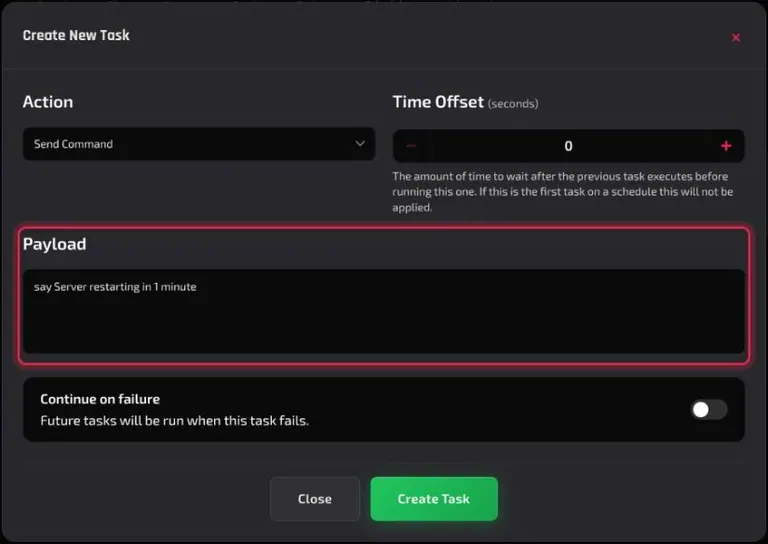
On Terraria, say Server restarting in 1 minute posts that message to everyone in the game. Commands depend on the game, so use whatever your game's server console understands. The panel confirms with Task created successfully.
Step 3: Add the Restart With a Delay
Click New Task again. Choose Send Power Action under Action and Restart the server under Payload. Set Time Offset (seconds) to 60, then click Create Task.
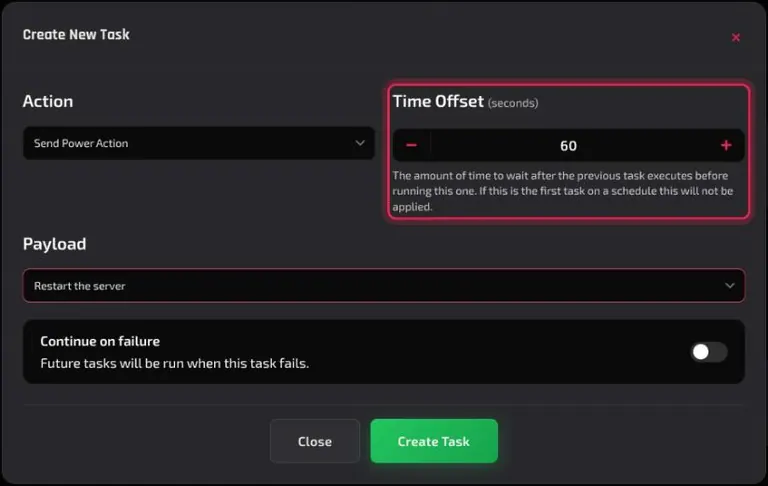
The offset is the wait after the task before it. The panel describes it as The amount of time to wait after the previous task executes before running this one. If this is the first task on a schedule this will not be applied. So the warning goes out, and the restart follows 60 seconds later, matching what the message told players.
Step 4: Test the Schedule With Run Now
Click Run Now at the top of the schedule's page. It runs every task straight away, without waiting for the scheduled time, and confirms with Tasks added for execution.
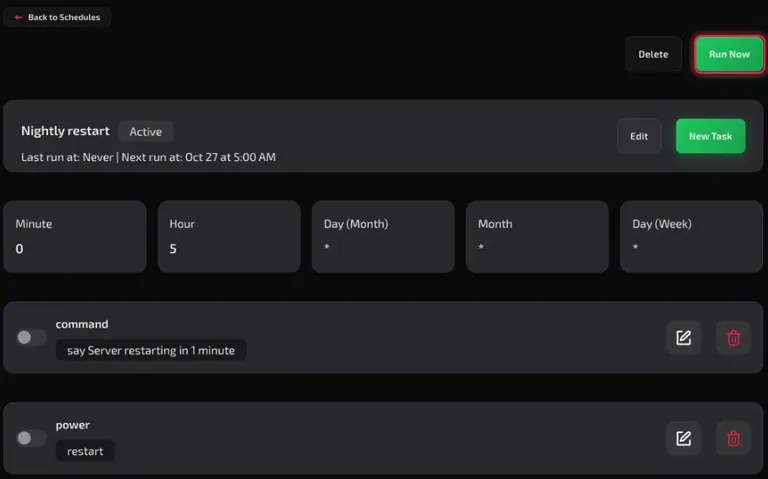
On the Terraria test server, <Server> Server restarting in 1 minute appeared in the game chat and the console at once. About 60 seconds later the server went to starting, and it was back to running within ten seconds. The page now shows Last run at with the time of this test, and Next run at with the next scheduled time, such as Oct 27 at 5:00 AM.
If nothing happened, see Troubleshooting.
How Do I Set the Time?
Fill in the five fields in cron format, where * means every value. The panel describes it this way: The schedule system supports the use of Cronjob syntax when defining when tasks should begin running. The fields are:
| Field | What it sets | Example |
|---|---|---|
| Minute | Minute of the hour | 0 is on the hour |
| Hour | Hour of the day, 24-hour clock | 5 is 5:00 AM, 17 is 5:00 PM |
| Day of Month | Date | 1 is the first of the month |
| Month | Month | * is every month |
| Day of Week | Weekday | Mon is Monday |
Switch on Show Cheatsheet in the dialog for ready-made examples. These are the ones it lists, in the order Minute, Hour, Day of Month, Month, Day of Week:
| Pattern | Runs |
|---|---|
*/5 * * * * | Every 5 Minutes |
0 */1 * * * | Every Hour |
0 8-12 * * * | Hour Range |
0 0 * * * | Once a Day |
0 0 * * Mon | Every Monday |
The special characters are * for any value, , to separate a list of values, - for a range and / for steps.
Every time is US Central time. Convert from your own time zone before you set Hour. Central time is one hour behind Eastern and two hours ahead of Pacific, so a restart you want at 6:00 AM Eastern goes in as Hour 5, and one you want at 3:00 AM Pacific also goes in as Hour 5. The Next run at line on the schedule's page shows when the panel expects to run it next, which is a quick way to check your sum.
What Can a Task Do?
Every task has an Action. There are three:
| Action | Payload | Use it for |
|---|---|---|
| Send Command | A console command you type | Warnings, saving the world, any command your game's server accepts |
| Send Power Action | Start the server, Restart the server, Stop the server or Terminate the server | Restarts, or turning the server off and on at set times |
| Create Backup | None needed | Regular backups |
Tasks run in the order they are listed, and Time Offset (seconds) sets the wait before each one after the first. Continue on failure, on the same dialog, does what the panel says: Future tasks will be run when this task fails. Switch it on for any task the rest should not depend on.
A Create Backup task follows the same slot rules as any backup, with one difference. When every slot is full, the scheduled backup deletes the oldest unlocked backup to make room, without asking, and skips any you have locked. Backups are also rate limited, so space backup tasks well apart. How to Back Up and Restore Your Server covers locking a backup.
Only When Server Is Online
The Only when server is online toggle, off by default, means Only execute this schedule when the server is in a running state. Leave it off for a restart schedule. With it off, a restart task run while the server is stopped starts the server.
Edit or Delete a Schedule
To change a schedule, open it and click Edit. The same fields come back: the name, the five time fields, and the Show Cheatsheet, Only when server is online and Schedule Enabled toggles. Click Save changes and the panel confirms with Schedule updated successfully. Each task row has its own edit icon and bin icon.
To remove a schedule, open it and click Delete. The Delete Schedule dialog warns: All the tasks will be removed any running processes will be terminated. Click Delete Schedule and the panel confirms with Schedule Deleted Successfully.
Tip: To pause a schedule without losing its tasks, click Edit, switch off Schedule Enabled and save. Switch it back on when you want it running again.
Troubleshooting
Schedule never ran?
- Check the list. A schedule marked Inactive has Schedule Enabled switched off. Click Edit, switch it on and click Save changes.
- Check the hour against US Central time, not your own. See How Do I Set the Time?.
- Open the schedule and confirm at least one task is listed under it.
- If Only when server is online is on, the schedule skips any run while the server is stopped.
Server restarted without warning players?
- The restart task has a Time Offset (seconds) of
0, so it fires the moment the warning goes out. Edit it and set the offset to match your message, such as60. - The restart is the first task. The offset is ignored on the first task, so delete it and add it again after the warning command.
Old backups keep disappearing?
- A Create Backup task with every slot full deletes the oldest unlocked backup. Lock the backups you want to keep from the three dots on their row on the Backup tab.
Best Practices
- Warn players before every restart. A Send Command task first and a restart 60 seconds later gives everyone time to finish what they are doing.
- Pick quiet hours. Schedule restarts and backups for when the fewest players are online, worked out in Central time.
- Lock the backups that matter. A locked backup is never the one a scheduled backup clears to make room.
- Test every new schedule with Run Now. You find out straight away whether the command works in your game, instead of at 5:00 AM.
Next Steps
- Back up, lock and restore your server
- Tour every tab of the server dashboard
- Set up a Terraria server
Looking for your next world? Browse every game we host and spin up a server in minutes.
Need Help?
If you run into any issues, the HardGaming support team is here for you:
- Forum: ask the community and search past answers
- Email: support@hardgaming.tech
- Live Chat: use the chat widget on hardgaming.tech
- Discord: join our community for quick help
Happy gaming! 🎮