How to Share Your Server With a Friend
Table of Contents
Sharing lets a friend help run your server from their own HardGaming account: they can start it, restart it, stop it, send console commands and download backups, without you handing over your login. You add them by username from the server's Advanced tab, and you can take the access away again at any time. Your settings, files and schedules stay yours.
Before You Start
- A server you own. Only the owner can share a server, from its Advanced tab.
- Your friend needs a HardGaming account. You share by username, so they have to have signed up first.
- Any game, any plan. Sharing works the same way on every game we host. The examples use a Terraria server.
- The username, exactly. Ask your friend for their username, as shown on their own Account page (Step 1).
Step 1: Get Your Friend's Username
Your friend finds their username on their Account page, under Personal Information. They open it from Account in the menu on the left of their dashboard.
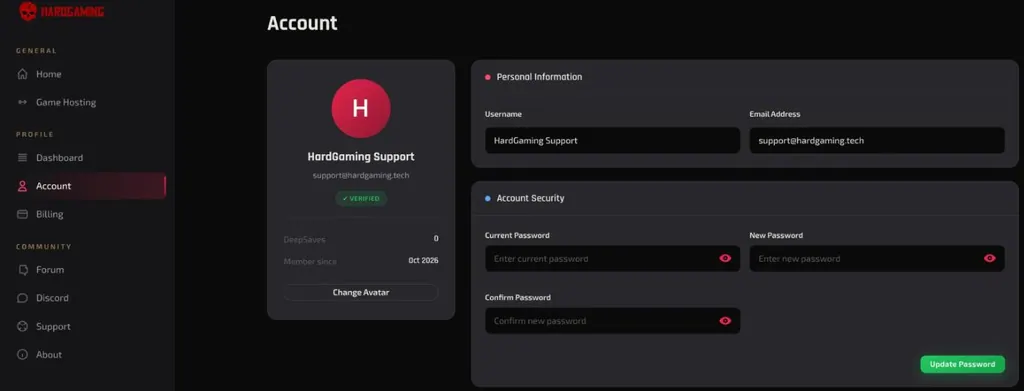
Usernames can't be changed, so the one they give you stays the same.
Step 2: Share the Server
Open your server from your HardGaming dashboard and click the Advanced tab. Under Server Sharing, type your friend's username into Enter username and click Share.
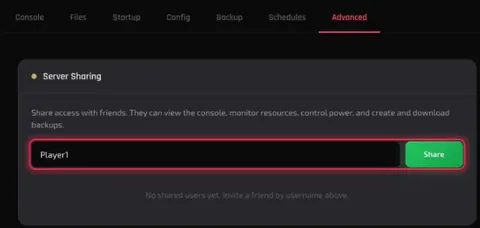
The panel confirms with Server Shared Successfully, and your friend appears under SHARED WITH 1 USER with their username and email address.
Step 3: Have Your Friend Open the Server
Your friend signs in to their own dashboard and clicks Shared With Me, next to My Servers. Your server is listed there with the same card you see, including STOP, RESTART and MANAGE SERVER.
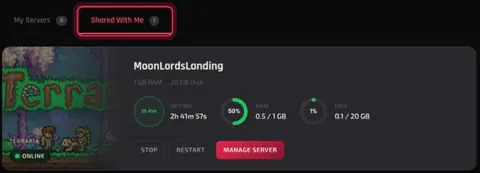
They click MANAGE SERVER to open it.
Step 4: Remove Access When You Want To
On the Advanced tab, click the bin icon next to your friend under SHARED WITH. The panel asks you to confirm, and warns that They will lose the ability to view or control this server immediately.
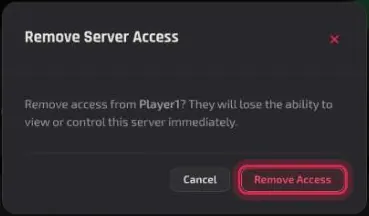
Click Remove Access. The panel confirms with Server Access Removed Successfully, and your friend is no longer listed.
What Can a Friend Do on My Server?
A friend sees only two tabs: Console and Backup. The panel describes it as: They can view the console, monitor resources, control power, and create and download backups.
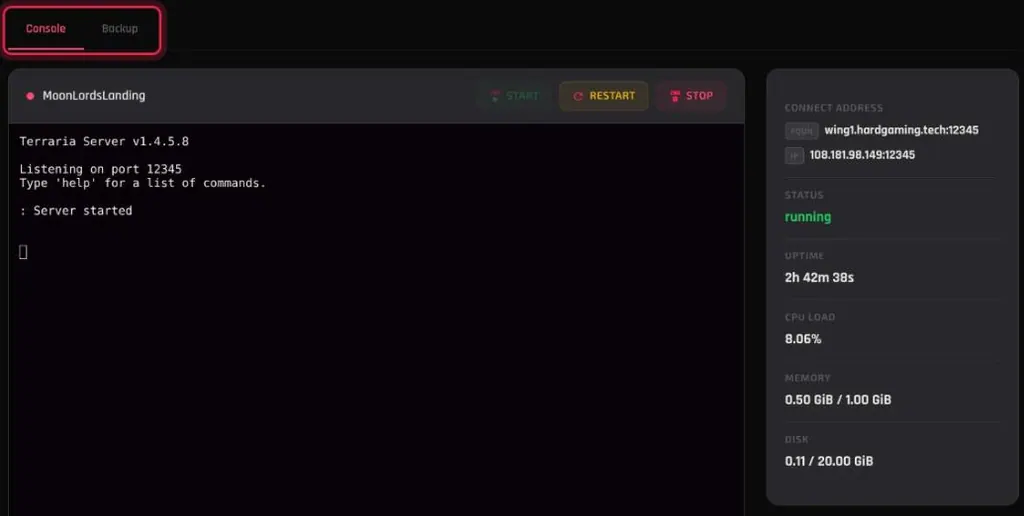
| A friend can | A friend can't |
|---|---|
| Use START, RESTART and STOP | Change settings on Startup or Config |
| Send console commands | Open Files, Schedules or Advanced |
| See the connect address, status, CPU, memory and disk | Restore, lock, delete or DeepSave a backup |
| Download backups from the Backup tab | Share the server with anyone else |
Tested on a Terraria server: a shared user's RESTART restarted the server, and their console commands ran. On the Backup tab, the only option on a backup's menu was Download.
Troubleshooting
User not found when you click Share?
- The panel says User not found with the provided username. Please try with a valid username. Check the spelling against your friend's Account page, and make sure they have finished signing up.
This username already has server access?
- Your friend is already shared. Check the list under SHARED WITH on the Advanced tab.
Friend can't find the server?
- It's under Shared With Me on their dashboard, not My Servers. Have them click Shared With Me.
Shared list suddenly says No shared users yet?
- The list sometimes fails to load after the server page has been opened many times in a short spell. Your friend keeps their access. Wait a while and reload the page before removing or re-adding anyone.
Best Practices
- Share only with people you trust to restart your server. A shared user can stop it while others are playing.
- Remove access when someone stops playing. It takes one click, and it's immediate.
- Make a backup before you share, so you have a copy to fall back on. See How to Back Up and Restore Your Server.
Next Steps
- Tour every tab of your server dashboard
- Back up and restore your server
- Manage your HardGaming account
Looking for a server to share? Browse every game we host and have one running in minutes.
Need Help?
If you run into any issues, the HardGaming support team is here for you:
- Forum: ask the community and search past answers
- Email: support@hardgaming.tech
- Live Chat: use the chat widget on hardgaming.tech
- Discord: join our community for quick help
Happy gaming! 🎮