How to Manage Your Account
Table of Contents
Your Account page holds the details of your HardGaming login: your username and email, your profile picture, your password, and the DeepSaves you've kept. This guide covers each of them. Paying for servers, changing cards and cancelling are covered separately in How to Manage Billing and Cancel a Server.
Before You Start
- A HardGaming account. Everything here happens while you're signed in to your HardGaming dashboard.
- Your current password, if you plan to change it. Forgotten it? See Forgot Your Password?.
- A picture under 5 MB, in PNG, JPG or JPEG, if you plan to change your profile picture.
Step 1: Open Your Account Page
Click Account in the menu on the left of your dashboard. The card on the left shows your profile picture, username, email address, how many DeepSaves you have and when you became a member.
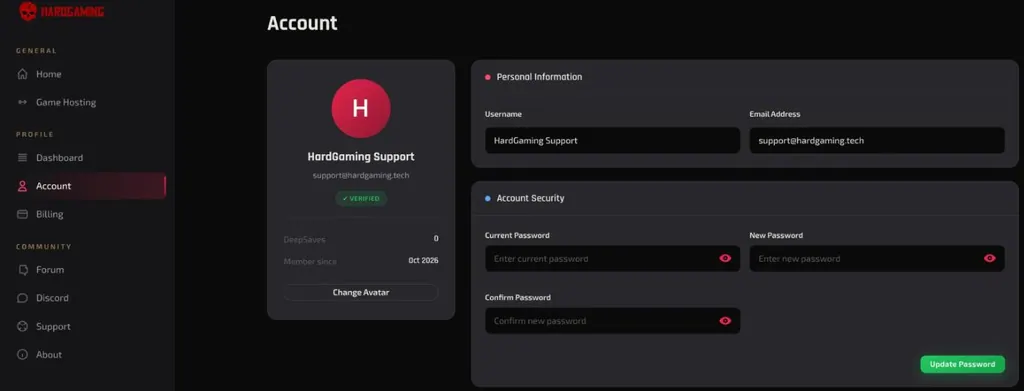
Personal Information shows your Username and Email Address. They're shown for reference and can't be edited here.
Step 2: Change Your Profile Picture
Click Change Avatar under your profile card. In Upload Avatar, click Click to choose file, pick a picture, and click Save.
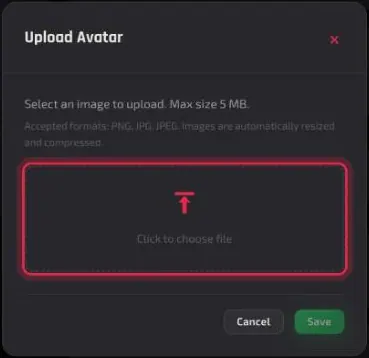
The dialog accepts PNG, JPG and JPEG up to 5 MB, and resizes and compresses the picture for you. The name of the file you chose appears in the dialog before you save. The panel confirms with Avatar changed successfully. and the new picture replaces your initial straight away.
Step 3: Change Your Password
Under Account Security, type your Current Password, then your New Password, and the new password again in Confirm Password. Confirm Password sits on the row below, under Current Password, so make sure the new password is the one you type there. Click Update Password.
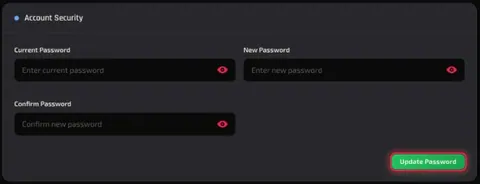
When the change goes through, a confirmation message appears briefly in the corner and all three fields clear. Use your new password the next time you sign in.
The eye icon at the end of each field shows what you've typed, so you can check it before saving. Each field must be filled in: leave one empty and the panel marks it with Password is required., or Please confirm your new password under Confirm Password.
Can I Change My Username or Email?
No. Your username and email address are fixed once your account is created. That also means the username a friend uses to share a server with you never changes.
Forgot Your Password?
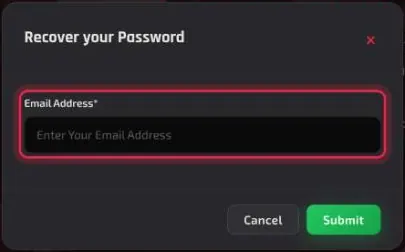
You can recover it from the sign-in window, without being signed in. On hardgaming.tech, click Login at the top right. In Sign in to your account, click Forget password? under Sign in.
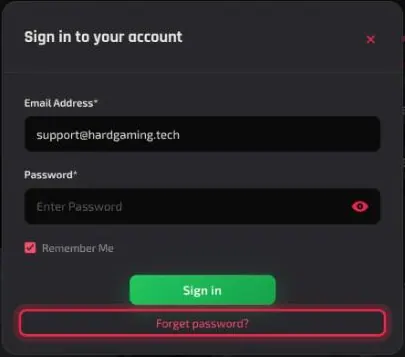
In Recover your Password, type the email address on your account into Email Address and click Submit. Cancel closes the window without sending anything.
Your DeepSaves
Below Account Security, DeepSave Backups lists every DeepSave in your account, grouped by the server it came from, with buttons to rebuild a server from it, download it or delete it. Each server includes one DeepSave slot of up to 200 MB.
DeepSaves have their own guides: DeepSave: Keep a Backup After Server Deletion to make one, and DeepSave: Restore a Save or Rebuild a Server to bring one back.
Troubleshooting
Update Password says Passwords do not match?
- Confirm Password must repeat your new password, not your current one. Click the eye icon on New Password and Confirm Password to compare them, and correct whichever is wrong.
Update Password shows Password is required?
- One of the fields is empty. Fill in all three: your current password, the new one, and the new one again under Confirm Password.
Picture won't upload?
- Check it's a PNG, JPG or JPEG, and under 5 MB. Other formats, and larger files, aren't accepted.
Next Steps
- Manage billing, upgrade or cancel a server
- Share your server with a friend
- Keep your world with DeepSave
Ready for your next world? Browse every game we host and have a new server running in minutes.
Need Help?
If you run into any issues, the HardGaming support team is here for you:
- Forum: ask the community and search past answers
- Email: support@hardgaming.tech
- Live Chat: use the chat widget on hardgaming.tech
- Discord: join our community for quick help
Happy gaming! 🎮