Enshrouded: How to Set Up a Server
Table of Contents
This guide takes you from the Enshrouded plan picker to a paid server with four working role passwords. One setting decides whether the server starts at all: every role needs a password the other three do not share, and checkout will not warn you if two match.
Before You Start
- A HardGaming account. Sign in at hardgaming.tech first. You can pick a plan without one, but Continue to Configuration then stops with Please login first to purchase a game server.
- PC players on Steam. This guide covers the Steam version of Enshrouded. The game has no crossplay yet, so PlayStation 5 players cannot join a PC server.
- Four different passwords. Enshrouded gives players one of four roles, Admin, Friend, Guest or Visitor, depending on which password they type. Pick four values that are all different before you start.
- Up to 16 players. Max Players defaults to 16, which is the most Enshrouded allows. No plan limits your player count.
- Your settings are not final. Every setting you choose at checkout appears again on the Startup tab of your server once it exists.
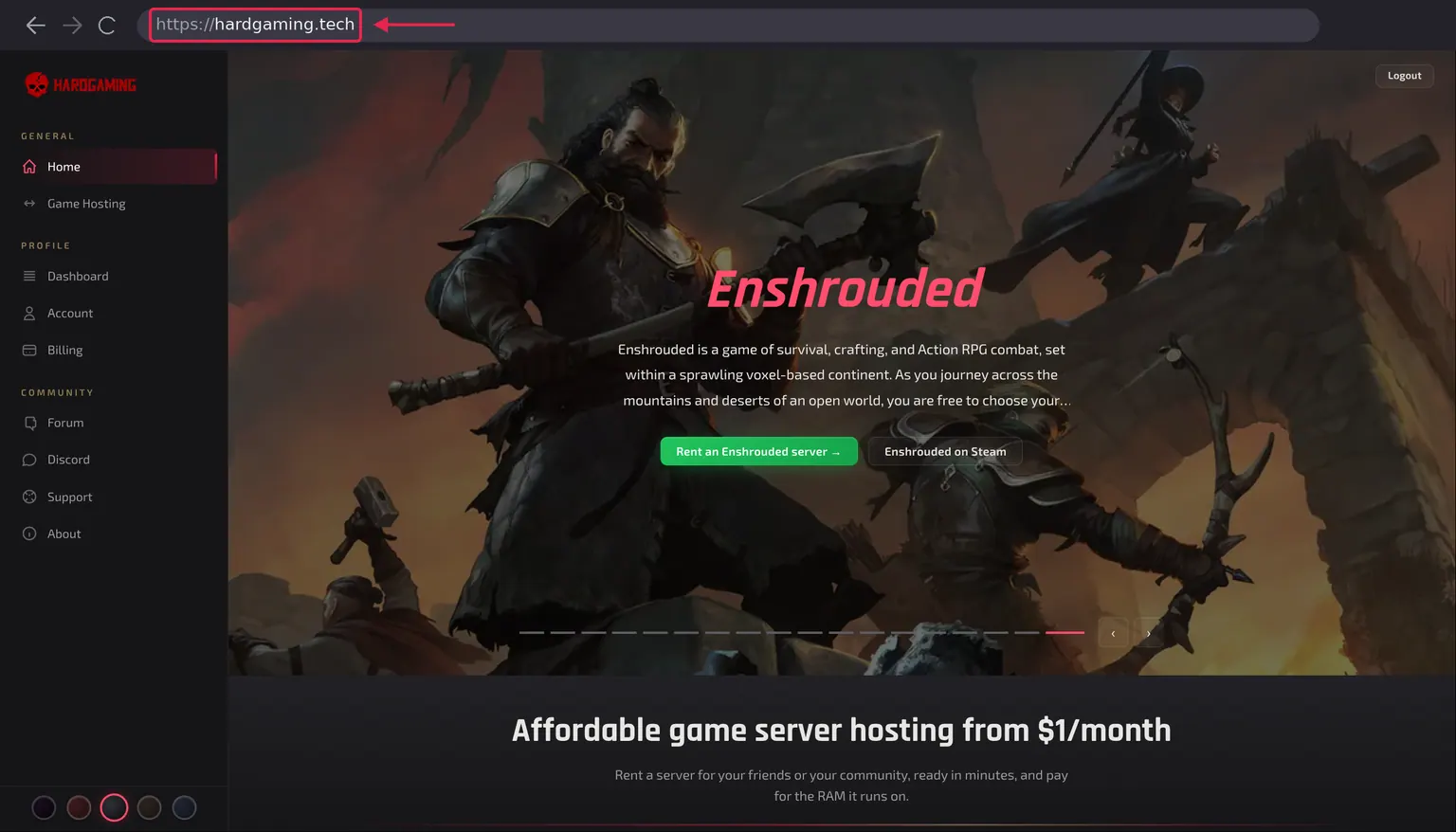
Step 1: Open the HardGaming Website
Go to hardgaming.tech and sign in. To skip the browsing, open Enshrouded server hosting and continue from Step 4.
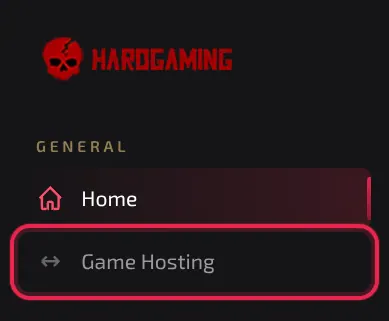
Step 2: Select Game Hosting
In the sidebar on the left, click Game Hosting.
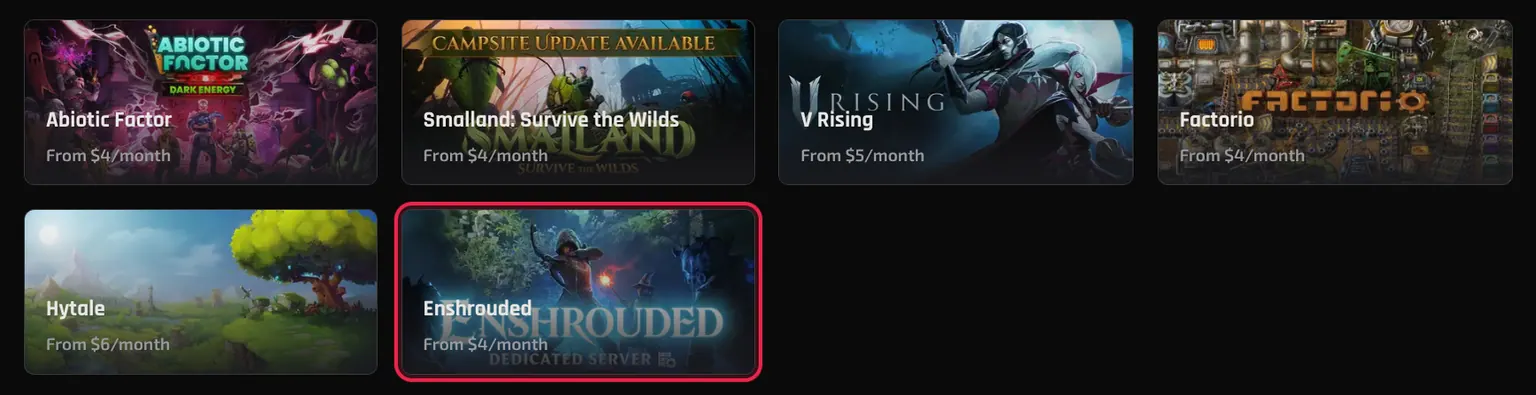
Step 3: Select the Enshrouded Tile
The grid lists every game HardGaming hosts. Click the Enshrouded tile.
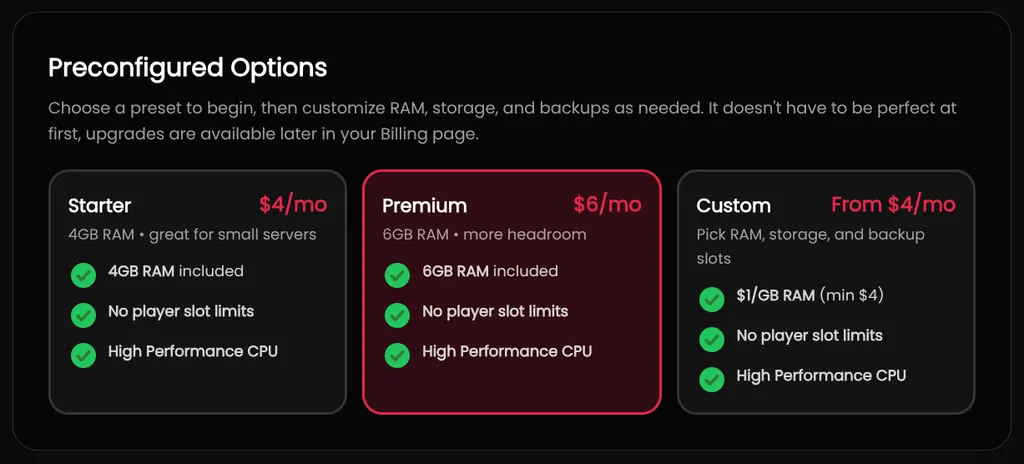
Step 4: Choose a Plan
Three presets are offered, and Premium is selected for you. Click the one you want.
- Starter, $4 a month, includes 4GB of RAM. Enough for a small group.
- Premium, $6 a month, includes 6GB of RAM. More headroom for a full world.
- Custom, from $4 a month, lets you pick RAM, storage and backup slots yourself.
Note: Prices are subject to change. The plan cards on hardgaming.tech always show the current price, so check them before you click.
Step 5: Adjust Memory and Storage
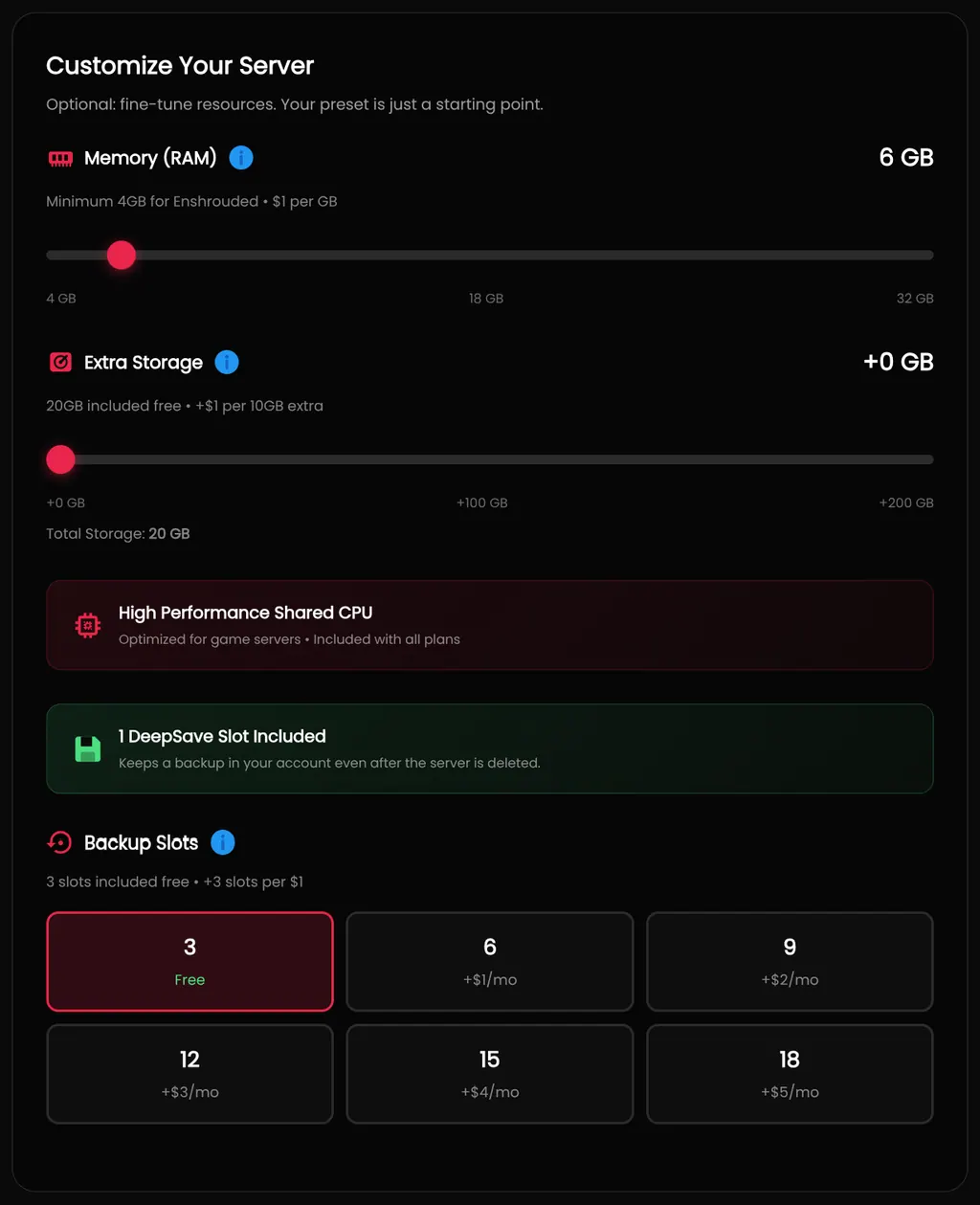
The preset is a starting point, and this whole section is optional. Drag Memory (RAM) to change how much memory the server gets, at $1 per GB. Enshrouded needs at least 4GB.
Extra Storage adds to the 20GB that every plan includes, at $1 for each extra 10GB. Backup Slots start at three for free, and each extra $1 a month adds three more.
Every plan also includes one DeepSave slot, which keeps a backup in your account even after the server is deleted. Our DeepSave guide covers how to use it.
Step 6: Check the Price and Continue
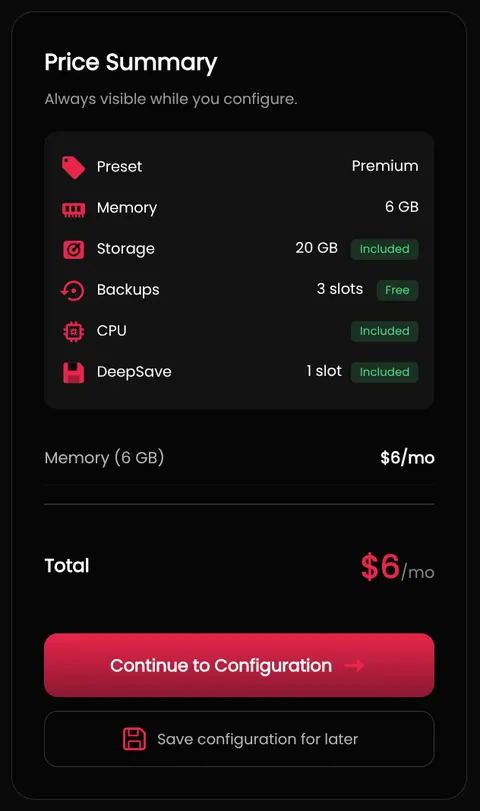
Price Summary on the right updates as you change anything, so the total there is what you will be charged each month. When it reads what you expect, click Continue to Configuration.
Step 7: Name Your Server
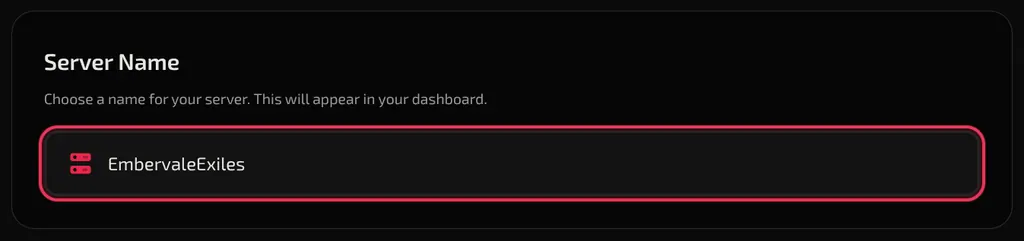
Type a name into Server Name at the top of the page. This is the name you will see in your HardGaming dashboard, and it is the one required field on this page.
Step 8: Switch to Full Control
Below the name, click Full Control. Quick Setup shows 0 key settings, so the role passwords only appear once Full Control is selected.
Full Control opens three groups: SERVER, USER GROUP and SYSTEM. Every setting is listed in Enshrouded Server Settings below.

Step 9: Set Four Different Role Passwords
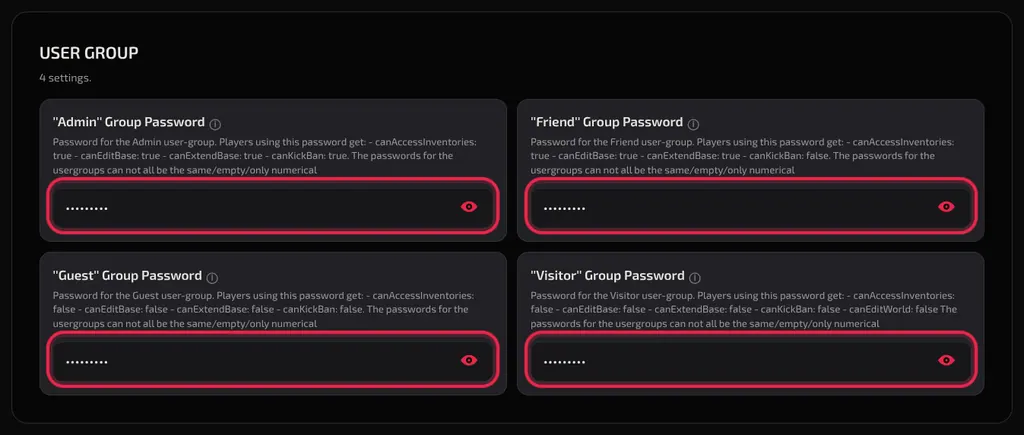
In USER GROUP, replace each of the four passwords with your own. Each field arrives filled with a placeholder, so type over all four rather than leaving any as they are.
Every password must be different from the other three. If any two match, the server stops as soon as it starts. Why Does Each Role Need Its Own Password? explains why.
Note: The description on each field says the passwords cannot all be the same. The rule is stricter than that: two matching passwords are enough to stop the server, even when the other two are different.
Step 10: Review Your Configuration
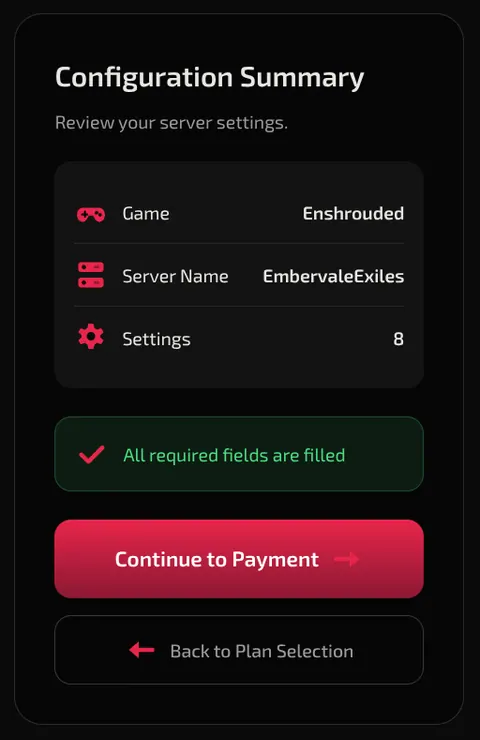
Configuration Summary on the right lists your game, server name and how many settings you have. It reads All required fields are filled once the server name is set. Click Continue to Payment.
Step 11: Enter Your Payment Details
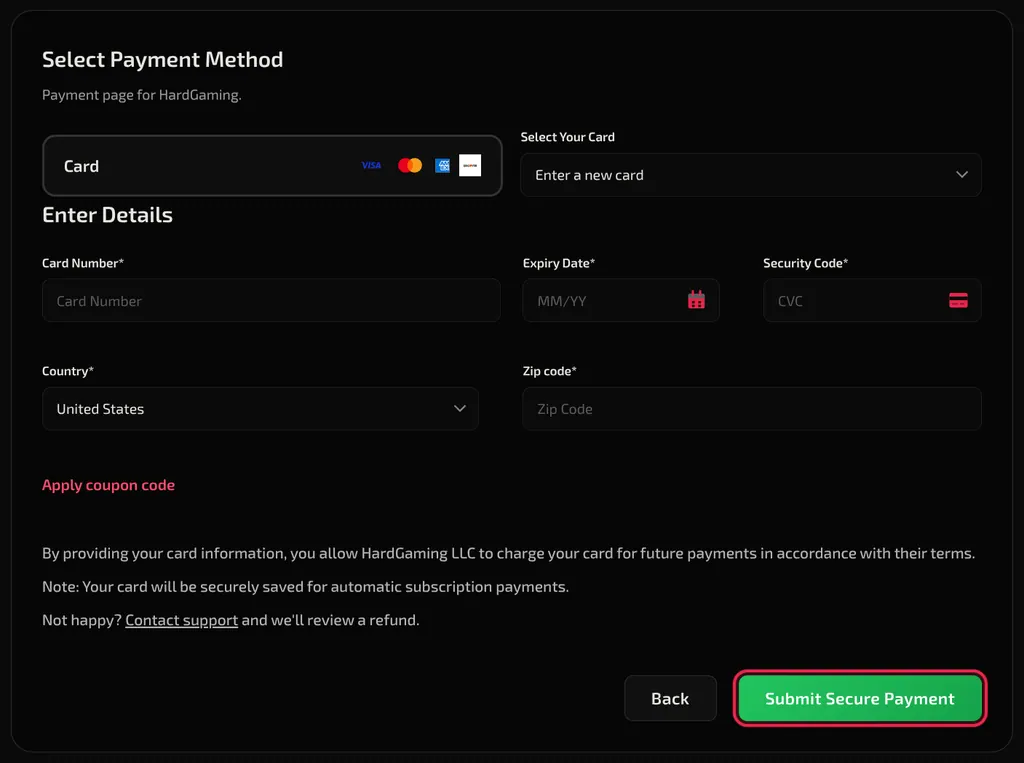
Leave Select Your Card on Enter a new card, or pick a card you have used before. Fill in Card Number, Expiry Date, Security Code, Country and Zip code, then click Submit Secure Payment.
Warning: Your card is saved and charged every month until you cancel the server from your Billing page.
Step 12: Confirm Your Server Is Running
Payment takes you straight to your new server. The notice Your server is installing appears while Enshrouded downloads, and the Console tab streams the install line by line.
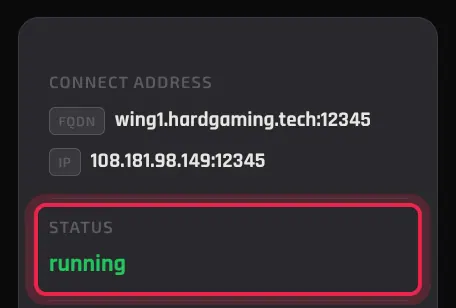
The server starts on its own once the install finishes, so you do not need to click START. Watch STATUS on the right and wait for it to read running. CONNECT ADDRESS holds the address your friends need. If STATUS goes back to offline instead, see Troubleshooting.
Why Does Each Role Need Its Own Password?
Because the password a player types is the only thing that tells the server which role to give them. If two roles share a password, the server cannot tell which one a player meant, so it refuses to start.
The Console tab shows exactly this. A server with two matching passwords prints Internal Error: user groups passwords must be unique, then Internal Error: Invalid Server Configuration, and STATUS drops back to offline.
A role whose password is left empty lets anyone join with that role's permissions, according to Keen Games, the studio behind Enshrouded. Give every role a password unless you mean to do that.
Enshrouded Server Settings
Every setting under Full Control, with the default it ships with.
| Setting | Group | What it does | Default |
|---|---|---|---|
| Server Name | SERVER | The name of the Enshrouded server itself. This is separate from the dashboard name in Step 7 | My HardGaming Enshrouded Server |
| Max Players | SERVER | The most players the server will hold, up to 16 | 16 |
| Admin password | USER GROUP | Can access inventories, edit and extend bases, and kick or ban players | a placeholder |
| Friend password | USER GROUP | Can access inventories and edit and extend bases, but cannot kick or ban | a placeholder |
| Guest password | USER GROUP | Can join and play, but cannot access inventories, edit bases or change the world | a placeholder |
| Visitor password | USER GROUP | The same limits as Guest | a placeholder |
| Auto Update | SYSTEM | Updates the server files each time the server boots | on |
| Validate | SYSTEM | Checks the server files through Steam | off |
Leave Auto Update on, so the server keeps up with the game version your players are running.
Note: You can edit any of these from the Startup tab. Each field saves when you leave it and confirms with Variable saved. A running server keeps its current value until it restarts., so click RESTART afterwards to apply the change.
Troubleshooting
Server goes offline straight after starting?
- Two or more role passwords match. The Console tab shows
Internal Error: user groups passwords must be uniqueright before the server stops. - Open the Startup tab and change the passwords until all four are different.
- Click START. After a failed start the server does not retry on its own, and the console says Aborting automatic restart, last crash occurred less than 60 seconds ago.
Changed a setting but nothing happened?
- A running server keeps the old value until it restarts. Click RESTART on the server page.
- Wait for Variable saved to appear before you restart, so the change is saved first.
Configuration Summary says Please fill all required fields?
- Server Name at the top of the page is empty. It is the only required field, and the page shows Server name is required under it until you fill it in.
Best Practices
- Keep the Admin password to yourself and hand out the Friend or Guest password instead. Admin is the only role that can kick or ban players.
- Leave Auto Update on so the server and your players stay on the same version.
- Make a DeepSave before you change world settings or wipe anything.
Next Steps
Your server now appears under My Servers on your dashboard, and it stays there between sessions. Click MANAGE SERVER on its card any time to restart it, change a role password, or pull a backup.
- Protect your world with DeepSave
- Browse all Enshrouded guides
- Guides for every game we host
- Enshrouded server hosting
Bring your whole group to Embervale with Enshrouded server hosting, or browse every game we host.
Need Help?
If you run into any issues, the HardGaming support team is here for you:
- Forum: ask the community and search past answers
- Email: support@hardgaming.tech
- Live Chat: use the chat widget on hardgaming.tech
- Discord: join our community for quick help
Happy gaming! 🎮