How to Manage Billing and Cancel a Server
Table of Contents
Every server you rent is its own monthly subscription, and the Billing page is where you look after all of them: see what each one costs and when it renews, switch the card it is charged to, add resources, or cancel it. Cancelling does not cut your server off on the spot, and this guide explains exactly what happens next so nothing is lost by surprise. Making changes to the server itself, such as settings and backups, is covered in How to Use Your Server Dashboard.
Before You Start
- A HardGaming account with at least one server. Billing lists every server you have paid for, active or not.
- Any game, any plan. Billing works the same for every server. The examples below use a Terraria server.
- Cancelling ends with your server being deleted. Read What Happens When I Cancel a Server? before you click.
Want to keep your world after cancelling? Follow our guide: DeepSave: Keep a Backup After Server Deletion
Step 1: Open Your Billing Page
Sign in to your HardGaming dashboard and click Billing in the menu on the left, or go straight to your Billing page. Each server has its own card showing the game, the server name, its renewal date, its status and its monthly price.
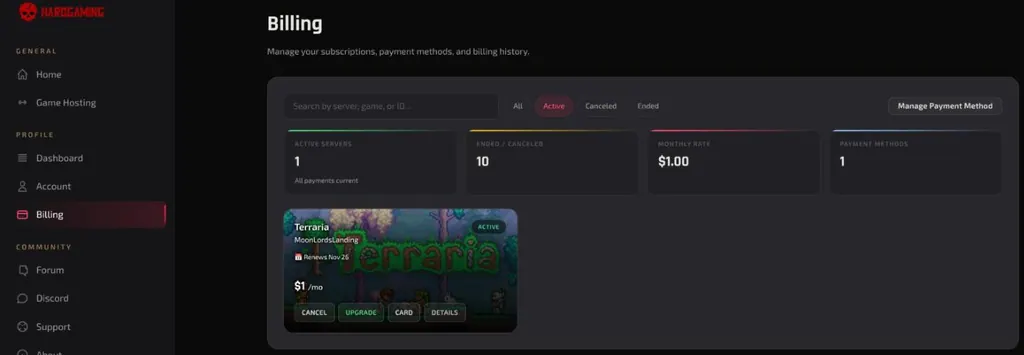
Use All, Active, Canceled and Ended to filter the cards, or search by server, game, or ID. The counters along the top show your ACTIVE SERVERS, how many are ENDED / CANCELED, your total MONTHLY RATE and how many PAYMENT METHODS you have saved.
Step 2: Check a Subscription's Details
Click DETAILS on a server's card. The window shows its STATUS, when it was CREATED and LAST RENEWED, the AMOUNT you pay, the NEXT BILLING date and the PAYMENT METHOD it uses. ACTIVITY HISTORY lists every charge with its date.
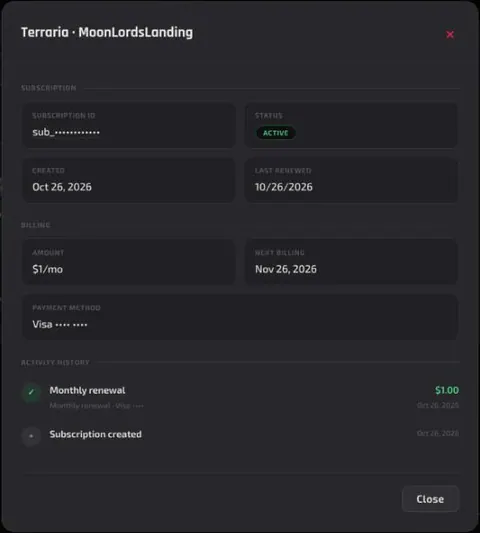
Click Close when you are done.
Step 3: Change the Card a Server Is Charged To
Click CARD on the server's card. Change Payment Method shows the CURRENT CARD, marked IN USE, and lists any other saved card under SWITCH TO.
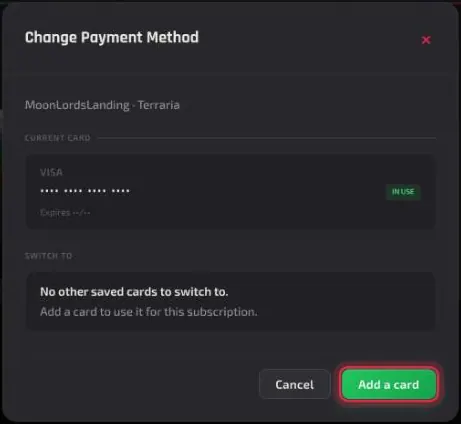
Any other card you have saved is listed under SWITCH TO. With only one card saved, the window says No other saved cards to switch to. Add a card to use it for this subscription. Click Add a card to save a new one.
Manage Payment Method, at the top right of the Billing page, opens Manage Payment Methods: a form to add a card, and your Saved Card(s) below it. Each saved card has a menu with Edit and Delete.
Step 4: Upgrade a Server's Resources
Click UPGRADE on the server's card. The Upgrade Server Resources page shows the server's current plan, then lets you raise three things: Memory (RAM), Extra Storage and Backup Slots. The page states that Changes take effect immediately.
Note: Prices are subject to change. The plan cards on hardgaming.tech always show the current price, so check them before you click.
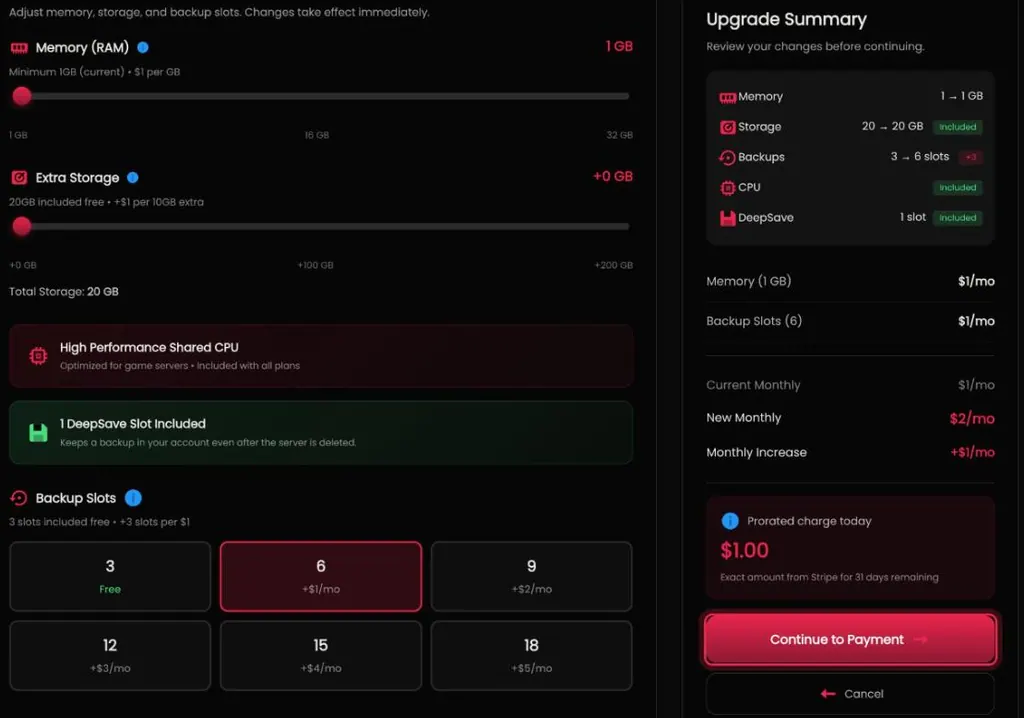
As you change a setting, the Upgrade Summary on the right shows the New Monthly price, the Monthly Increase and the Prorated charge today, which covers the days left in your current billing cycle. Click Continue to Payment, choose your card under Select Your Card, and click Submit Secure Payment.
The panel confirms with Server resources upgraded successfully! and takes you to the server. On a Terraria server raised to six backup slots, the Backup tab read 2 of 6 backup slots used straight away, and the Billing card showed the new monthly price with the same renewal date.
The prorated charge covers the rest of the current period, and the new monthly price applies from your next renewal. Upgrades aren't available while a payment is overdue, and plans can't be downgraded: to move to a smaller plan, cancel and order a new server.
Step 5: Cancel a Server
Click CANCEL on the server's card. The panel asks Are you sure you want to cancel the plan?
Warning: Cancelling leads to the server and everything on it being permanently deleted. Take a DeepSave of anything you want to keep first.
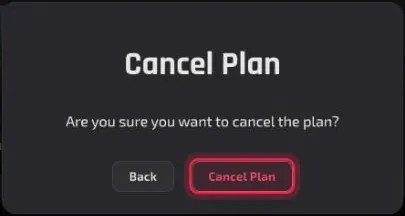
Click Cancel Plan to confirm, or Back to leave it running. The panel confirms with Subscription Cancelled Successfully, and the server's card moves to the Canceled filter.
Step 6: Resume a Cancelled Server
Changed your mind? Click Canceled at the top of the Billing page, then RESUME on the server's card. The Resume subscription window shows the server, the game, the monthly amount and the card it will be charged to.
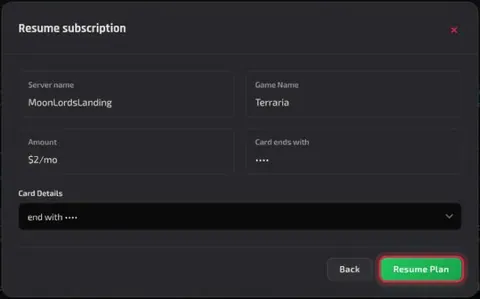
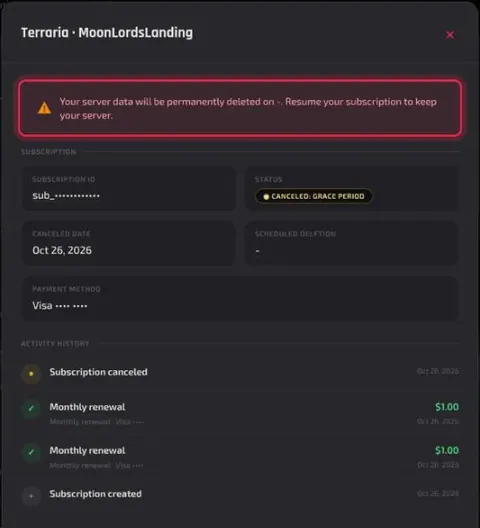
Pick the card under Card Details and click Resume Plan. The cancelled server's details put it plainly: Resume your subscription to keep your server. Resume within the 15-day grace period below and everything is restored.
What resuming costs depends on timing. Before your paid period ends it undoes the cancellation, with no charge and the same renewal date. Once the server is paused, you're charged straight away and a new monthly period starts that day. Billing, Renewals and Cancellation has the details.
What Happens When I Cancel a Server?
Your server keeps running until the end of the period you have already paid for. Straight after cancelling it was still online in My Servers on the dashboard, with STOP, RESTART and MANAGE SERVER as before. When that period ends, the server is paused for a 15-day grace period, with your data kept. Its page shows only a Server Suspended screen with a Go to Billing button. Resume within those 15 days and everything is restored. After that, the server and all of its files are permanently deleted.
Open DETAILS on a cancelled server to see where it stands. STATUS reads CANCELED: GRACE PERIOD, with the CANCELED DATE and the SCHEDULED DELETION date beneath, and a warning above that Your server data will be permanently deleted unless you resume.
To keep your world beyond that, save it to your account with DeepSave before you cancel. A paused server can't be DeepSaved. A DeepSave stays in your account after the server is gone, and you can rebuild a server from it later.
Troubleshooting
Red Payment failed bar on your Billing page?
- Click Retry Payment on the bar, or Update Payment Method if more than one payment failed, then Retry next to each server. The server stays online while payments are retried. See When a Payment Fails.
Server page shows Server Suspended?
- The server is paused after cancelling or after every payment retry failed. Click Go to Billing, then RESUME on the server's card under Canceled. Resume within 15 days, or the server is deleted.
Cancelled server missing from the list?
- The Active filter hides it. Click Canceled or All at the top of the Billing page.
Continue to Payment is greyed out?
- Nothing has changed yet. Raise Memory (RAM), Extra Storage or Backup Slots first, and the button unlocks.
No other card to switch to?
- SWITCH TO only lists cards you have already saved. Click Add a card in the same window, or use Manage Payment Method at the top of the Billing page, then open CARD again.
Best Practices
- DeepSave before you cancel. It is the only copy of your world that outlives the server.
- Check the Upgrade Summary before paying. It shows today's prorated charge and your new monthly price side by side.
Next Steps
- Read how billing, renewals and cancellation work
- Keep your world after cancelling with DeepSave
- Restore a DeepSave or rebuild a deleted server
- Back up and restore your server
Ready for your next world? Browse every game we host and have a new server running in minutes.
Need Help?
If you run into any issues, the HardGaming support team is here for you:
- Forum: ask the community and search past answers
- Email: support@hardgaming.tech
- Live Chat: use the chat widget on hardgaming.tech
- Discord: join our community for quick help
Happy gaming! 🎮