Server Settings Reset After a Restart
Table of Contents
You changed a line in your server's config file, restarted, and the old value came back. The setting also has a field on the Startup tab, and every time the server starts it takes the Startup value over whatever the file says, so your server settings reset after a restart. Change the setting on the Startup tab (Method 1) whenever it is listed there, and edit the file through the Config tab (Method 2) only for settings the Startup tab does not have.
Before You Start
- Any game, any plan. This works the same way on every game we host. The examples use a Terraria server and its
serverconfig.txtfile. Your game's Startup fields and settings file differ, but the rule is the same. - Owner access. Everything here happens on the server's panel in your HardGaming dashboard. A server a friend has shared with you shows only the Console and Backup tabs, so the owner has to make these changes.
- A short restart. Both methods restart the server, so it goes offline briefly. A Terraria server is back to
runningin about ten seconds.
Want a copy to fall back on before you edit a file? Follow our guide: Back up your server
Why Do Settings Reset After a Restart?
Because the Startup tab wins. Startup values are handed to the server each time it starts, and they take priority over the same setting in the config file. Settings with no Startup field come from the file as written.
On a Terraria server, changing motd= in serverconfig.txt and restarting brings back the MOTD value from the Startup tab. A line added by hand that has no Startup field, such as secure=1, stays exactly as you wrote it through every restart.
So the fix depends on where the setting lives:
- The setting has a field on the Startup tab: change it there, using Method 1.
- It is only in a file: add the file to the Config tab and edit it there, using Method 2.
The server dashboard tour covers the same rule in Startup Settings and Config Files.
Method 1: Use the Startup Tab
This is the recommended fix for any setting the Startup tab lists, because the value you set here is the one the server uses on every start.
Step 1: Set the New Value on the Startup Tab
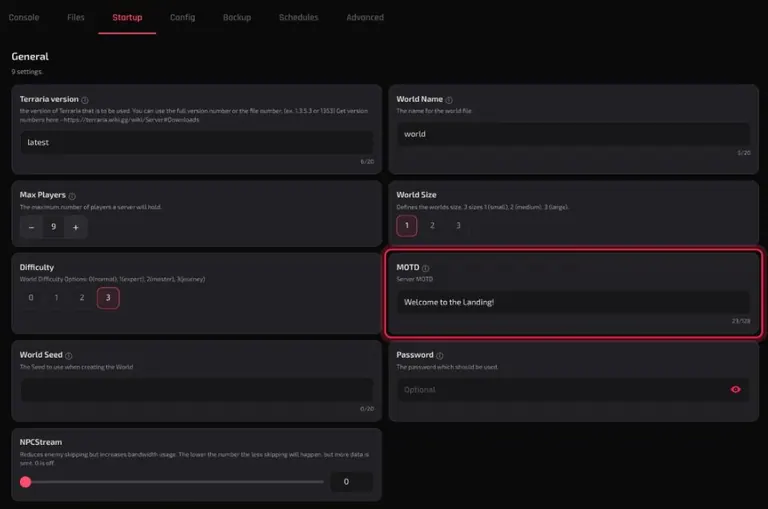
Open the server's Startup tab and find the field for your setting, such as MOTD on a Terraria server. Type the new value. The field saves on its own and confirms with Variable saved. A running server keeps its current value until it restarts.
Step 2: Restart the Server
Open the Console tab and click RESTART. It asks for no confirmation, so the server goes down straight away. STATUS moves from offline to starting to running, which takes about ten seconds on a Terraria server.
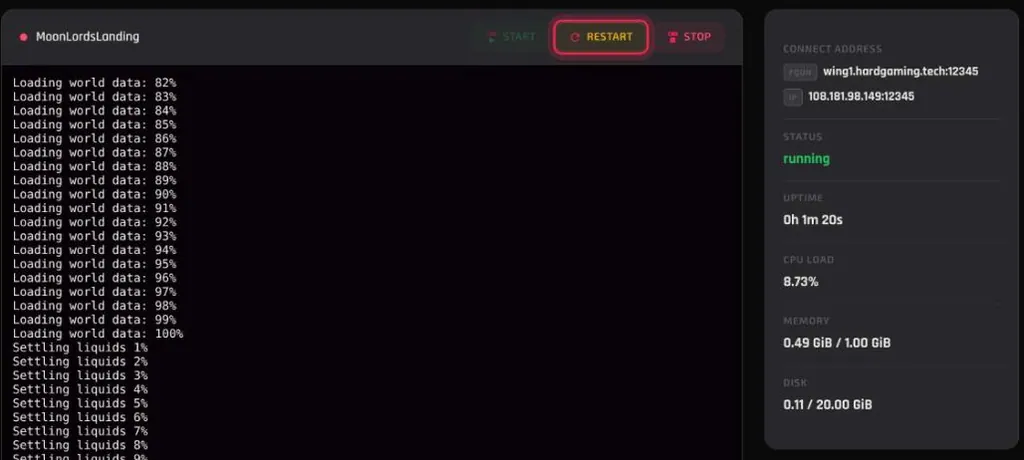
The server now starts with the new value. On the Terraria server, serverconfig.txt also read motd=Welcome to the Landing! after this restart.
Method 2: Edit the File on the Config Tab
Use this for a setting with no field on the Startup tab, such as secure=1 in Terraria's serverconfig.txt. Nothing on the Startup tab overrides a line like that, so the change sticks once it is written safely.
Note: Prefer the Config tab to editing the file directly on the Files tab. If you do edit on Files, stop the server first: some games write their settings back to disk while running or as they shut down, which overwrites your edit. Stop & Apply on the Config tab does the stopping for you.
Step 1: Add the File to the Config Tab
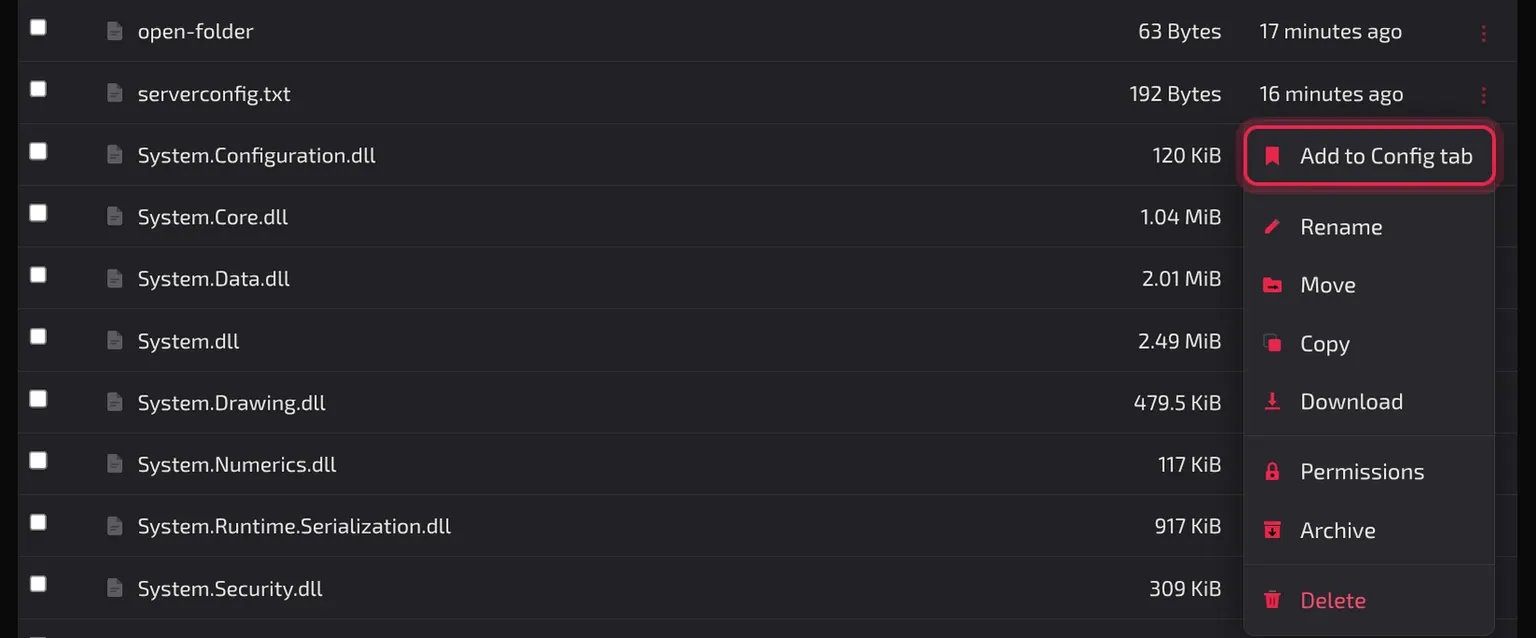
Open the Files tab, click the three dots at the end of the file's row, and choose Add to Config tab. The panel confirms with Added to the Config tab and the file's path. If the server had no Config tab yet, one appears between Startup and Backup.
Some games list their settings files on the Config tab from the start. If your file is already there, go straight to Step 2.
Step 2: Edit and Apply the File
On the Config tab, click the file under CONFIG FILES, make your change, and click Save Draft. The file is marked DRAFT and the button at the top becomes Apply Changes, with a count of the files waiting.
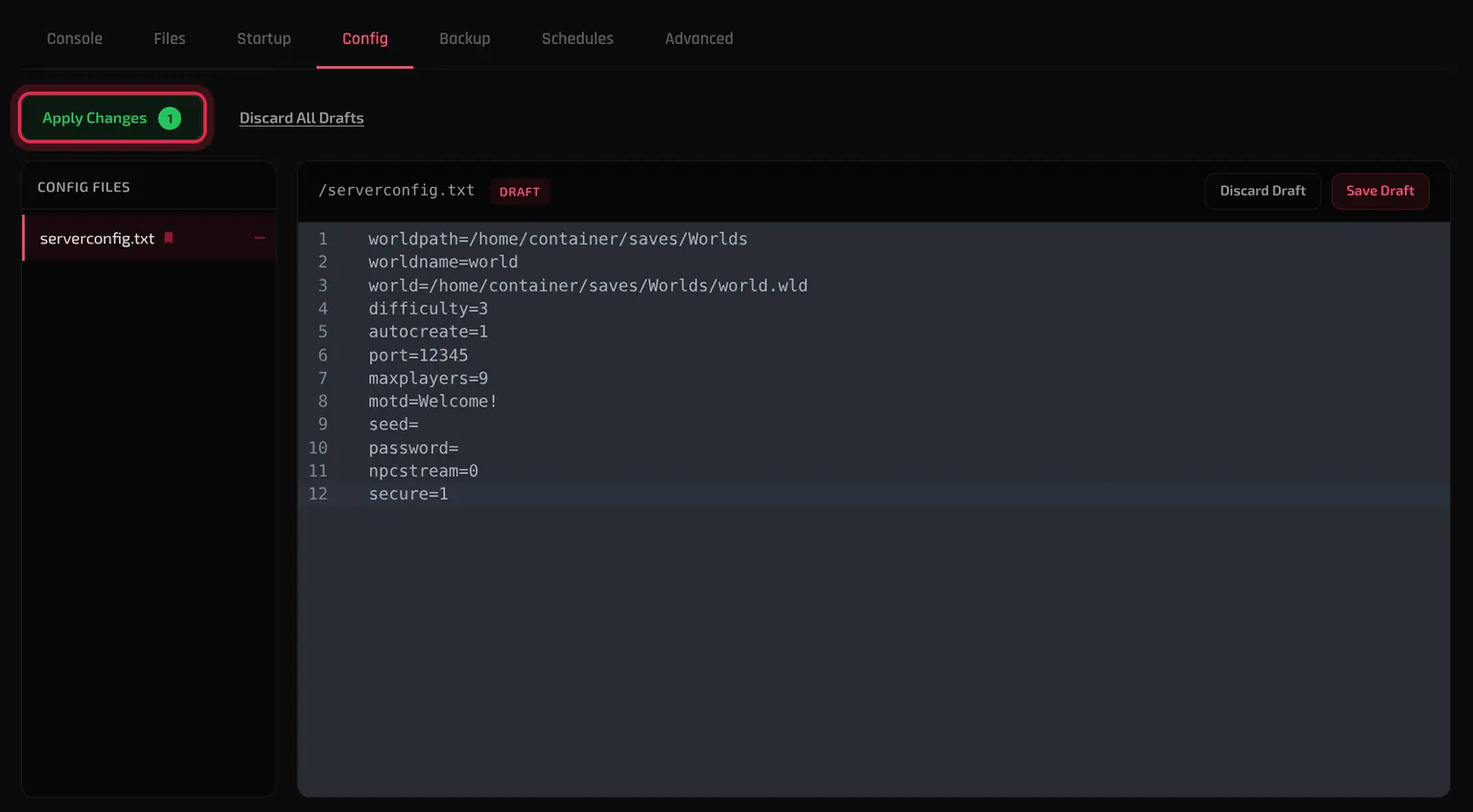
Click Apply Changes. The Apply Config Changes dialog explains that the server will be shut down, the changes applied, and the server restarted. Click Stop & Apply. The panel confirms with Config changes applied successfully. Server is restarting.
The change now survives restarts. On the Terraria server, secure=1 was still in serverconfig.txt after the apply and after later restarts.
Changed your mind before applying? Discard Draft puts one file back as it was, and Discard All Drafts does the same for every waiting file. Neither asks first.
Troubleshooting
Setting still reset after changing it on Startup?
- A running server keeps its current value until it restarts. Click RESTART on the Console tab (Method 1, Step 2).
- Check that you changed the Startup field for the same setting as the line in the file, such as MOTD for
motd=.
File edit lost, even though the setting has no Startup field?
- Some games write their settings back to disk while running or as they shut down, which overwrites an edit made on the Files tab. Make the change through the Config tab instead (Method 2), or stop the server before editing on Files.
Settings reset after a reinstall?
- Reinstall Server on the Advanced tab resets the config file to its install defaults. Settings on the Startup tab come back on their own the next time the server starts.
- Lines that exist only in the file, such as
secure=1, are gone. Add them again through the Config tab (Method 2), and back up before your next reinstall.
No Config tab?
- Some games list their settings files there from the start. On the rest, the tab appears once you add a file to it. Follow Method 2, Step 1.
Draft saved but nothing changed?
- Save Draft only stores the edit. Click Apply Changes, then Stop & Apply, to write it to the server.
Best Practices
- Change each setting in one place. If the Startup tab lists it, set it there and leave the matching line in the file alone.
- Back up before you edit a config file, and before Reinstall Server, so a bad edit or a reset costs you nothing.
- Use the Config tab for file edits. Its drafts let you check a change before it reaches the server, and Stop & Apply handles the restart.
Next Steps
- Tour every tab of your server dashboard
- Back up your server before you change its files
- Set up a Terraria server
- See every game HardGaming hosts
Need Help?
If you run into any issues, the HardGaming support team is here for you:
- Forum: ask the community and search past answers
- Email: support@hardgaming.tech
- Live Chat: use the chat widget on hardgaming.tech
- Discord: join our community for quick help
Happy gaming! 🎮