Abiotic Factor - How to Connect to Your Server
Table of Contents
Ready to jump into your Abiotic Factor server? There are two ways to connect. You can add your server through Steam directly, or use the in-game server browser. Both methods are covered below.
Method 1 - In-Game Server Browser
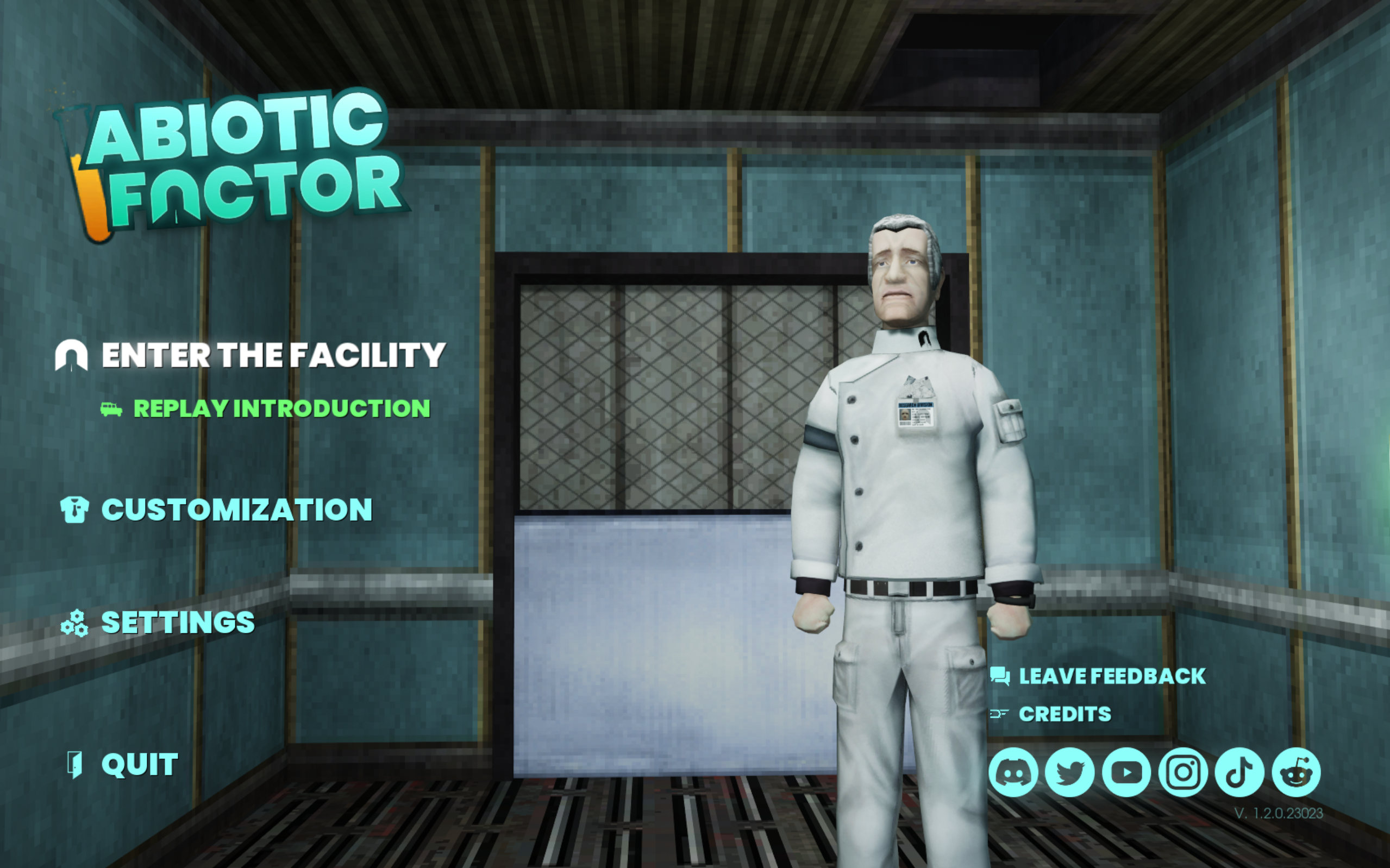
Step 1 - Enter the Facility
From the main menu, click Enter the Facility.
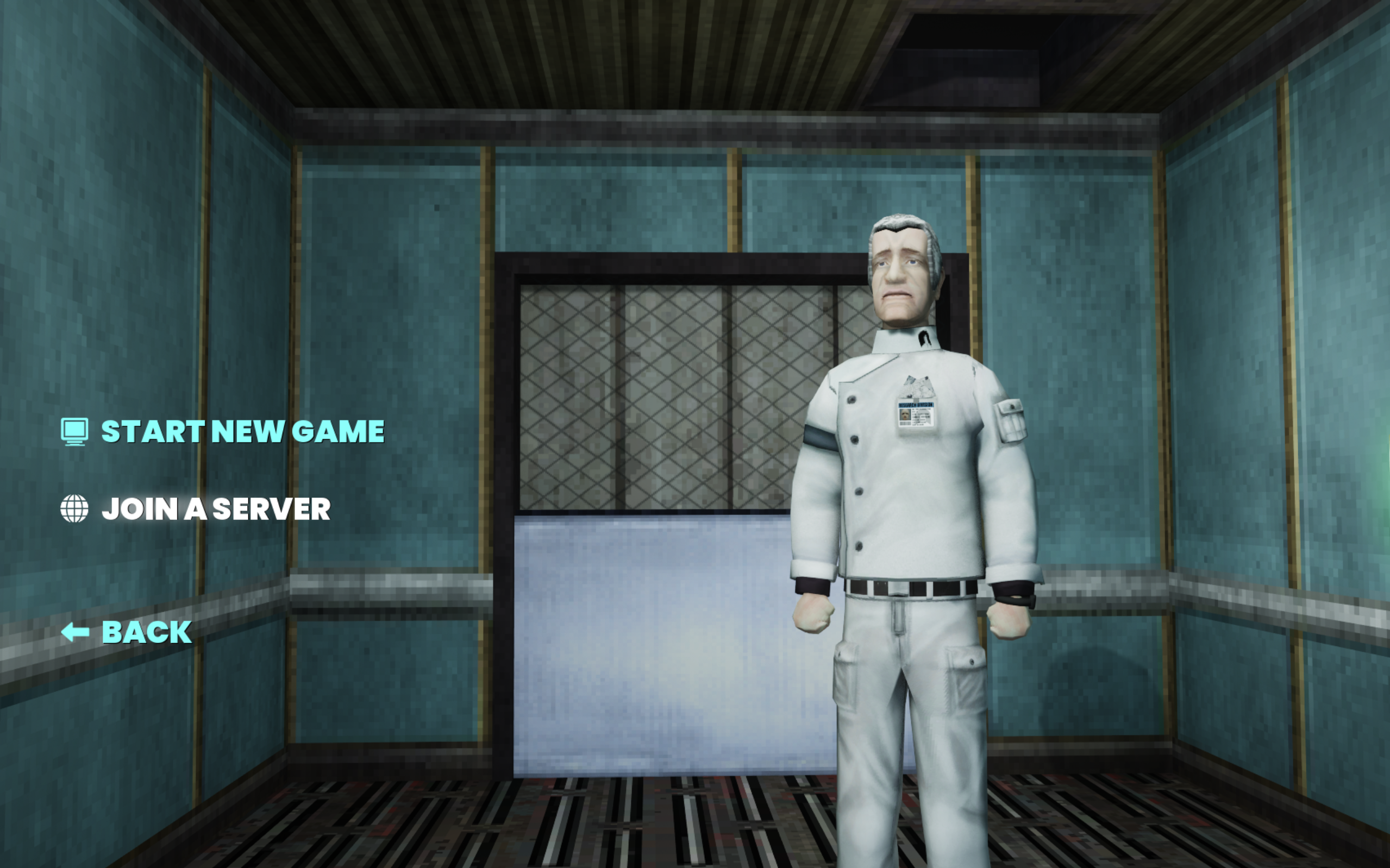
Step 2 - Join a Server
Click Join a Server to open the server browser.
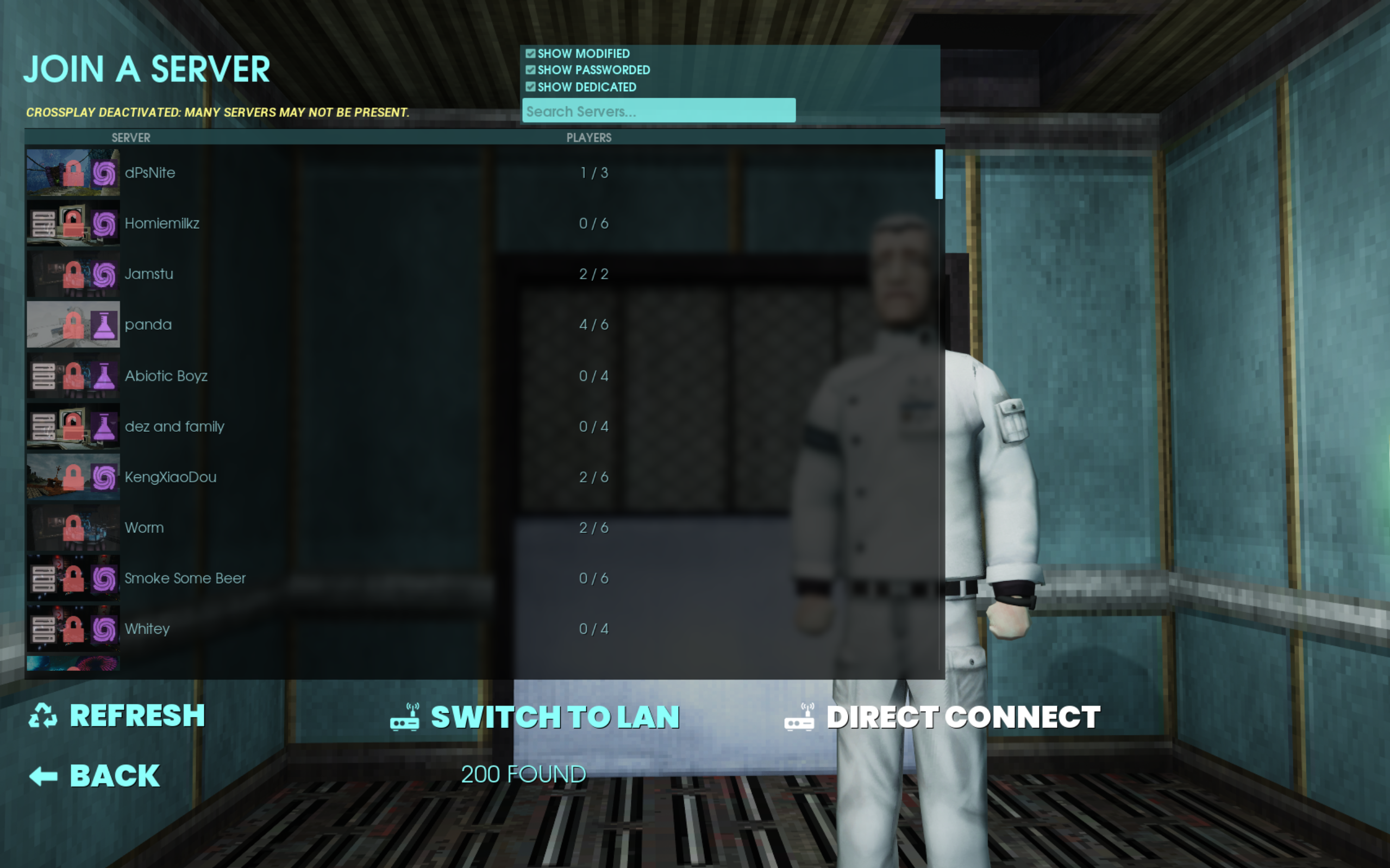
Step 3 - Search or Connect Directly
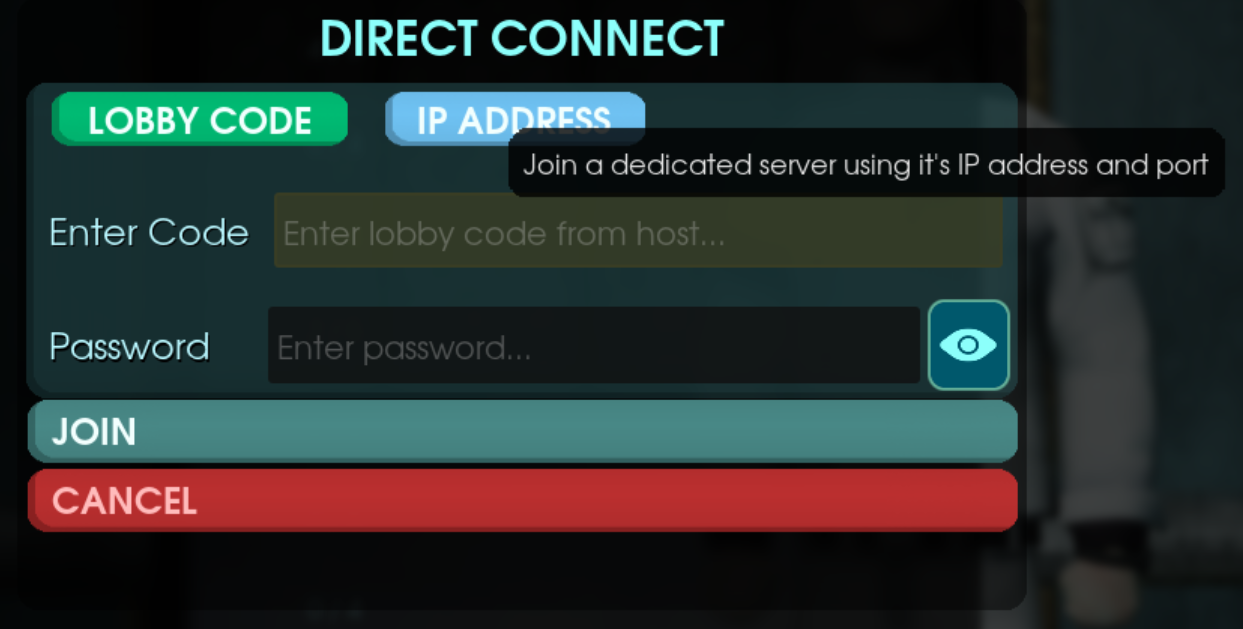
Search for your server by name in the server browser. If your server does not appear in the list, click the Direct Connection button instead.
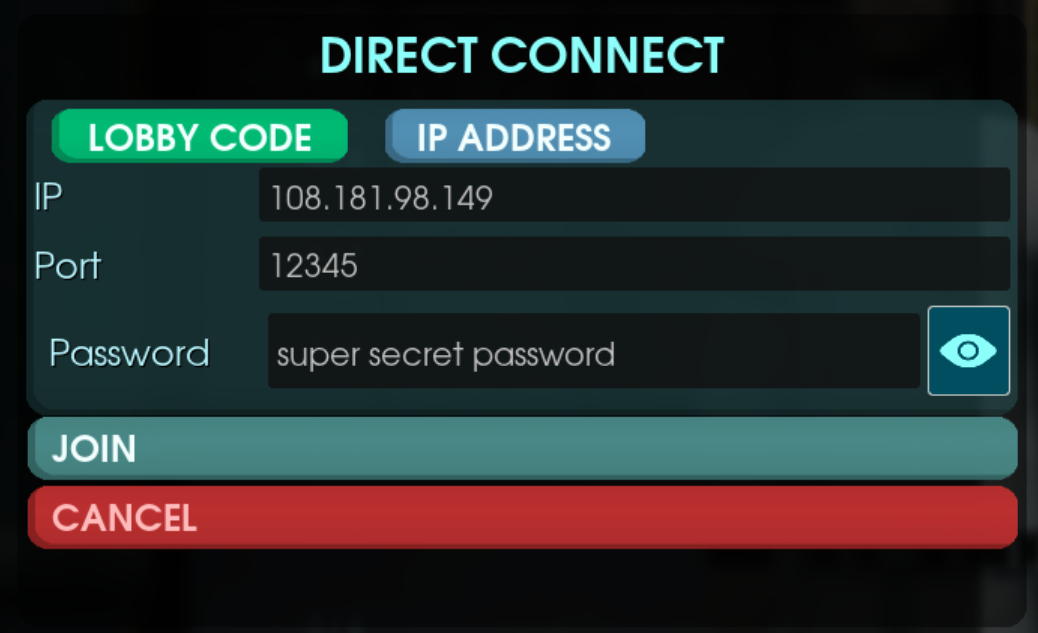
Step 4 - Connect Using IP Address
In the Direct Connection window:
- Click IP Address at the top.
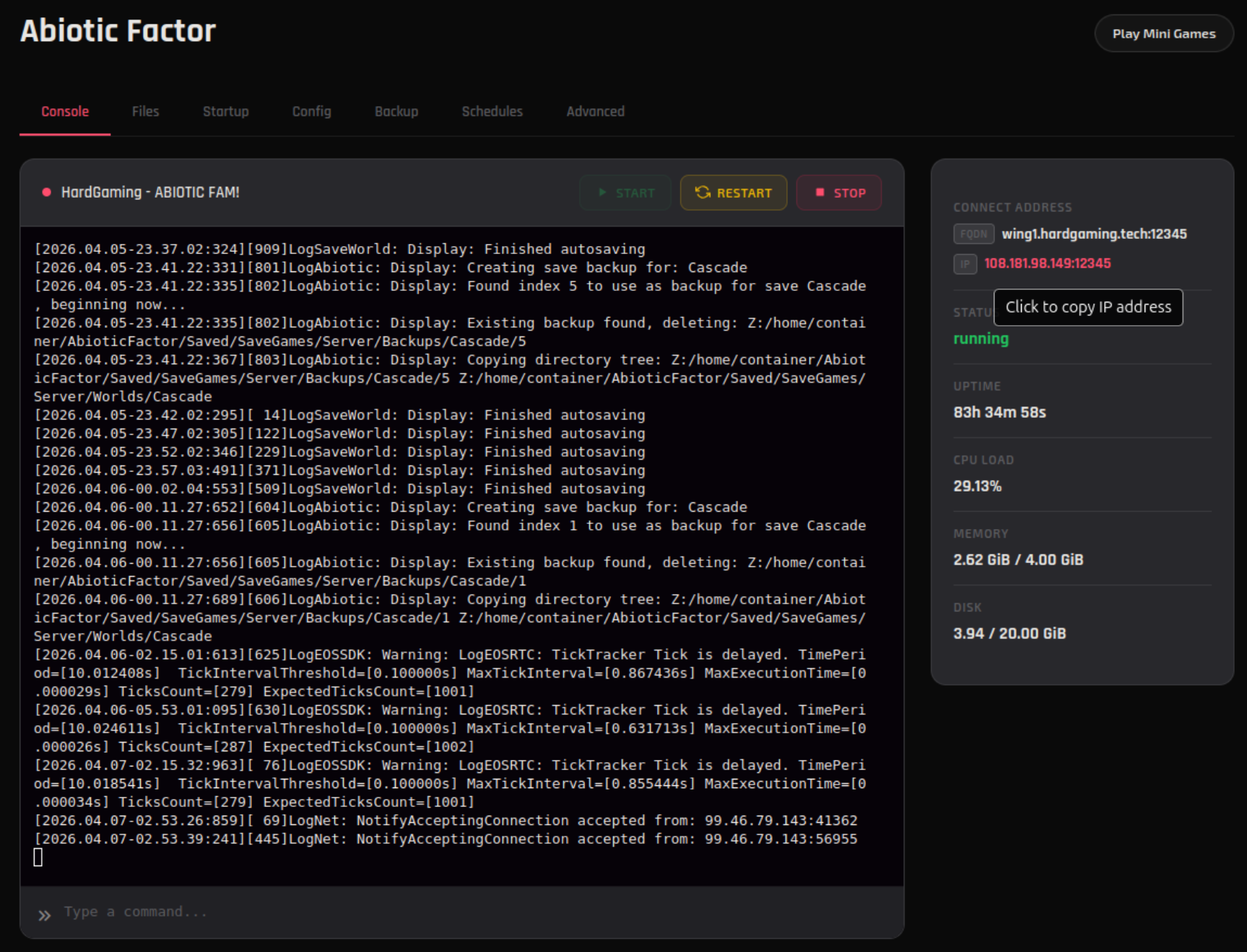
- Fill out the form with the IP and port found in your HardGaming control panel.
- Click Connect.
Method 2 - Add Your Server via Steam
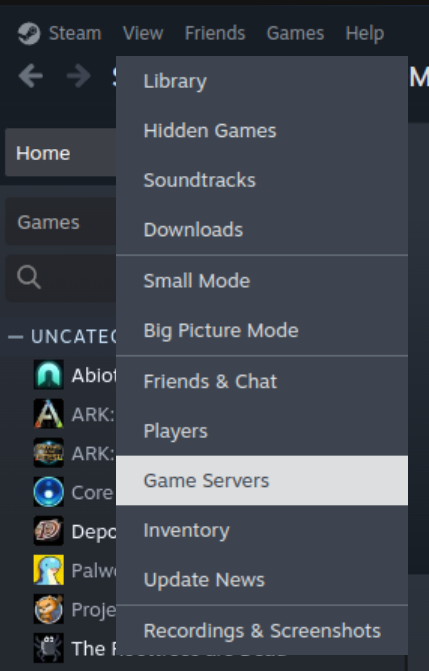
Step 1 - Open Game Servers in Steam
In the Steam client, click View in the top menu bar, then select Game Servers.
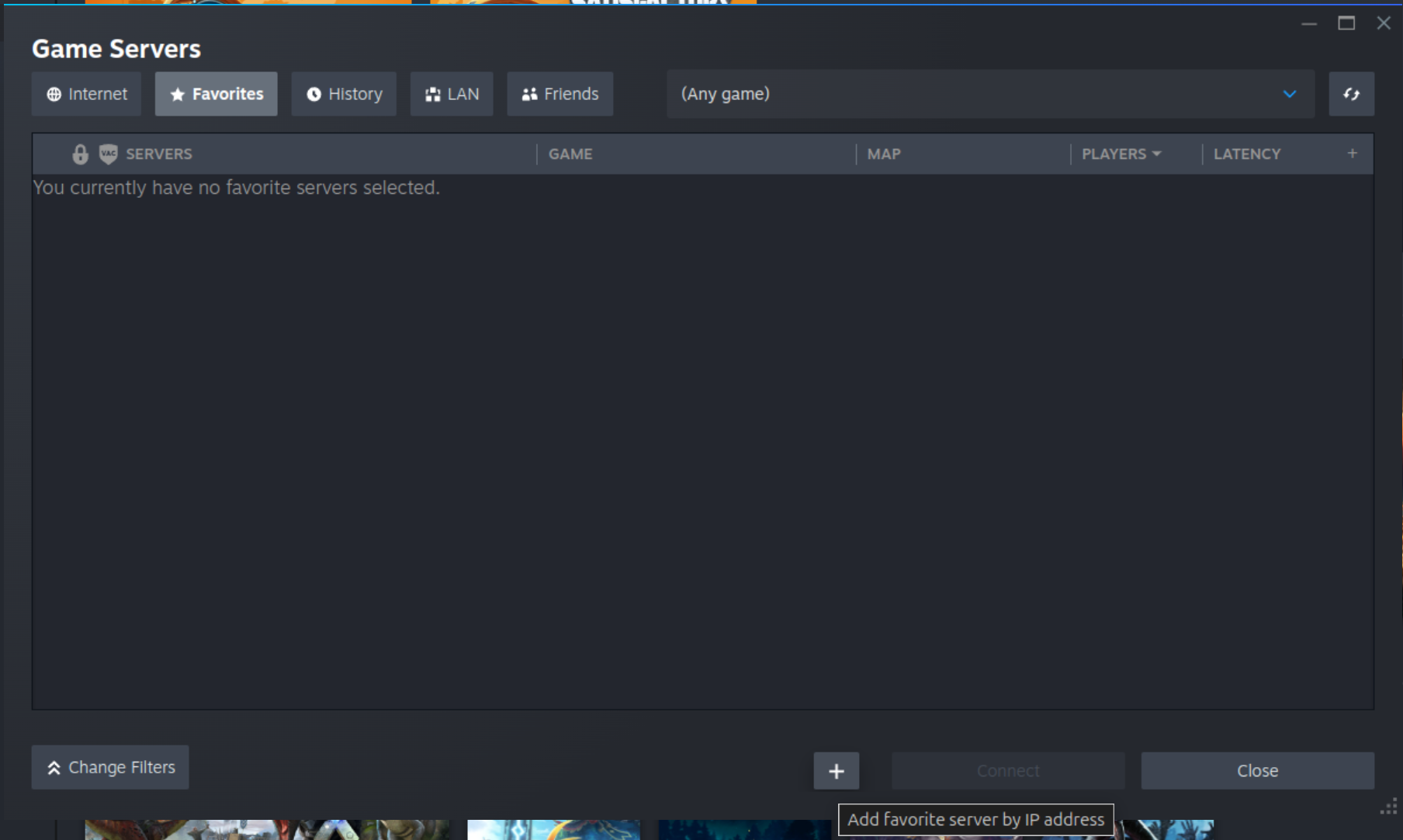
Step 2 - Add a Favorite Server
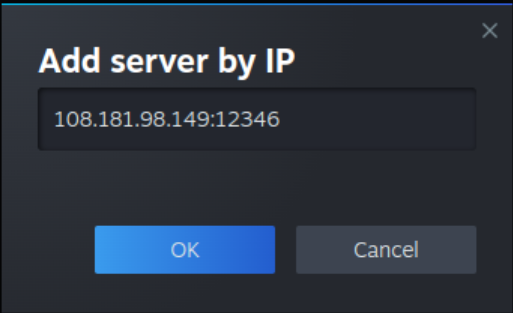
In the Game Servers window, click the Favorites tab, then click the + icon to add a new server.
Step 3 - Enter Your Server Details
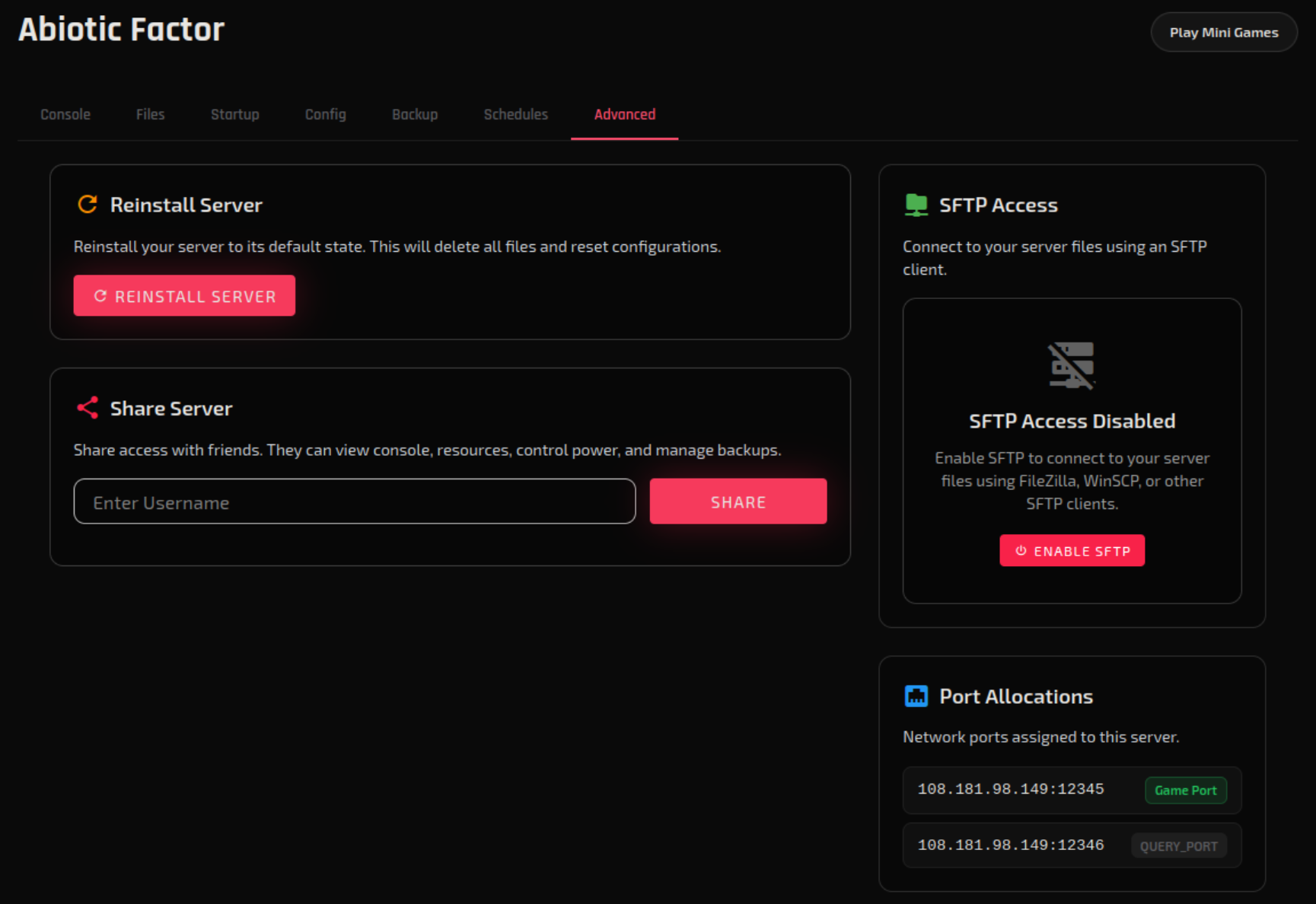
Enter your server's IP address and Steam query port. You can find the query port in your HardGaming dashboard under the Advanced tab, in the Port Allocations section.
Step 4 - Join Your Server
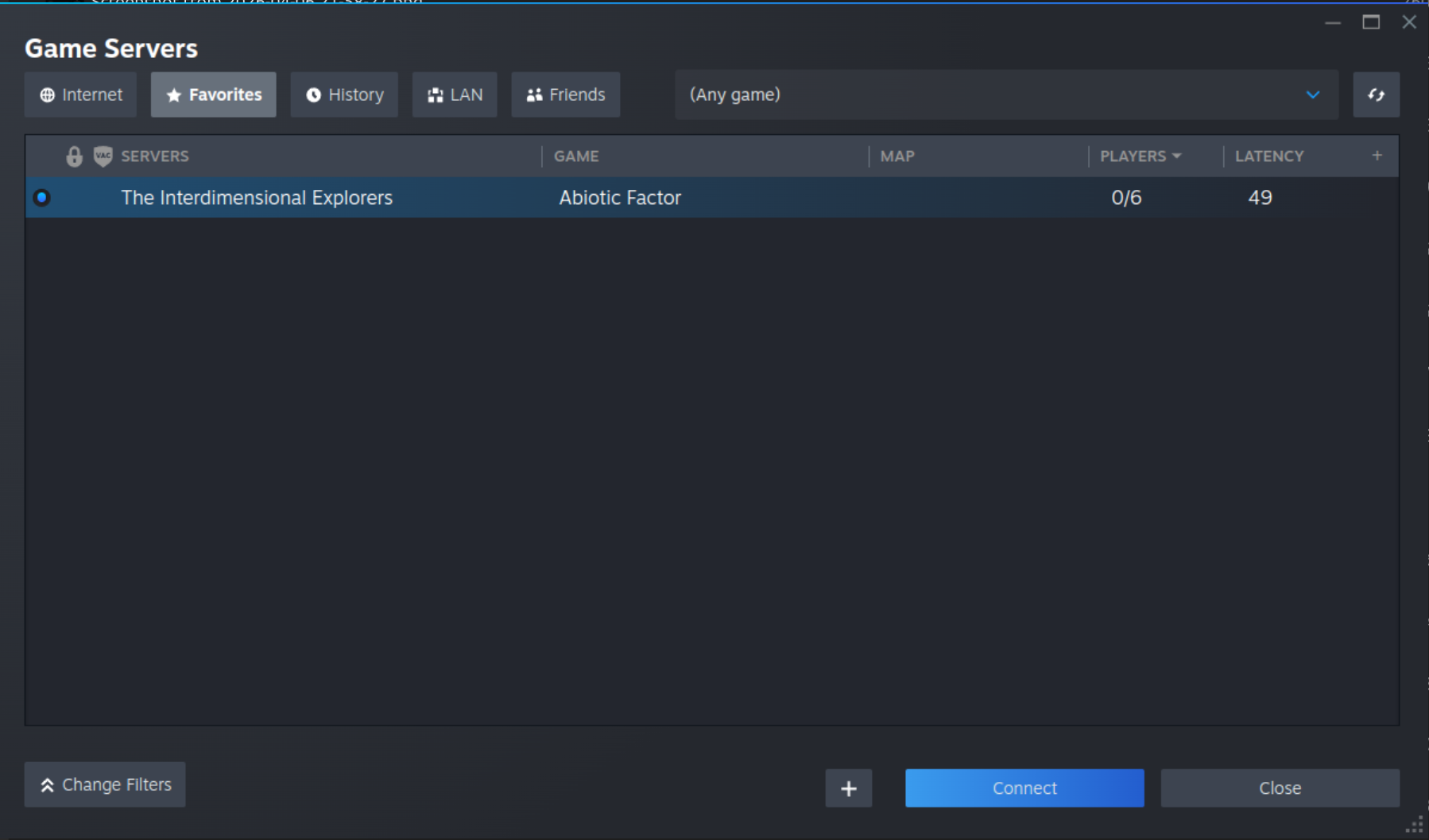
Your server will now appear in the Favorites list. Select it and click Connect to join.
Troubleshooting
Server not showing up in the browser?
- Make sure your server is online by checking the Console tab in your HardGaming dashboard.
- Try connecting directly using the IP address method instead.
- Double-check that you're searching for the exact server name as it appears in your control panel.
Connection timed out?
- Verify the IP address and port are correct in your HardGaming control panel.
- If your server was just started, give it a minute or two to fully load before trying again.
Need Help?
If you run into any issues, the HardGaming support team is here for you:
- Live Chat - Use the integrated chat feature on our website
- Discord - Join our community for quick help
- Email - Reach out to our support team directly
Happy gaming! 🎮