How to Use DeepSave
Table of Contents
Ever cancelled a server and wished you'd saved that one perfect backup first? That's exactly what DeepSave is for. It lets you preserve an important server backup permanently, even after your server is cancelled or deleted.
Think of it as a safety net for your most critical saves. And the best part? It's included free with every server.
DeepSave vs. Regular Backups
Before diving in, here's what makes DeepSave different from standard backups:
Regular Backups are tied to your active server. Each server comes with 3 backup slots by default (with the option to purchase more), but they're automatically deleted when you cancel the server.
DeepSave is permanent storage. Your backup stays safe in your account indefinitely, even if the server is long gone. The only way a DeepSave is removed is if you delete it yourself, or if your entire account is deleted.
Good to know: Each server currently gets 1 DeepSave slot. This limit may increase in the future.
Before You Start
There are a few things to keep in mind:
- DeepSaves can only be created from an existing server backup. You can't upload files directly.
- Each DeepSave has a maximum size of 200MB.
- Shared servers do not support DeepSave.
- If you cancel your server without using your DeepSave slot, that slot is permanently lost.
Step 1: Open Your Dashboard
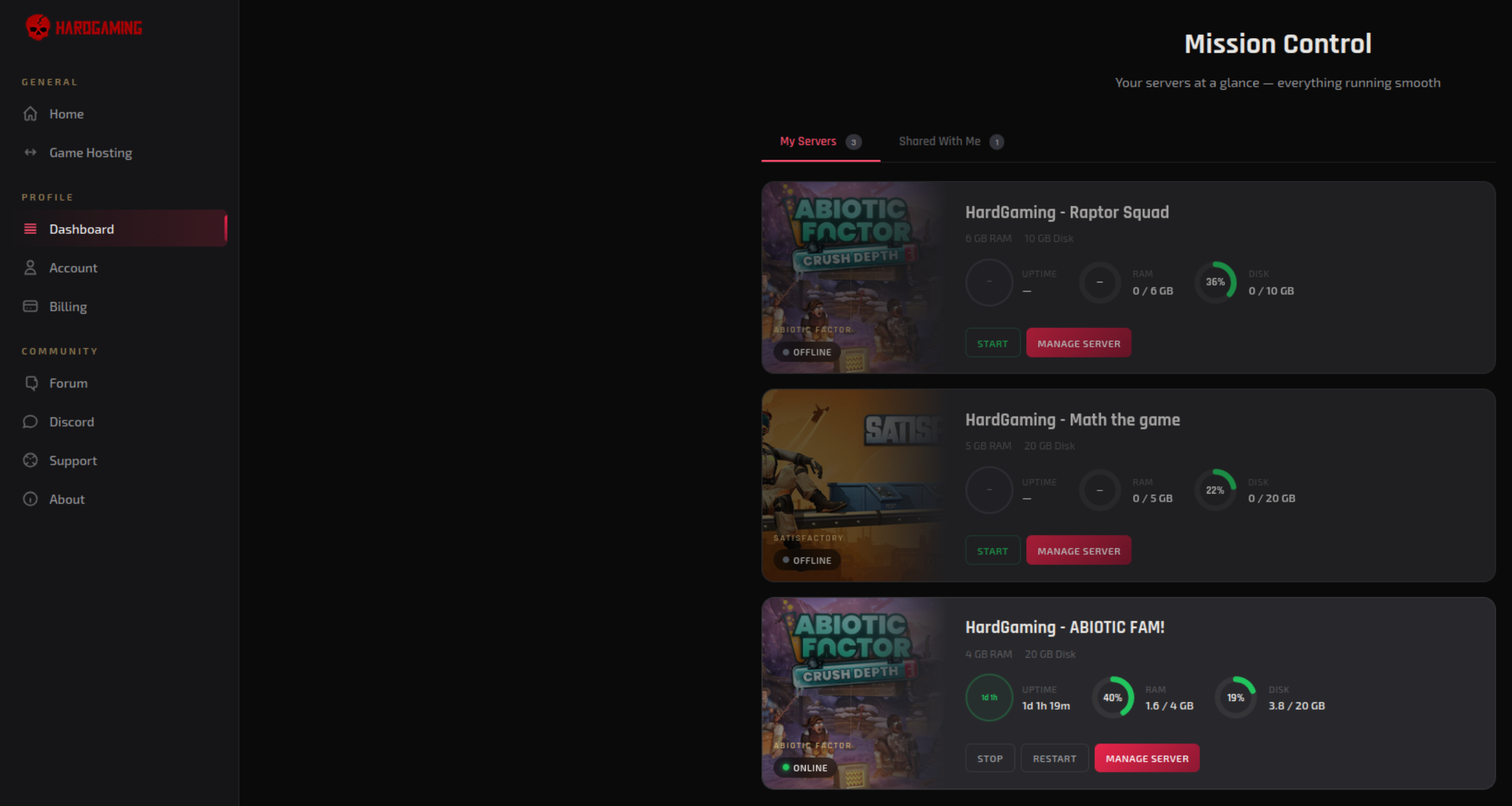
Log in to your HardGaming account at www.hardgaming.tech and click Dashboard from the sidebar. Then select the server you want to create a DeepSave for.
Step 2: Go to Backups
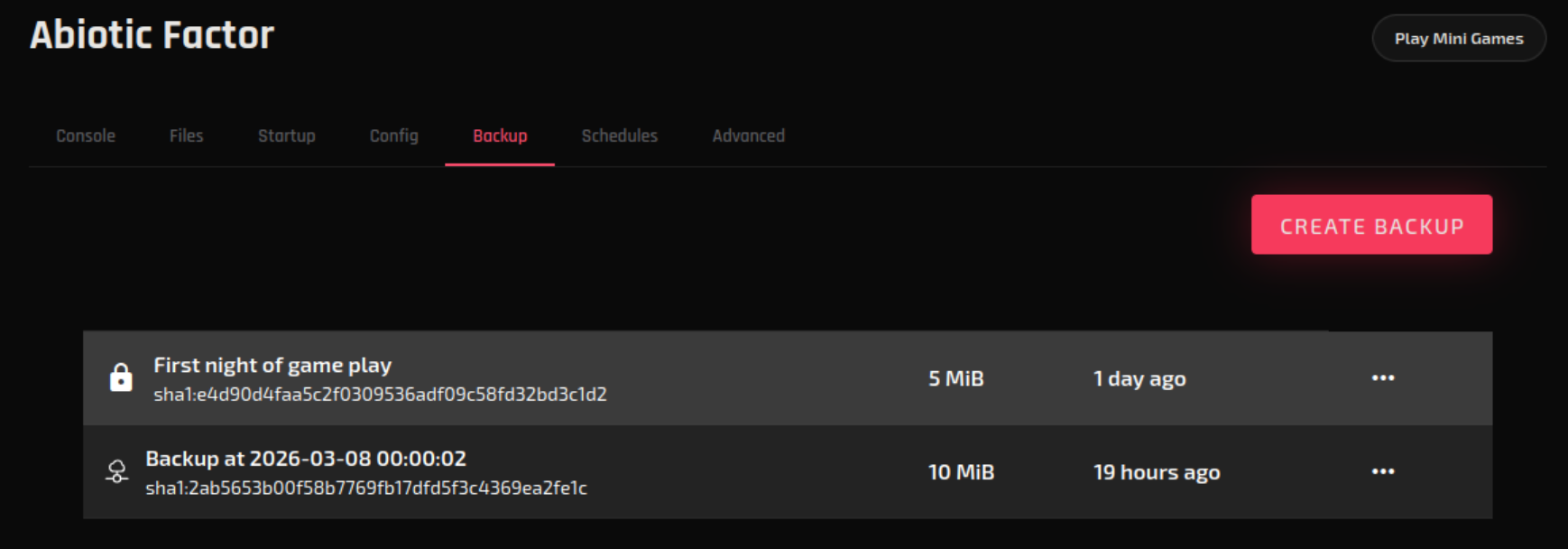
Click the Backups tab at the top of your server panel. You'll see a list of your server's existing backups.
Step 3: Send a Backup to DeepSave
- Find the backup you want to preserve.
- Click the "..." (three dots) menu next to it.
- Select "DeepSave".
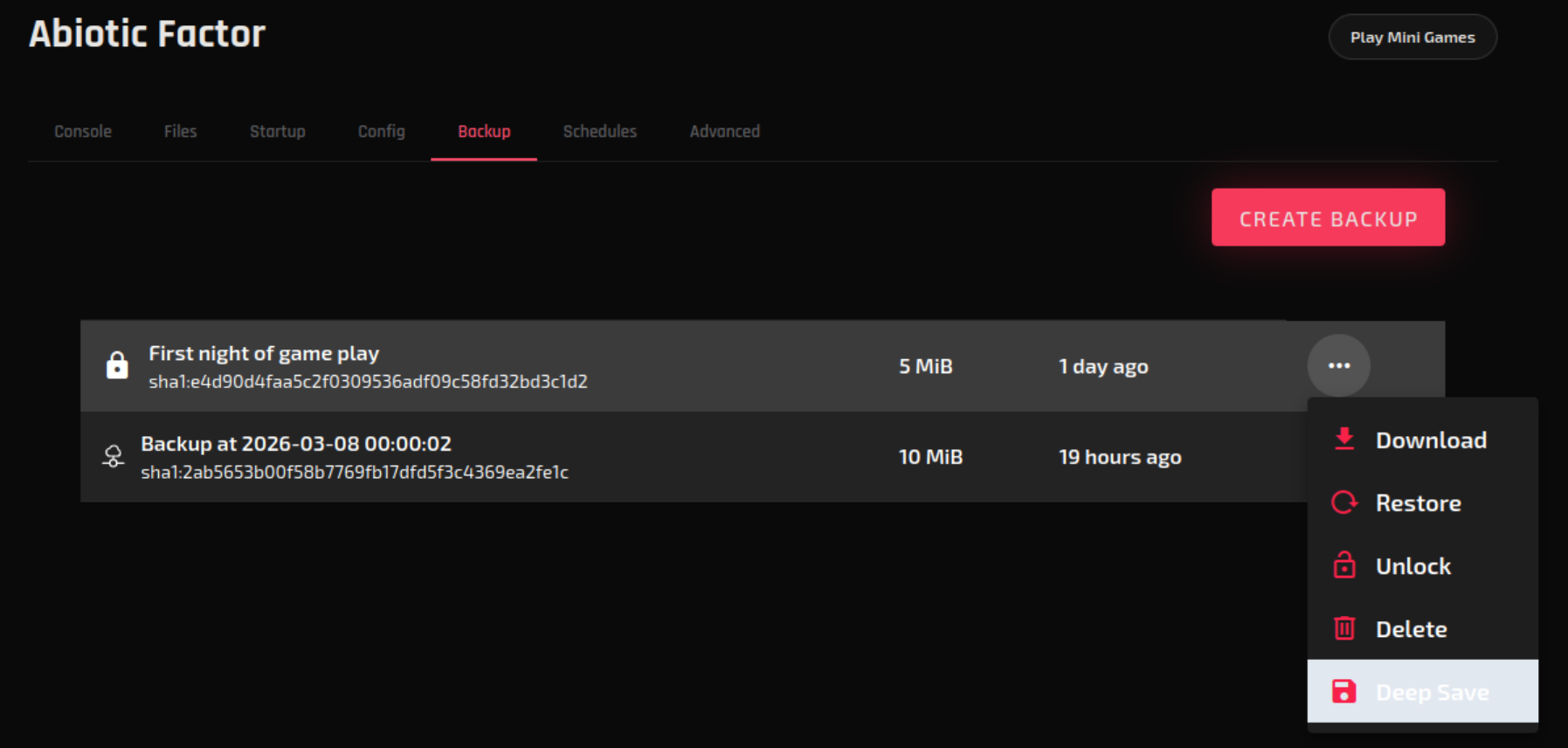
That's it! Your backup is now safely stored in DeepSave and will persist permanently.
Viewing Your DeepSaves
To see all of your saved DeepSaves:
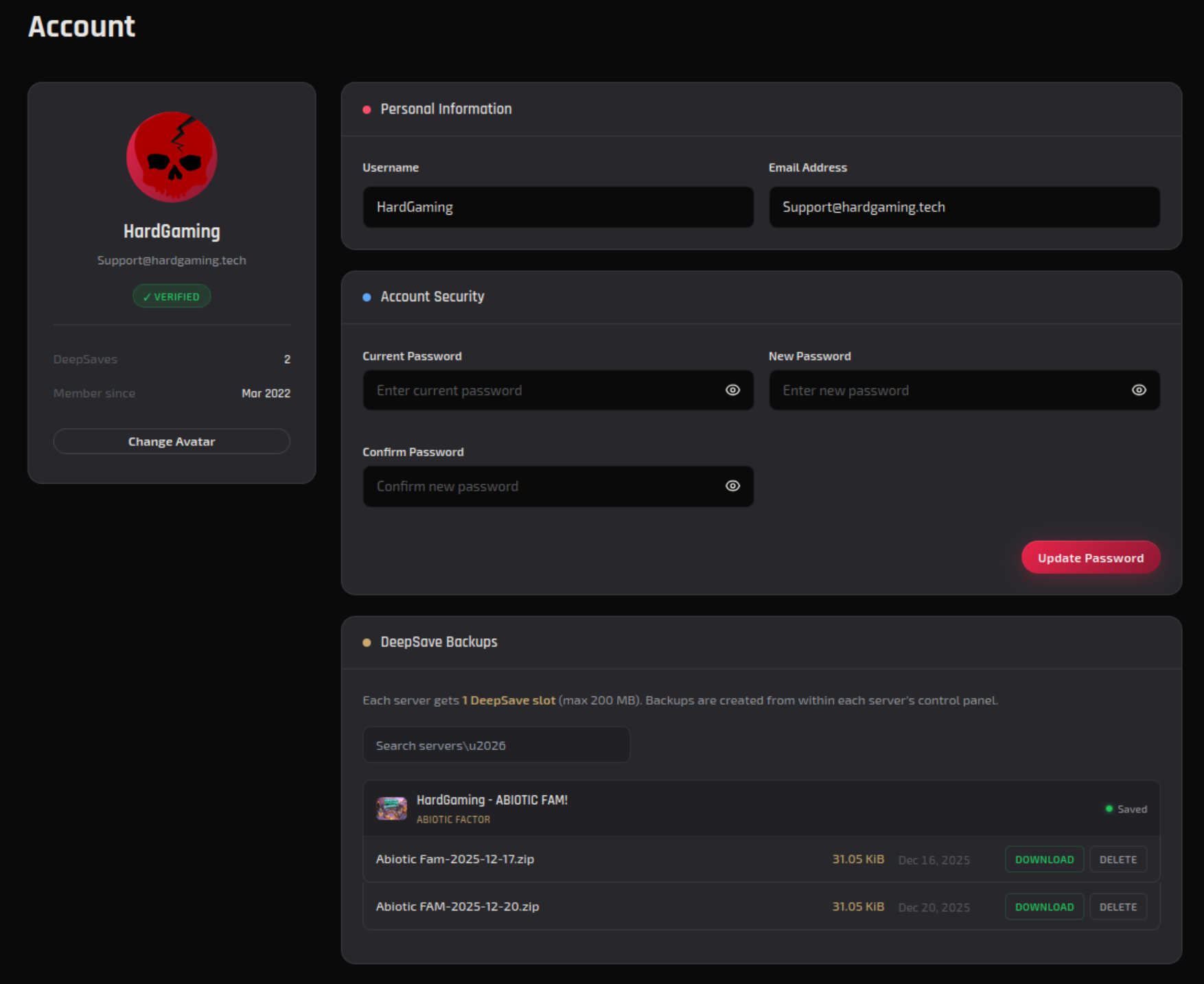
- Navigate to your Account page.
- Scroll down to the DeepSave section.
All of your DeepSaves will be listed here, regardless of whether the original server is still active.
Deleting a DeepSave
Need to free up your slot or replace an old save? Here's how:
- Navigate to your Account page.
- Scroll down to the DeepSave section.
- Click the Delete button next to the DeepSave you want to remove.
- Confirm the deletion.
Once deleted, the slot becomes available again, but only if the original server is still active.
Restoring from a DeepSave
DeepSave doesn't have a one-click restore option. To get your data back onto a server, you'll need to do it manually:
- Go to your Account page and find the DeepSave.
- Click Download. The file will be in ZIP format.
- Extract the ZIP on your local computer.
- Upload the extracted files to your server.
Tip: Since it's a manual process, you can restore a DeepSave to any server, not just the one it came from. Just keep in mind that compatibility depends on your server's game and configuration.
Troubleshooting
Can't find the DeepSave option?
- Make sure you're clicking the "..." menu on a backup, not the server itself.
- Confirm your server isn't a shared server. Shared servers don't support DeepSave.
- Check that you haven't already used your DeepSave slot.
DeepSave slot not freeing up after deletion?
- The slot only becomes available again if the original server is still active. If the server has been cancelled, the slot is gone.
Download not working?
- Try a different browser or clear your cache. If the issue persists, reach out to support.
Best Practices
- Save before you cancel. Always create a DeepSave before cancelling a server. Once the server is gone, you can't create new DeepSaves for it.
- Save before big changes. About to install a major update or overhaul your config? DeepSave it first.
- Keep a local copy too. Download your DeepSave and store it on your own machine for extra peace of mind.
Need Help?
If you run into any issues, the HardGaming support team is here for you:
- Live Chat: Use the integrated chat feature on our website
- Discord: Join our community for quick help
- Email: Reach out to our support team directly
Happy gaming! 🎮