Abiotic Factor - How to Become an Admin (and Ban Players)
Table of Contents
Want to take control of your Abiotic Factor server? Whether you need to add yourself as an admin, promote a friend to moderator, or ban a troublemaker, it all happens through one simple file: Admin.ini.
The best part? You can do it all right from your HardGaming dashboard. No FTP and no file digging. Just a few clicks.
Before You Start
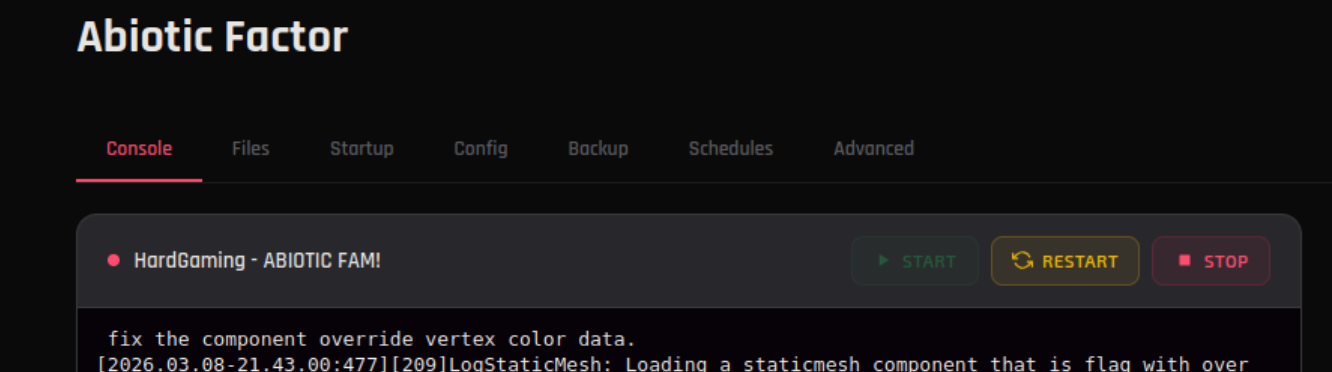
We recommend stopping your server before making any config changes. Head to the Console tab and click the Stop button before continuing. This prevents any issues with unsaved world data.
Need your SteamID? You'll need the SteamID64 format, which is a 17-digit number (e.g.
76561198099999999). Here's how to find it:
Finding Your SteamID64
- Open Steam and click your profile name in the upper right corner.
- Click Account Details.
- Your SteamID64 will be listed on that page.
You can also use steamid.io to look up another player's SteamID64 if you need to add them as a moderator or ban them. For a more detailed walkthrough, check out this guide on finding your Steam ID.
Step 1 - Open Your Dashboard
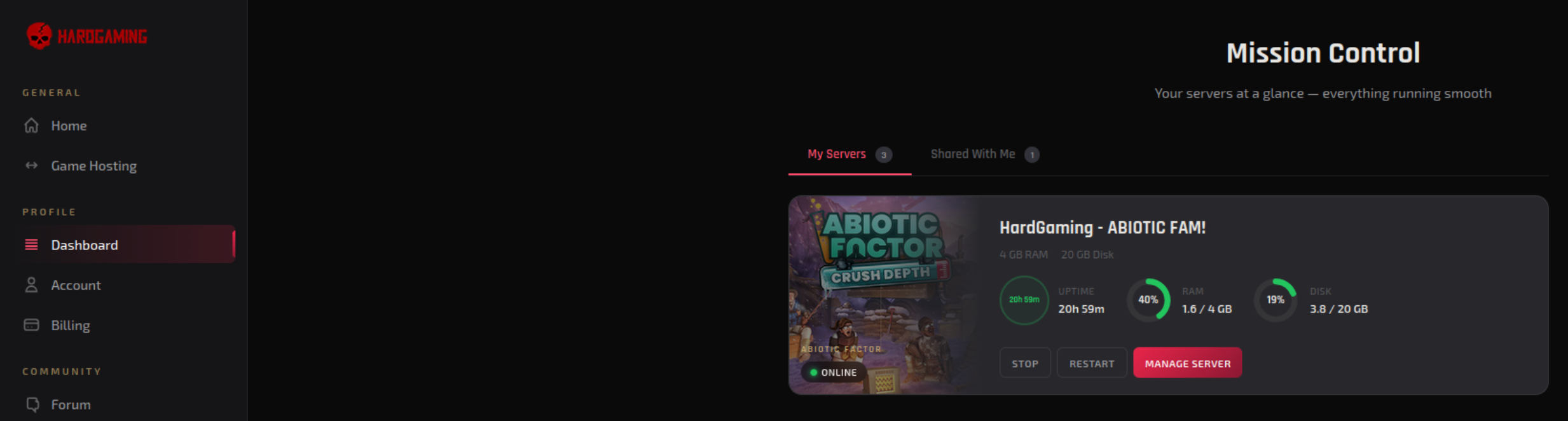
Log in to your HardGaming account at www.hardgaming.tech and click Dashboard from the sidebar. Then select your Abiotic Factor server.
Step 2 - Navigate to the Admin.ini File
- Click the Config tab at the top of your server panel.
- On the left sidebar under CONFIG FILES, click Admin.ini.
- The file will automatically load in the editor on the right side.
You should see something like this:
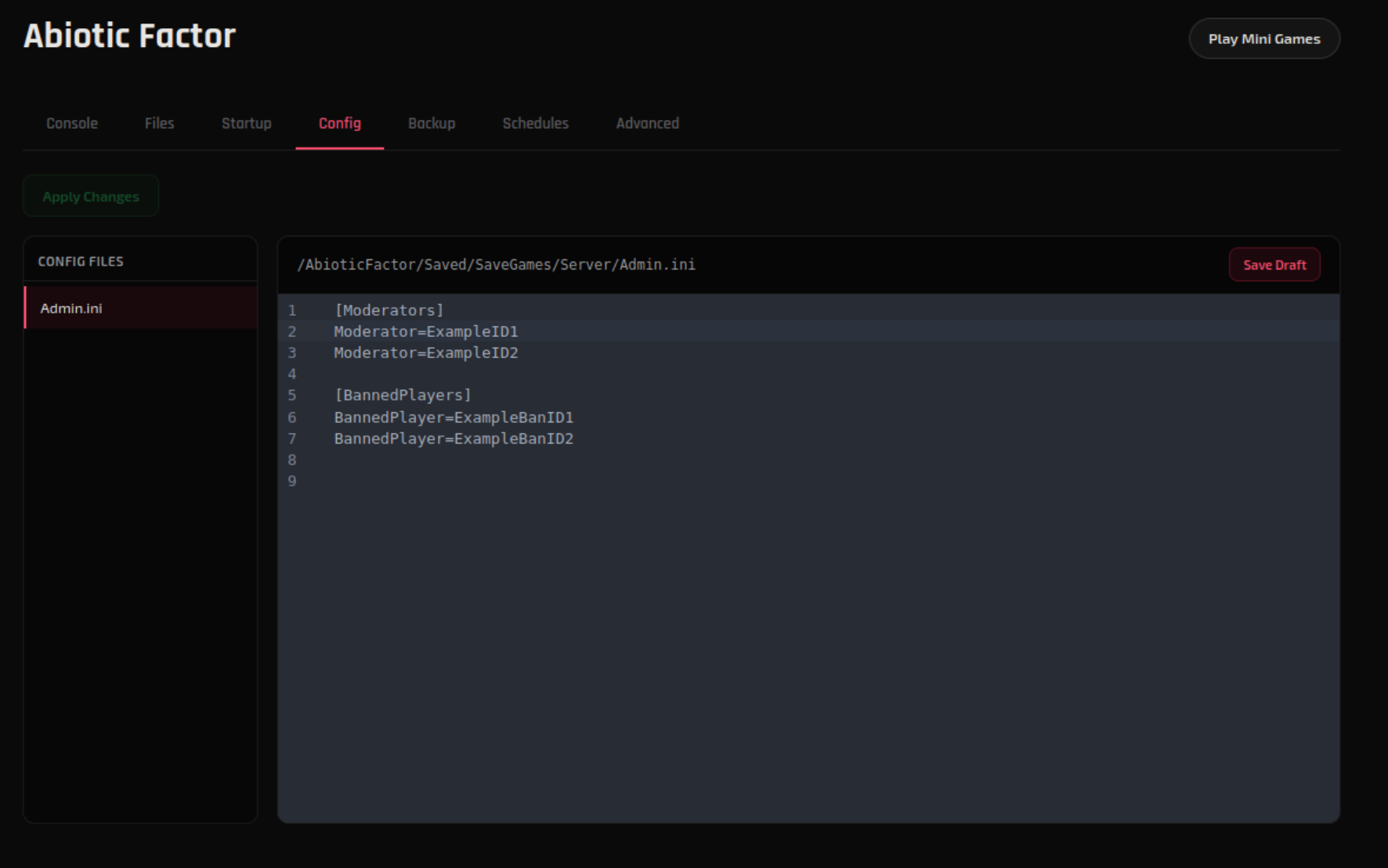
[Moderators]
Moderator=ExampleID1
Moderator=ExampleID2

[BannedPlayers]
BannedPlayer=ExampleBanID1
BannedPlayer=ExampleBanID2
Step 3 - Add Admins / Moderators
Under the [Moderators] section, replace the example IDs with real SteamID64 values, one per line. For example:
[Moderators]
Moderator=76561198099999998
Moderator=76561198099999999
You can add as many moderators as you need. Just add a new Moderator= line for each player.
Step 4 - Ban Players (Optional)
Need to ban someone? Under the [BannedPlayers] section, add their SteamID64 the same way:
[BannedPlayers]
BannedPlayer=76561198099999997
Add a new BannedPlayer= line for each player you want to ban. To unban someone, simply remove their line.
Step 5 - Save and Apply
- Click the Save Draft button in the top-right corner of the editor.
- Click the Apply Changes button in the top-left area.
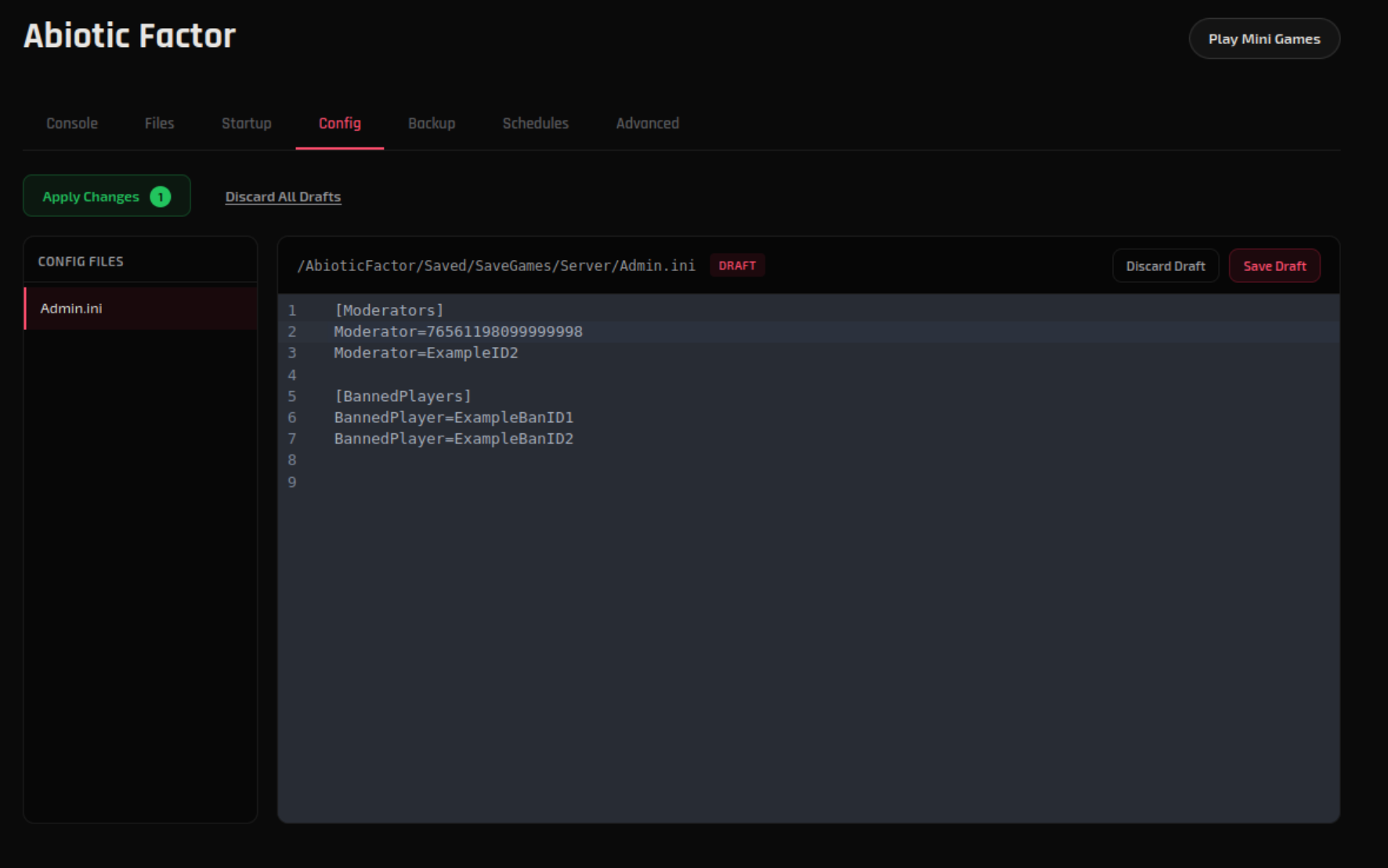
- If your server is currently running, you'll see a warning letting you know a reboot is required. Click Stop and Apply. This will stop the server, apply your changes, and start it back up automatically.
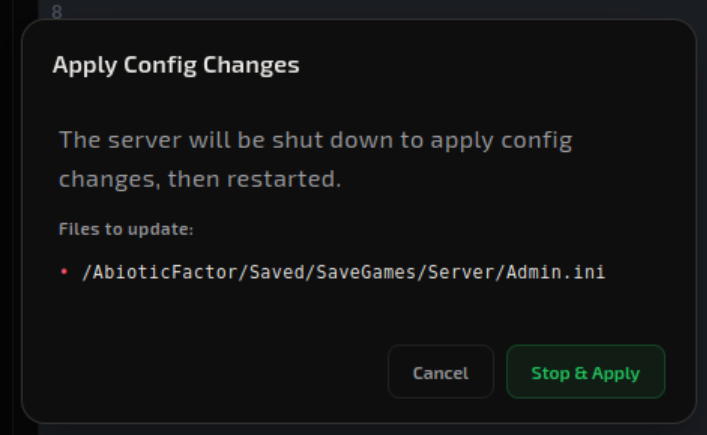
That's it! Your changes are now live!
Troubleshooting
Admin rights not working?
- Double-check that you're using the correct SteamID64 format. It should be a 17-digit number.
- Make sure there are no extra spaces or typos in the file.
- Confirm you clicked both Save Draft and Apply Changes.
- If the server didn't restart, head to the Console tab and manually click Restart.
Not sure which SteamID to use?
- Follow the steps in the Before You Start section above to find the correct SteamID64 using either the Steam client or steamid.io.
A Note on Admin Commands
Abiotic Factor currently doesn't have a full list of admin commands like some other games. As a moderator, you'll be able to manage players and perform basic server actions. The game is still in development, so more admin tools may be added in future updates.
Need Help?
If you run into any issues, the HardGaming support team is here for you:
- Live Chat - Use the integrated chat feature on our website
- Discord - Join our community for quick help
- Email - Reach out to our support team directly
Happy gaming! 🎮