How to Set Up VRising Server
How to Set Up VRising Server
Here is a guide on how to set up your VRising server using the HardGaming website. If you have not already set up a HardGaming account you will need to do that before you can set up your server.
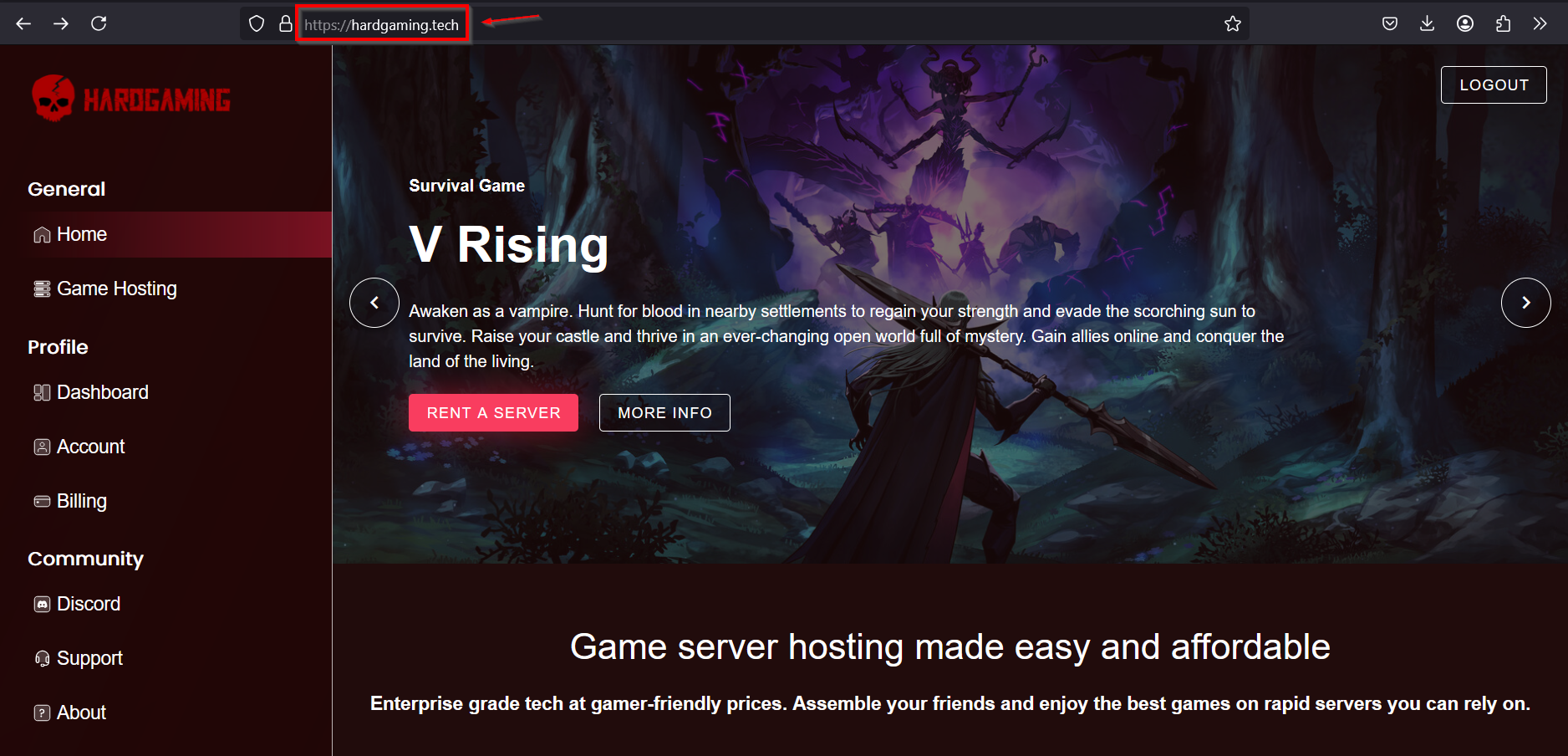
Navigate to HardGaming website:
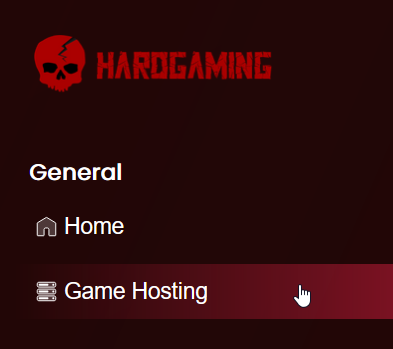
Select “Game Hosting” from left side panel:
Select VRising tile:

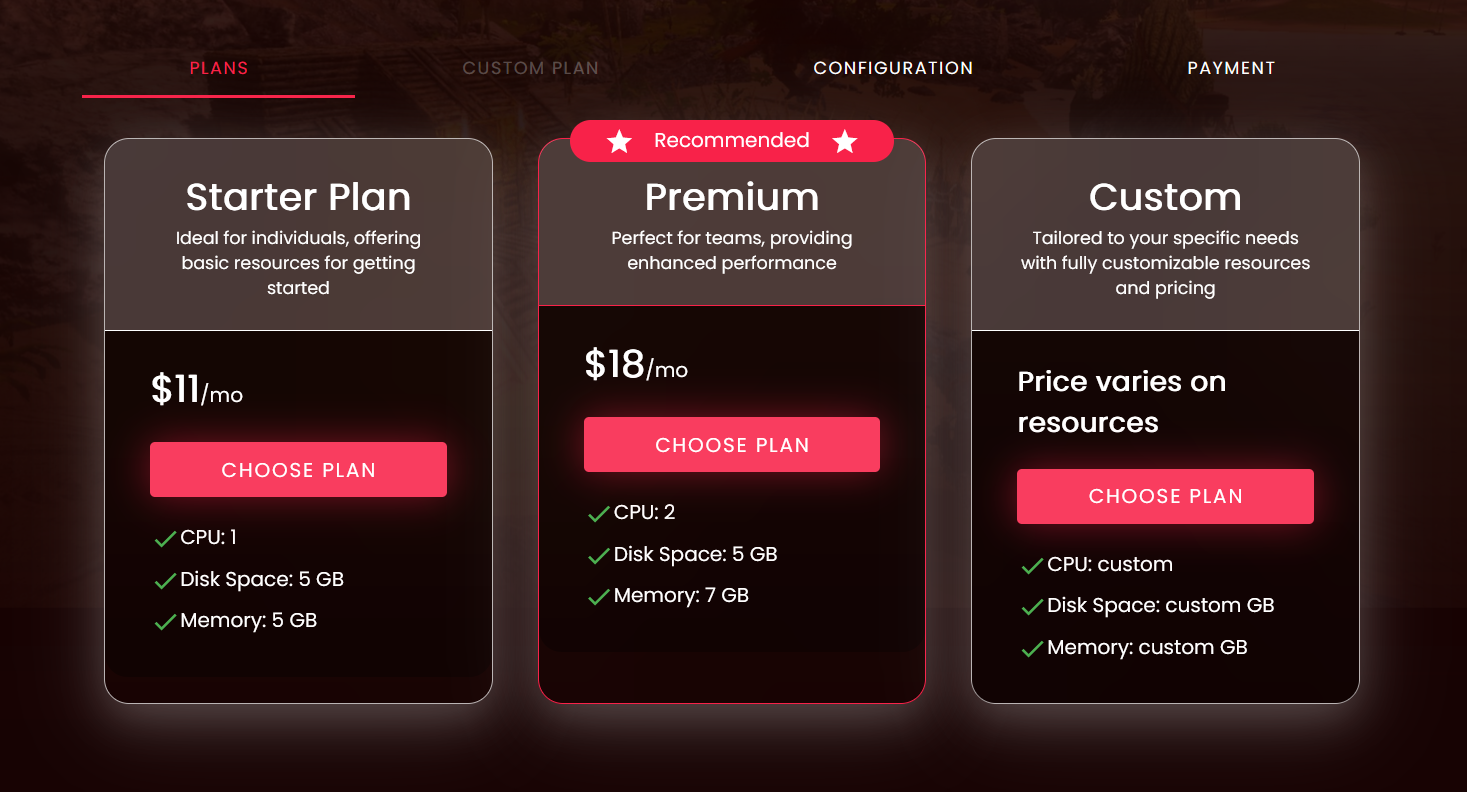
Choose a plan:
- Starter plan: for players who plan to enjoy the game solo.
- Premium plan: for players who plan to play with a team.
- Custom plan: for players who want a more personalized plan.
Configure your server:
Name your server

Configuration Settings
Setting Description Automatic Update Toggle on if you want your server to update on start Game Settings Preset Select from dropdown what game presets you want Game Difficulty Preset Select from dropdown the game difficulty for your server Server Name Set the name you would like to call your server Server Description Insert description that tells people about your server Max Connected Users Set the max number of users allowed to join your server Max Connected Admins Set the max number of admins allowed to be on your server at the same time Server Password Set the password needed to join the server Secure Server Toggle on to enable VAC protection on your server Save Name Set the save name for your server Auto Save Count Set how many autosaves will be kept Auto Save Interval Set how often the world will autosave in seconds [Advanced] Server FPS Set target FPS for your server [Advanced] Lower FPS When Empty Toggle on to lower FPS when no players are on your server [Advanced] Lower FPS When Empty Value Set the target FPS for when no players are on your server [Advanced] List On Epic Toggle on to list server on Epic [Advanced] List On Steam Toggle on to list server on Steam [RCON] Enable RCON Toggle on to enable RCON [RCON] RCON Password Set RCON password if RCON is enabled [Repair] Validate Server Files Toggle on to validate all server files on 

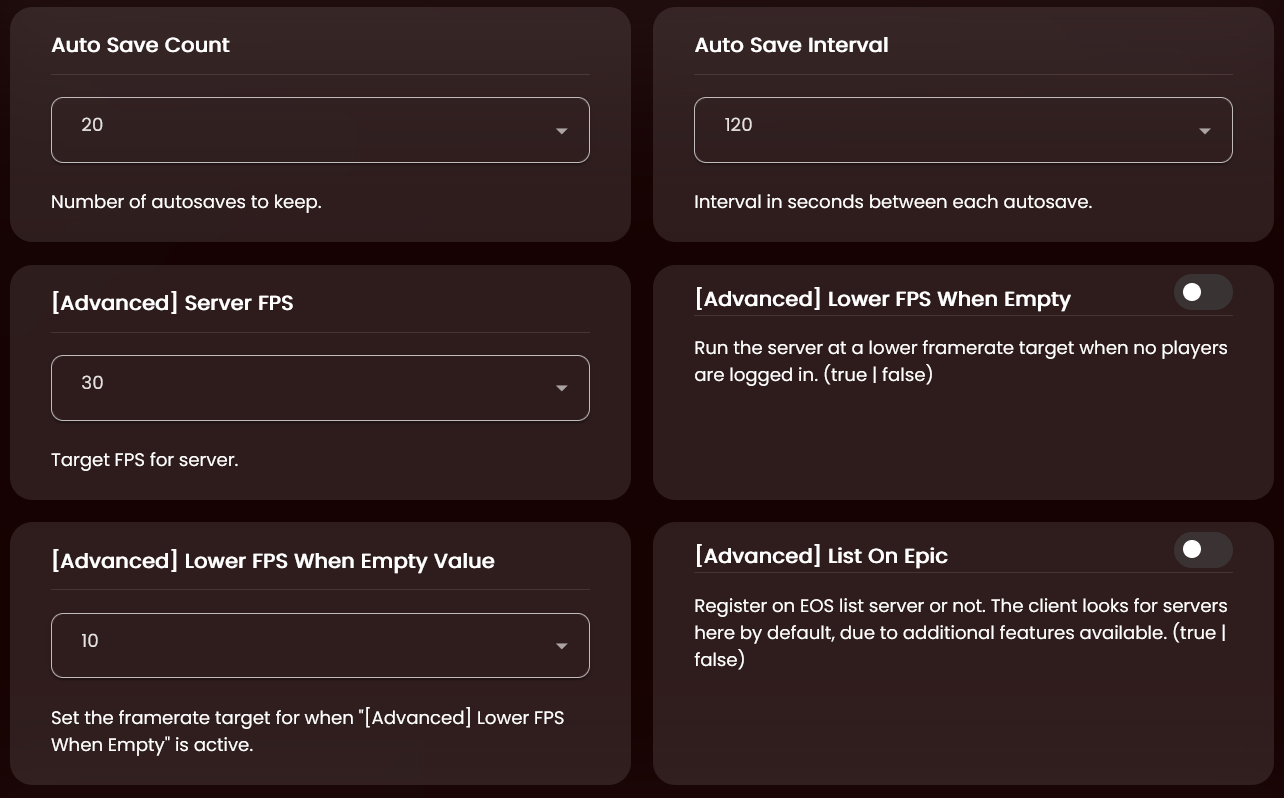
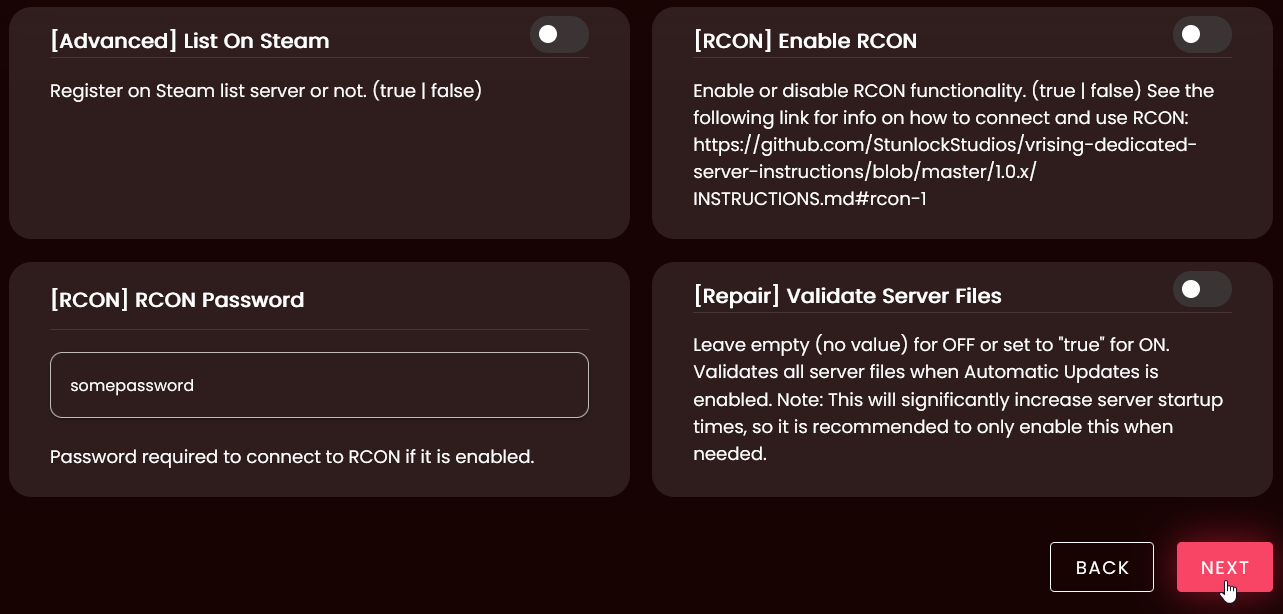
Once your settings are to your liking, don’t worry you can change it later, press the “Next” button.
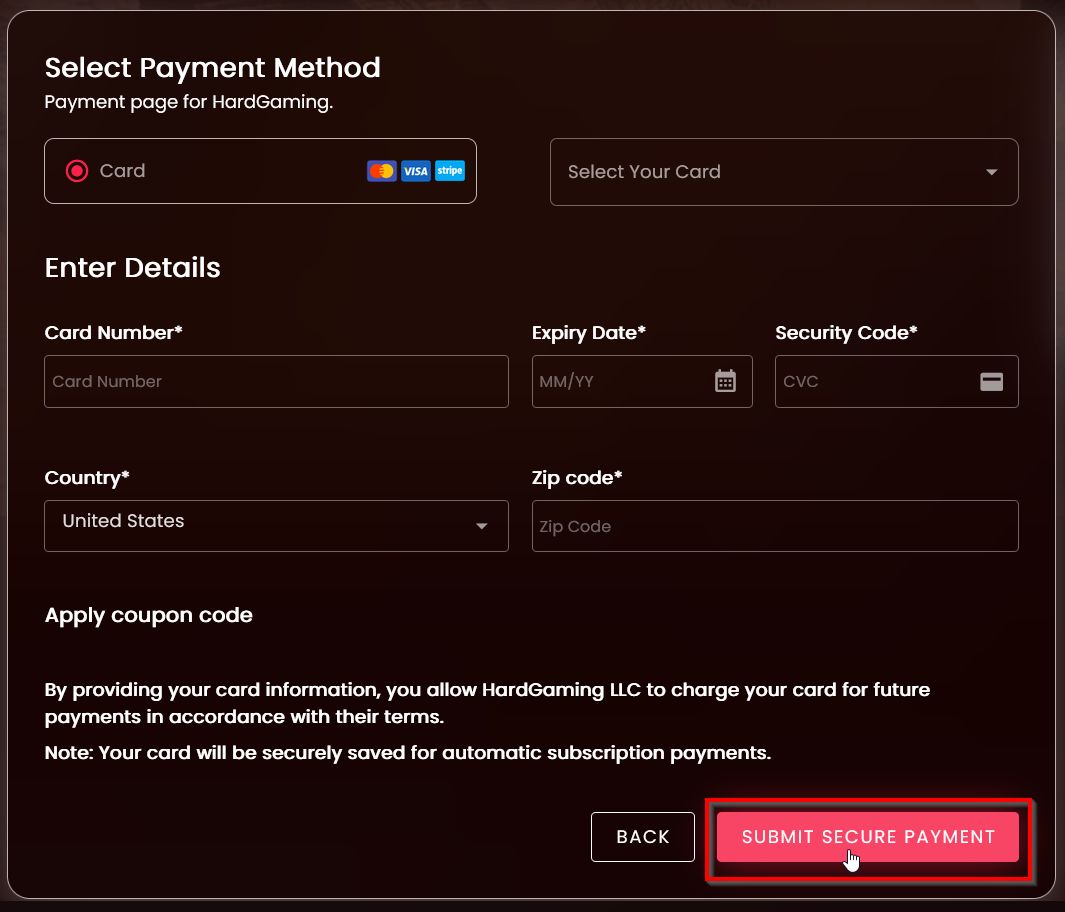
Select Payment Method
Enter new payment method
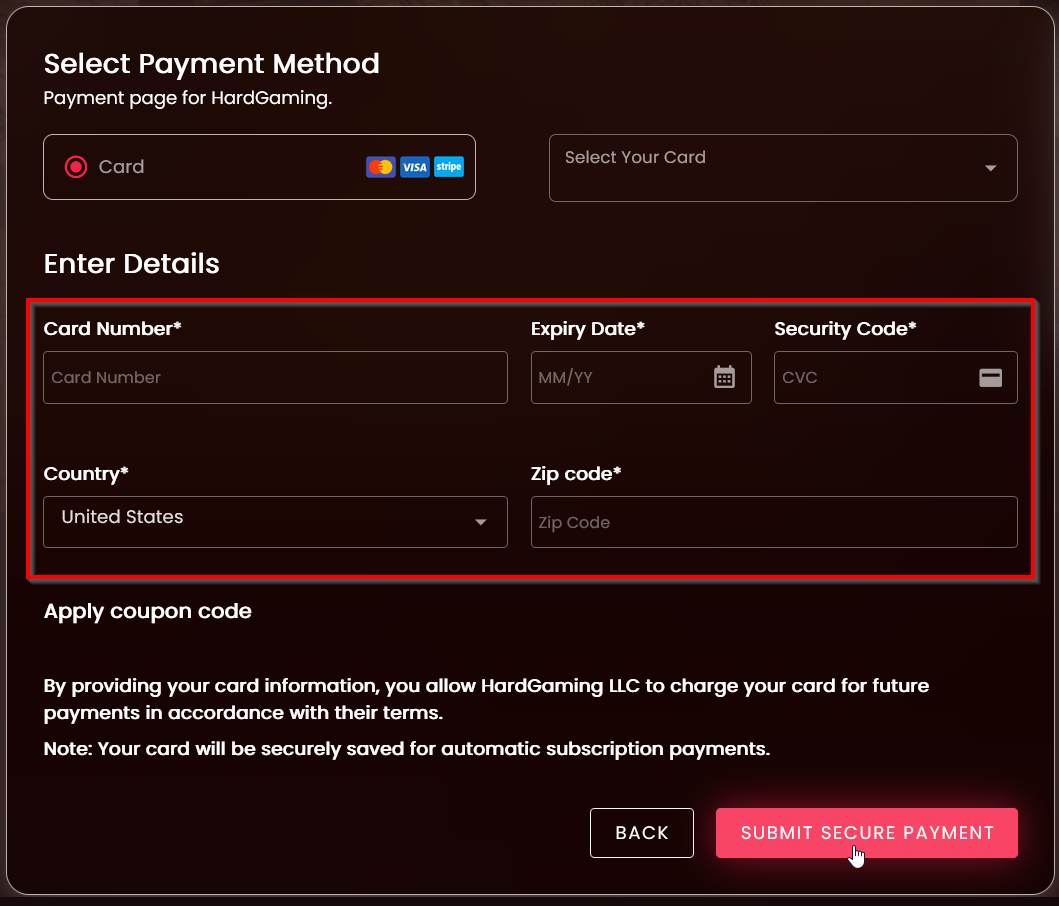
Or select your previous card payment

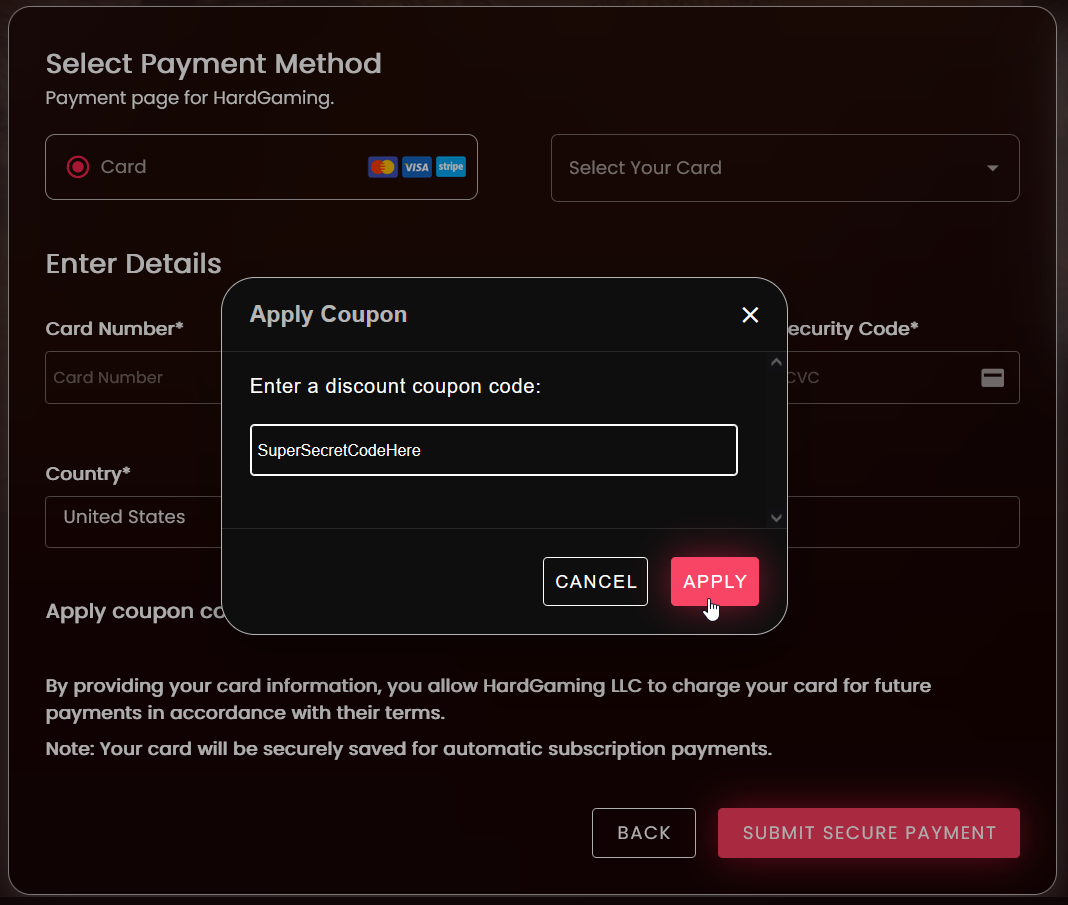
If you have coupon add it before you submit secure payment, select “Apply Coupon Code” and then type in the coupon and select “Submit” to apply
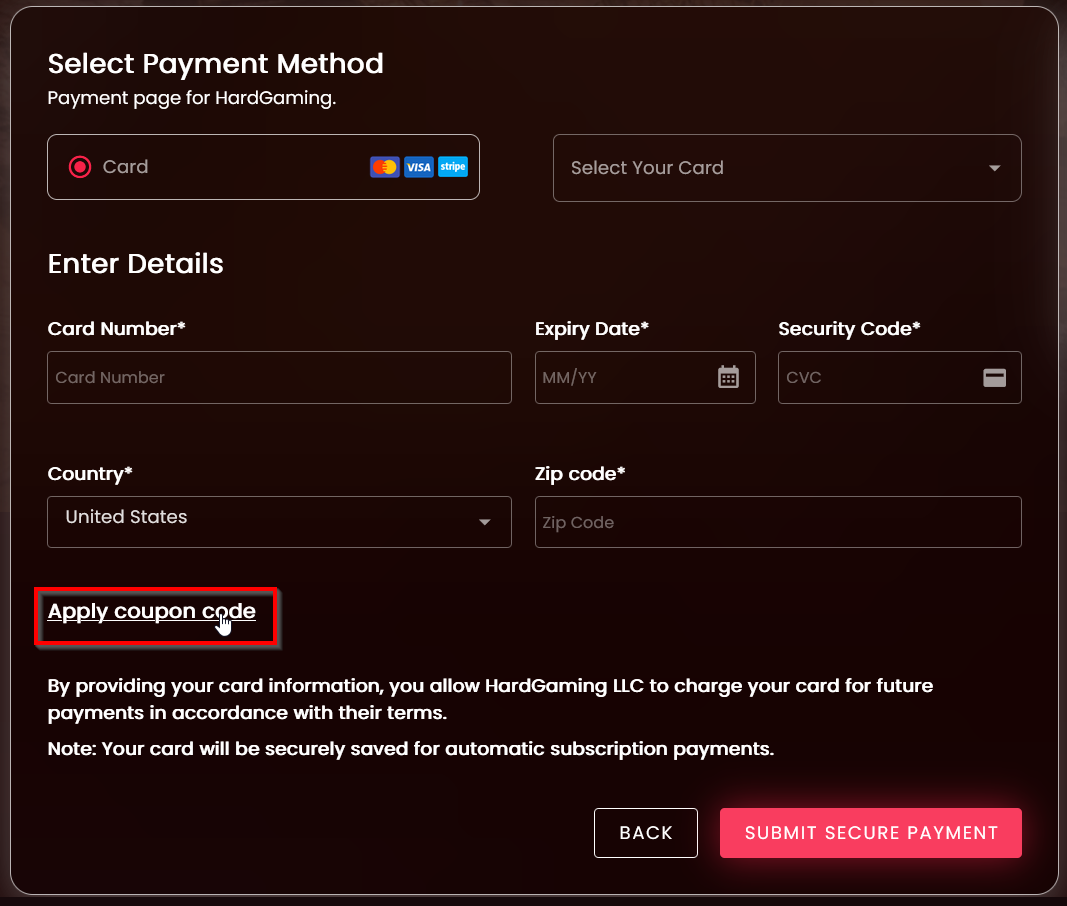
Once card information is filled in select “Submit Secure Payment”