How to Use DeepSave
What is DeepSave?
DeepSave is a permanent backup storage feature that allows you to preserve important server backups indefinitely. Unlike standard server backups, DeepSaves persist even after a server is cancelled or deleted, ensuring your critical data remains accessible.
DeepSave vs. Regular Backups
Understanding the difference between DeepSave and regular server backups:
Regular Server Backups:
- Maximum of 3 backups per server
- Automatically deleted when the server is canceled
- Tied to the active server lifecycle
DeepSave:
- Maximum of 2 DeepSave slots per server
- Persist permanently, even after server cancellation
- Only deleted if your account is deleted
- Maximum size of 200MB per DeepSave
Creating a DeepSave
DeepSaves can only be created from existing server backups. Follow these steps to send a backup to DeepSave:
- Navigate to your Dashboard
Select the server you want to create a DeepSave for
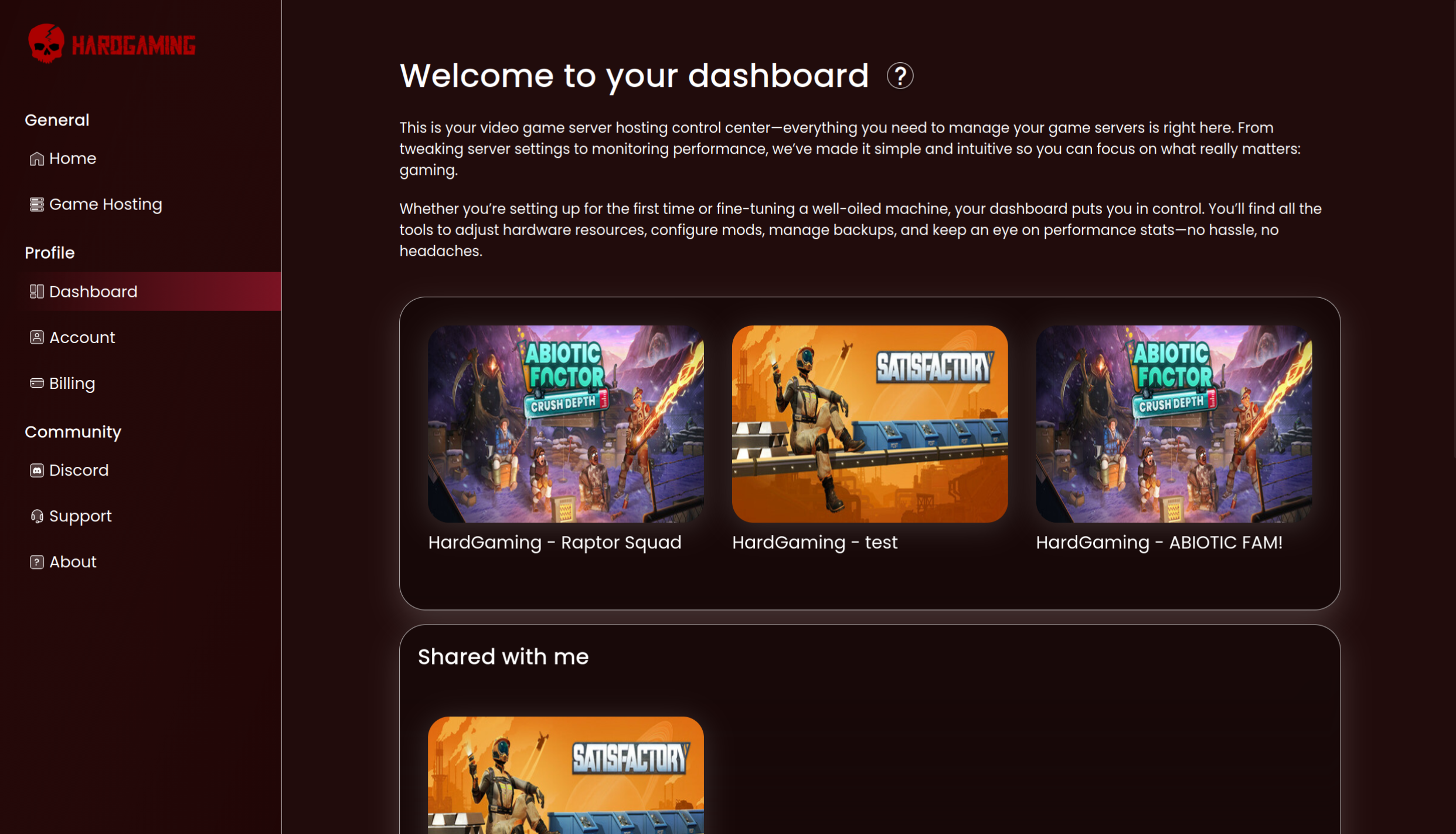 Your server dashboard showing available servers
- Click on Backups in the server menu
Locate the backup you want to preserve
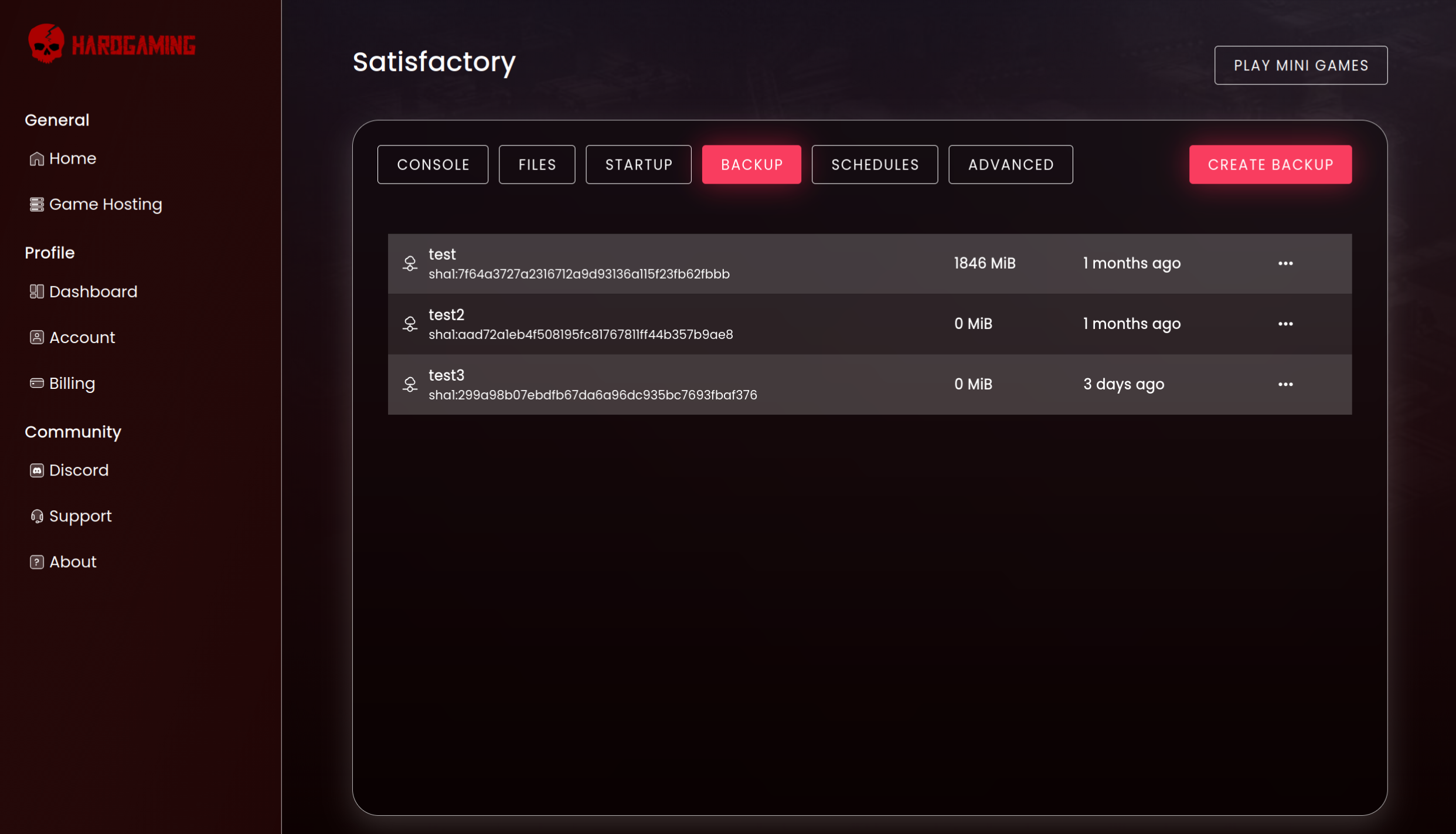 The backups page showing your server’s backup history
- Click the “…“ (three dots) menu next to the backup
Select “DeepSave”
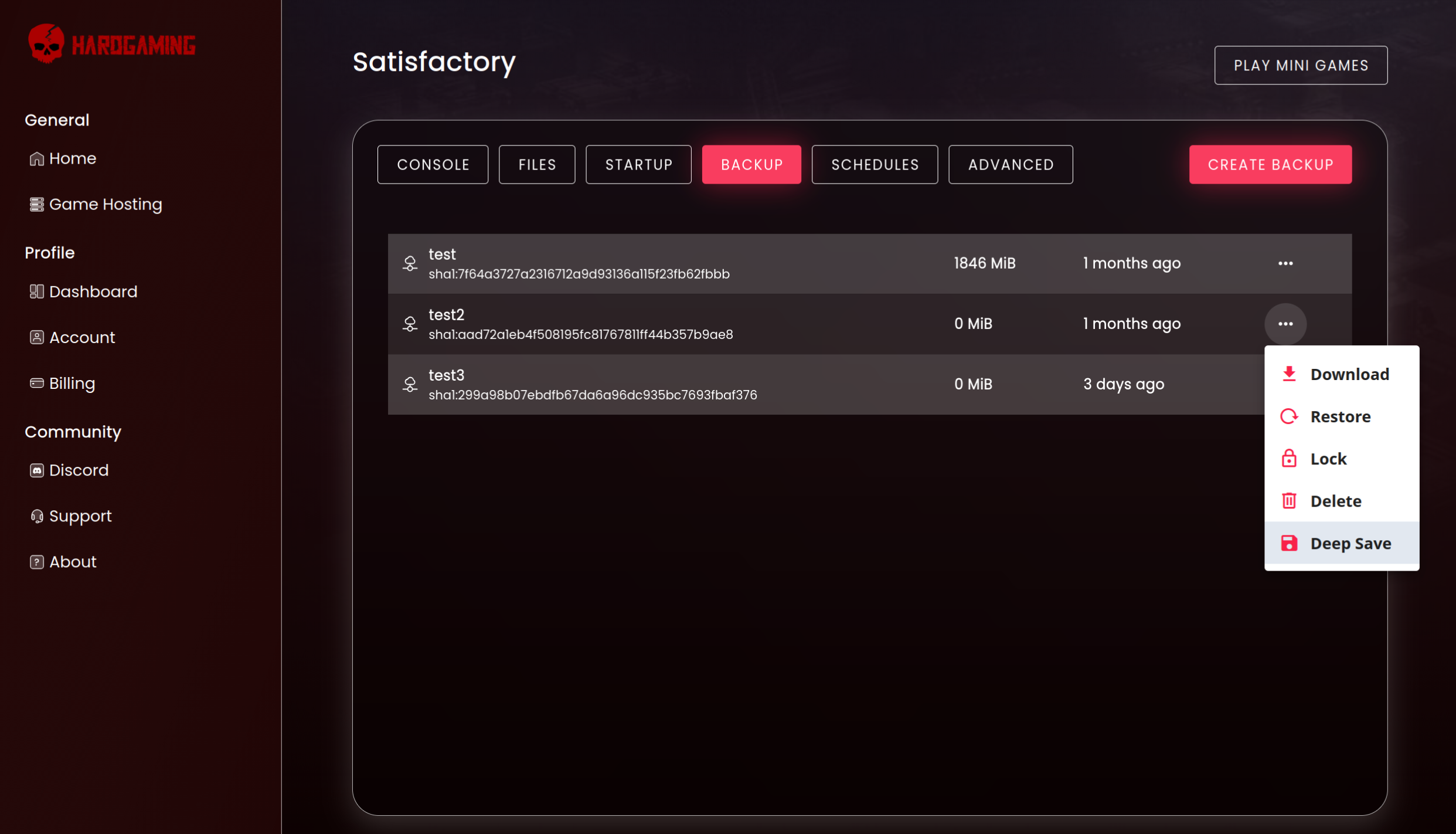 The backup options menu with DeepSave option
Your backup will be transferred to a DeepSave slot and will be preserved permanently.
Managing Your DeepSaves
Viewing DeepSaves
To view all your DeepSaves:
- Navigate to your Account page
- Scroll down to the DeepSave section
- All your DeepSaves will be listed here
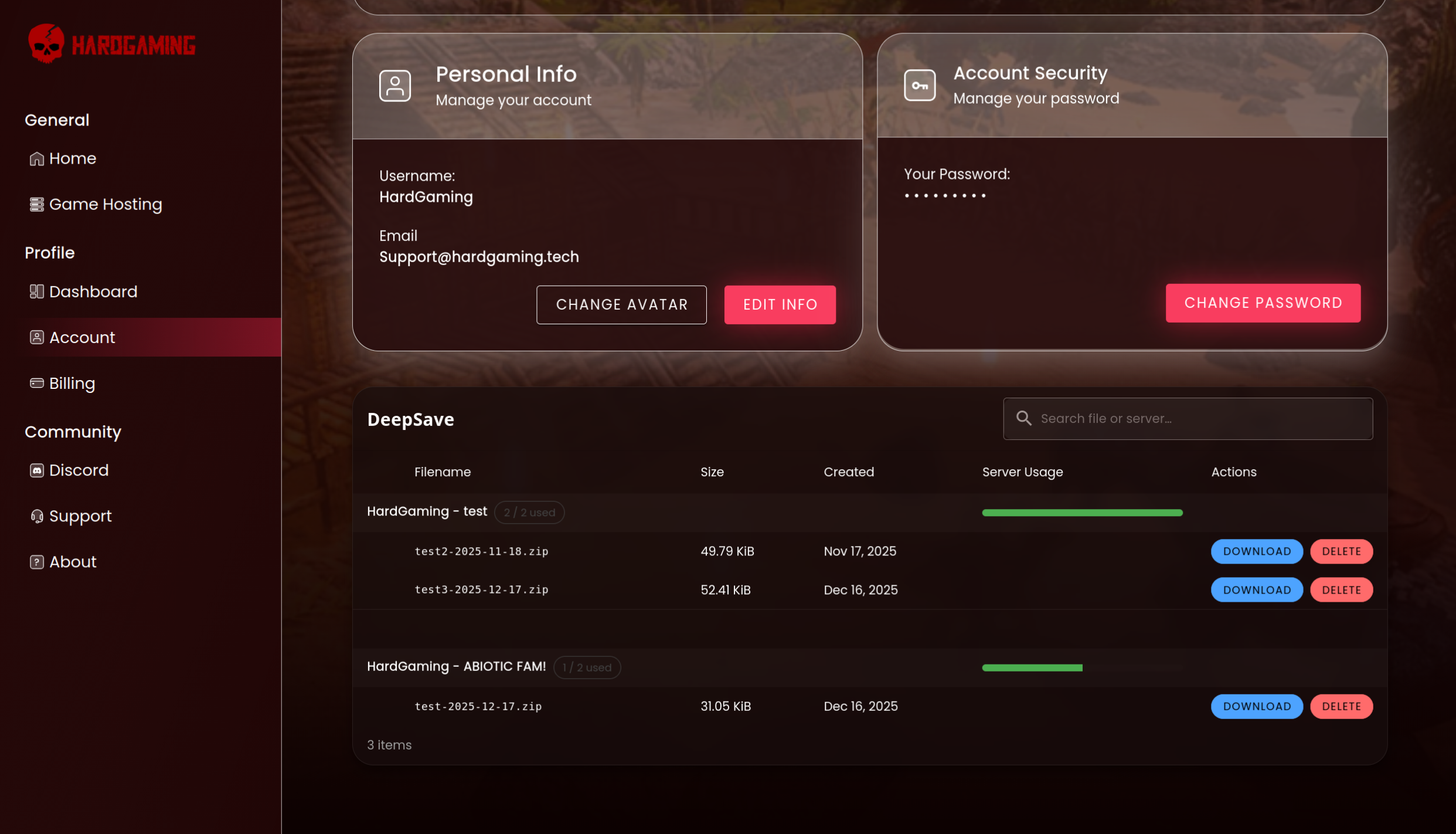 The DeepSave section in your account settings showing all saved backups
Deleting a DeepSave
If you need to free up a DeepSave slot or update an existing DeepSave:
- Navigate to your Account page
- Scroll down to the DeepSave section
- Find the DeepSave you want to delete
- Click the Delete button on the right side of the entry
- Confirm the deletion
Once deleted, the DeepSave slot becomes available again for that same server, assuming the original server is still active.
Restoring from DeepSave
DeepSave does not offer an automatic restore function. To restore data from a DeepSave:
- Navigate to your Account page and locate the DeepSave
- Download the DeepSave file (it will be in ZIP format)
- Extract the ZIP file on your local computer
- Manually upload the extracted files to your server
Important Limitations
DeepSave Slot Allocation
- Each server is allocated 2 DeepSave slots maximum
- Slots are tied to the specific server they were created from
- Unused slots do not carry over: If you only use 1 of 2 available DeepSave slots and then cancel the server, the unused slot is permanently lost
- Once a server is canceled and deleted, you cannot add new DeepSaves to that server’s slots
Size and Compatibility
- Each DeepSave has a maximum size of 200MB
- DeepSaves can only be created from server backups
- Shared servers cannot send backups to DeepSave
Account Requirements
- DeepSave is a complimentary feature included with all server purchases
- DeepSaves are only deleted if your entire account is deleted
Best Practices
- Use DeepSave for critical server configurations or important milestones
- DeepSave prior to canceling any server to ensure your game save is safe
- Create DeepSaves before major server changes or updates
- Utilize both DeepSave slots per server before cancelling to maximize preservation
- Regularly review your DeepSaves to ensure you’re storing the most relevant data
- Keep local copies of DeepSaves for additional redundancy
Frequently Asked Questions
Can I restore a DeepSave to a different server?
DeepSaves must be manually restored, so you can upload the extracted files to any server. However, compatibility depends on your server configuration and the backup contents.
What happens to my DeepSaves if I cancel my server?
DeepSaves persist indefinitely even after server cancellation. You can access and download them at any time from your Account page.
Can I update an existing DeepSave?
Yes, simply delete the existing DeepSave to free up the slot, then create a new DeepSave from your current backup.
Why can’t I create a DeepSave from my shared server?
Shared servers do not support backup-to-DeepSave functionality due to server architecture limitations.